Leertrajecten, Playlist or Reflecteam, they just a interface of a Learning path have many lesson format for users to study. Here’s an overview of how to create a new one and use it.
1 How to create a new Leertrajecten/Playlist/Reflecteam
Login with your administration account. Click on Leertrajecten/Playlist/Reflecteam.
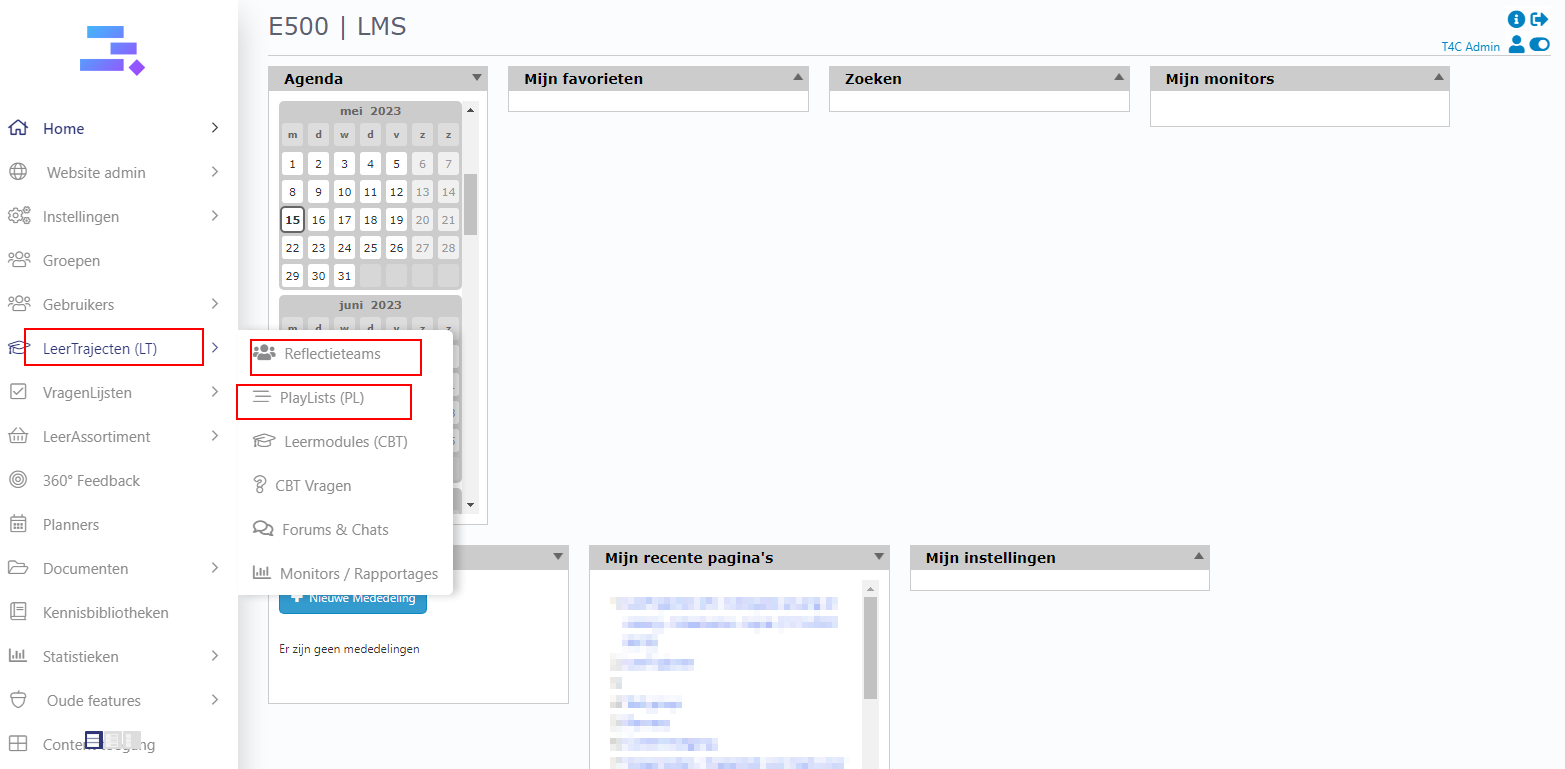
Example create a new Leertraject: Click on Nieuw Leertrajecten to create a new Leertraject.

Fill in the necessary information in the Eigenschappen(information will appear in back-end)tab and in the Teksten(information will appear in front-end) tab. Then, click on Opslaan button to save. The new Learning Path (Leertraject) has been created.

2 How to change the interface of leertraject/Playlist/Reflecteam
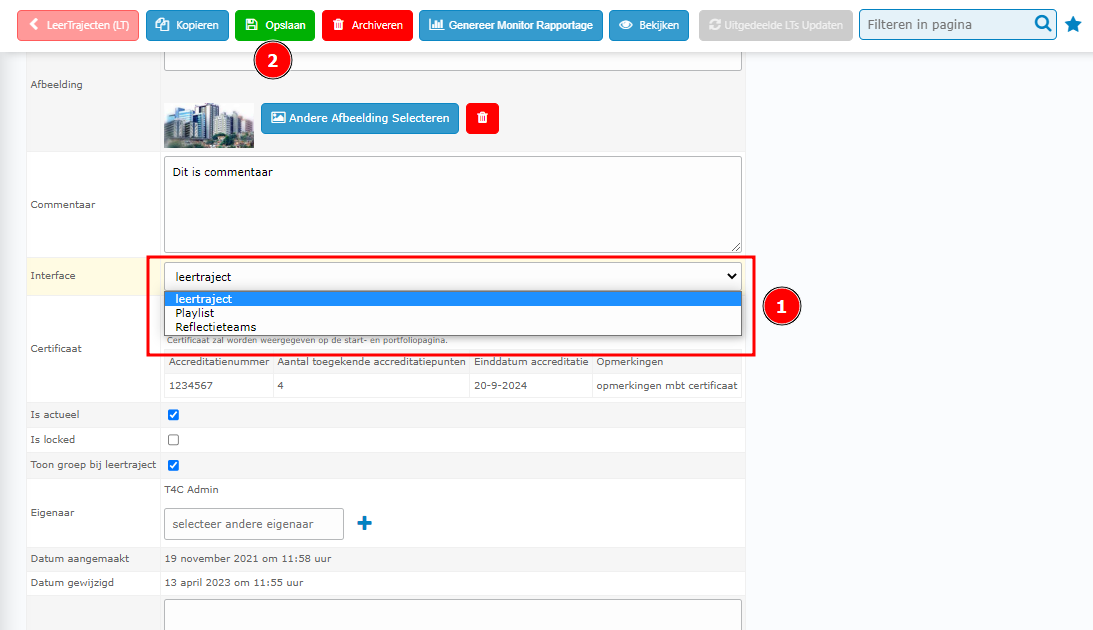
In the detail page of the Leertraject/Playlist/Reflecteam. Click on the select box interface to change interface for the Leertraject. Then, click on Opslaan to save.
3 How to add elements for a Leertraject/Playlist/Reflecteam
After you made a new Learning Path (Leertraject/Playlist/Reflecteam), you can add elements to it by the following steps:
In the detail page of Leertraject/Playlist/Reflecteam. Go to the Leertrajecten elementen tab and click on Kies een leerelement om toe te voegen to choose a learning element.
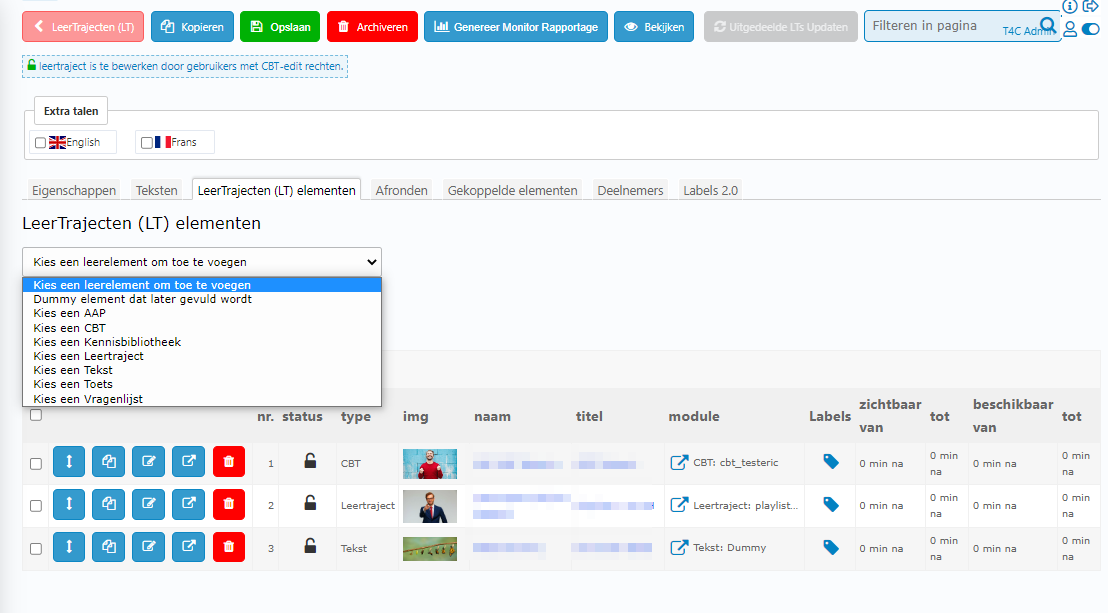
Next, click on beschikbare mogelijkheden to choose available content for the Leertraject/Playlist/Reflecteam.
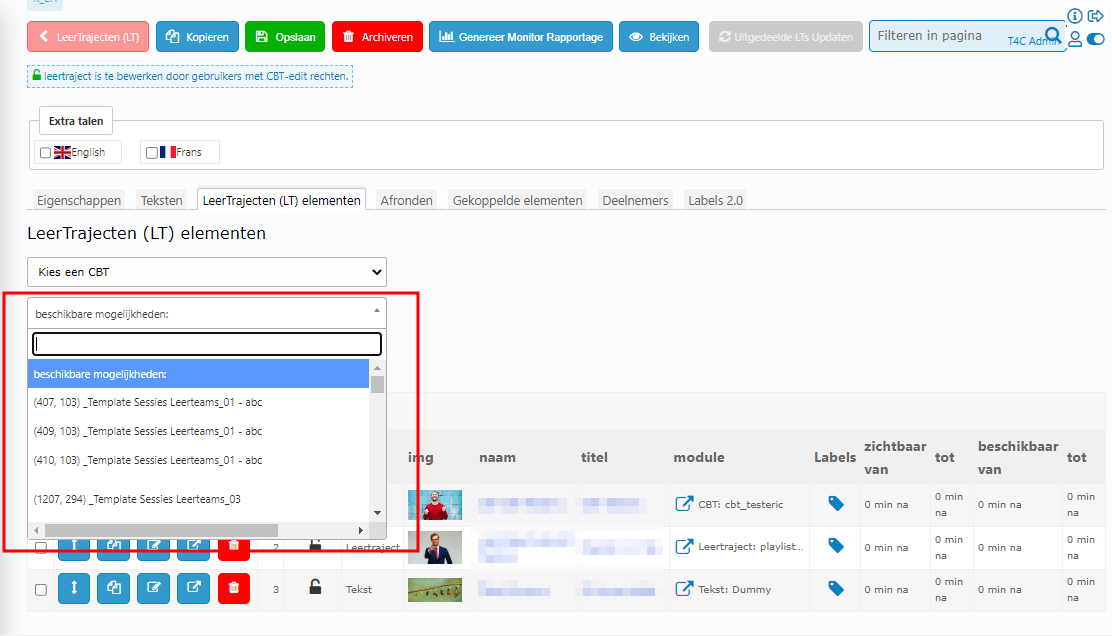
Tada, the new element has been added to the Leertraject/Playlist/Reflecteam. You can add more and more elements by clicking on Kies een leerelement om toe te voegen again and choosing other learning elements.
4 How to share a Leertrajecten/Playlist/Reflecteam for users
There are two ways to share a Leertrajecten to users:
A. Share Leertraject/Playlist/Reflecteam directly to users
Go to Gebruikers page. And choose the users who you want to share a Leertrajecten/Playlist/Reflecteam for.

Go to Content tab. Scroll down to block Leertrajecten/Playlist/Reflecteam, click on kies een leertraject … to choose a Leertrajecten which you want to share for the user.
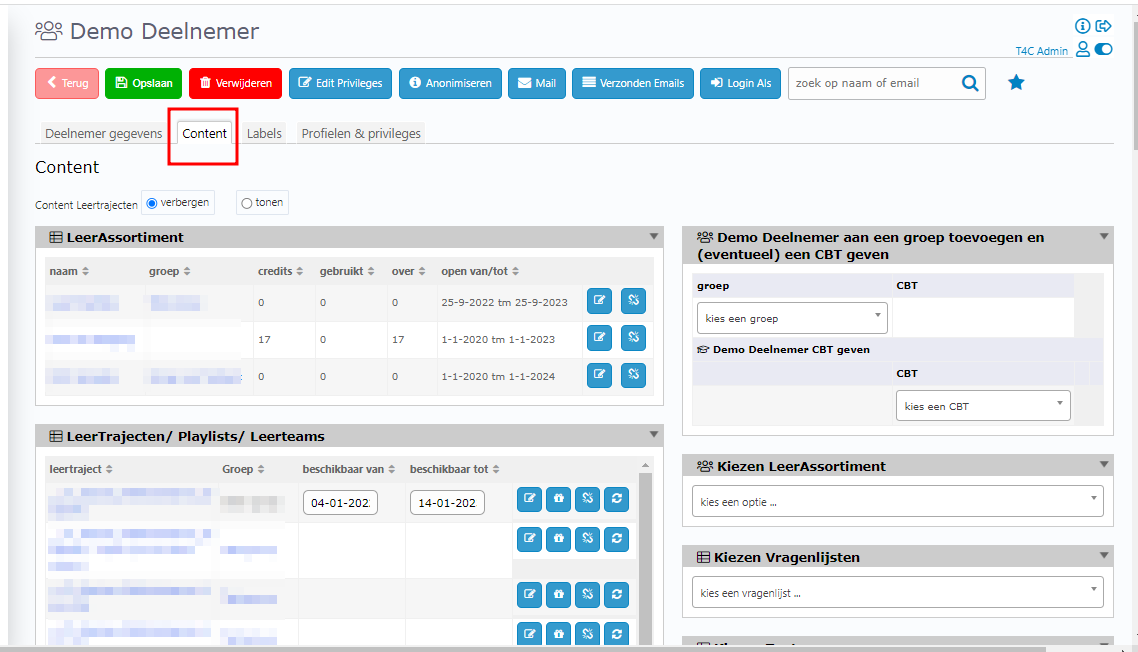

After choosed the Leertrajecten/Playlist/Reflecteam. You can date for it. If not, it won’t be overdue.

It is done. You can click on Login Als to login as the user and see the leertrajecten/Playlist/Reflecteam block that you just added for the user in his/her homepage!

B. Share Leertraject/Playlist/Reflecteam for all users in a group
Go to list of group and choose the group which you want to share Leertraject/Playlist/Reflecteam for all users in it.
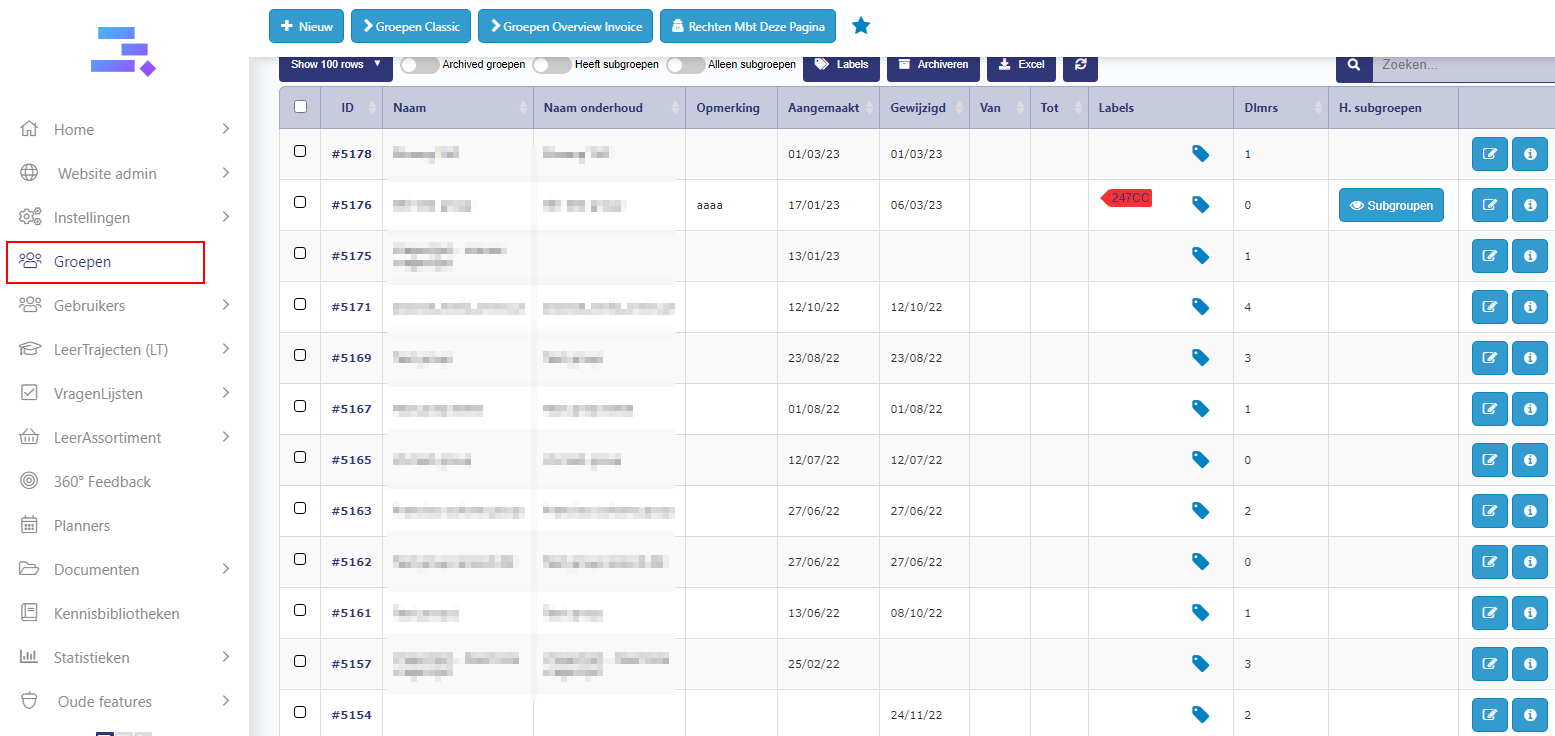
In the detail page of group, go to Content tab. At Leertraject block, click on Leertraject toevoegen to select a Leertraject/Playlist/Reflecteam for this group.
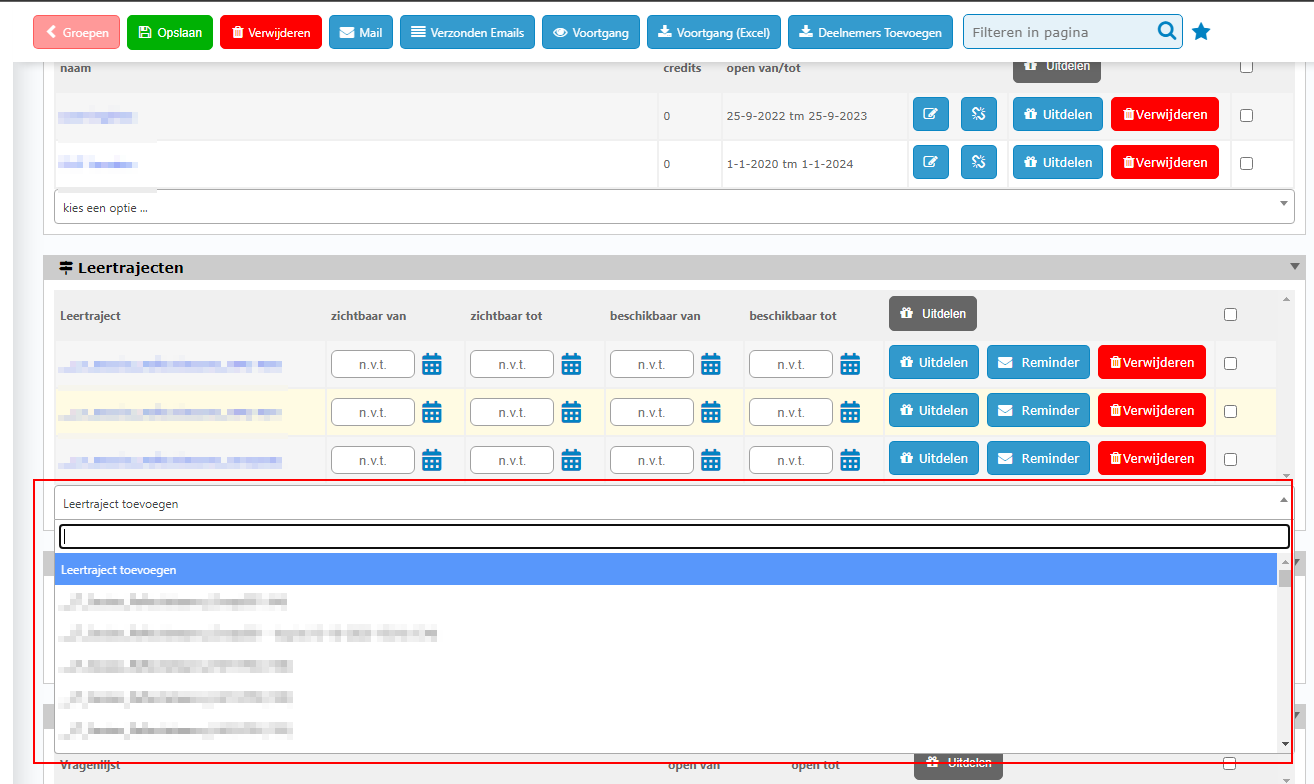
After selected, you can add date for it. If not it won’t be overdue.
The Leertraject/Playlist/Reflecteam are shared for this group but still not reach the users. Click on Uitdelen button to handout it for all users in this group.

5 How to set conditions to complete a Leertrajecten/Playlist/Reflecteam
We have some options to complete a Leertraject/Playlist/Reflecteam. To use it, go to Afronden tab of the detail page of Leertraject/Playlist/Reflecteam.
At the select box kies een voorwaarde voor afronden, you’ll see 4 options.
- alle elementen afgerond – This Leertraject/Playlist/Reflecteam only complete when all elements are complete.
- totaal score – After select this one, enter a passing scores at evt score input. It’s mean the total scores of this Leertraject/Playlist/Reflecteam must be > or = the passing scores. Each element must reach a certain percentage of completion.
- specifiek element afgerond – After select this one, continue select the specific element at the selectbox kies evt een leerelement in dit traject. It’s mean when you complete the specific element, this Leertraject/Playlist/Reflecteam also completed.
- specifiek element score – After select this one, continue select the specific element at the selectbox kies evt een leerelement in dit traject. Then, enter a passing scores at evt score input. It’s mean when the total scores of the specific element > or = the passing scores. This Leertraject/Playlist/Reflecteam can completed.
After set up conditions to complete this Leertraject. Click Toevoegen button to save.
6 How to get option redo a vragenlist element in Leertraject
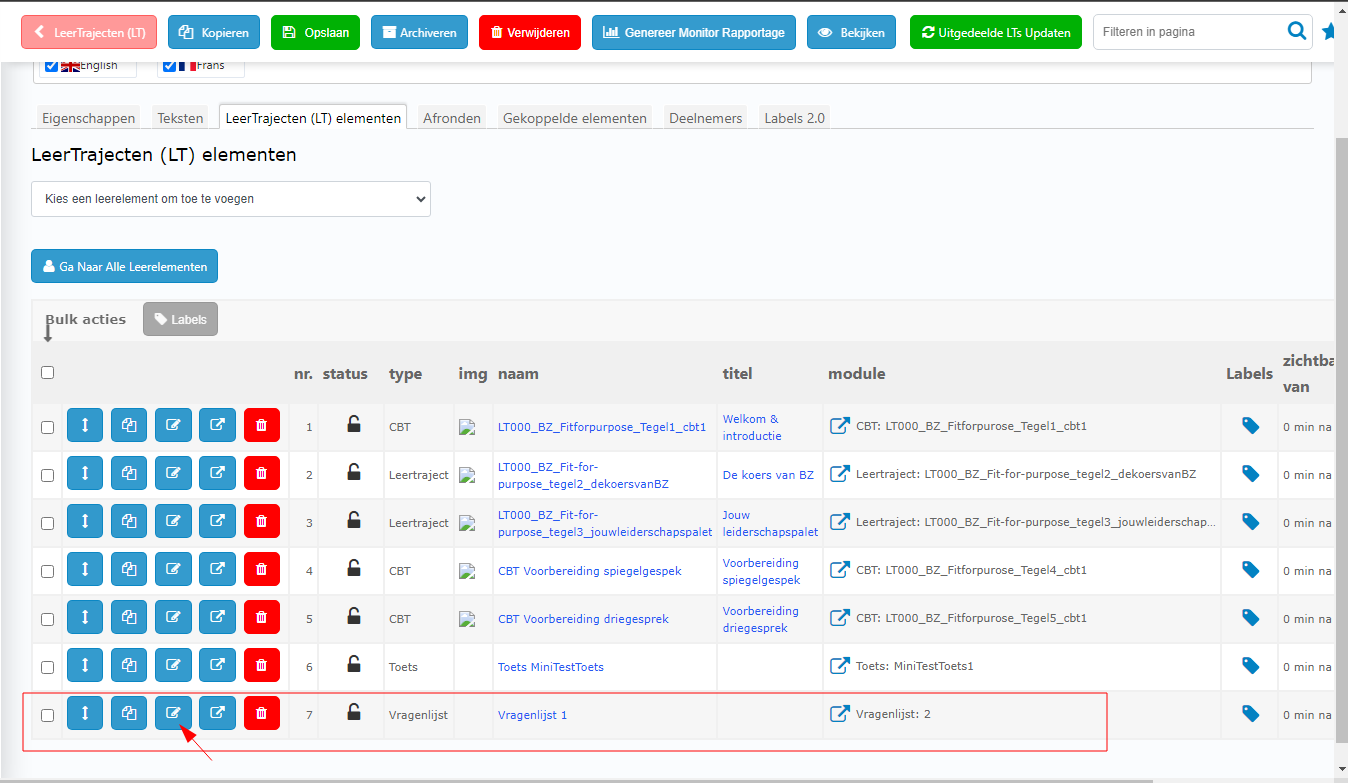
In Leertraject elementen tab, click on Edit icon by left side of the vragenlist.
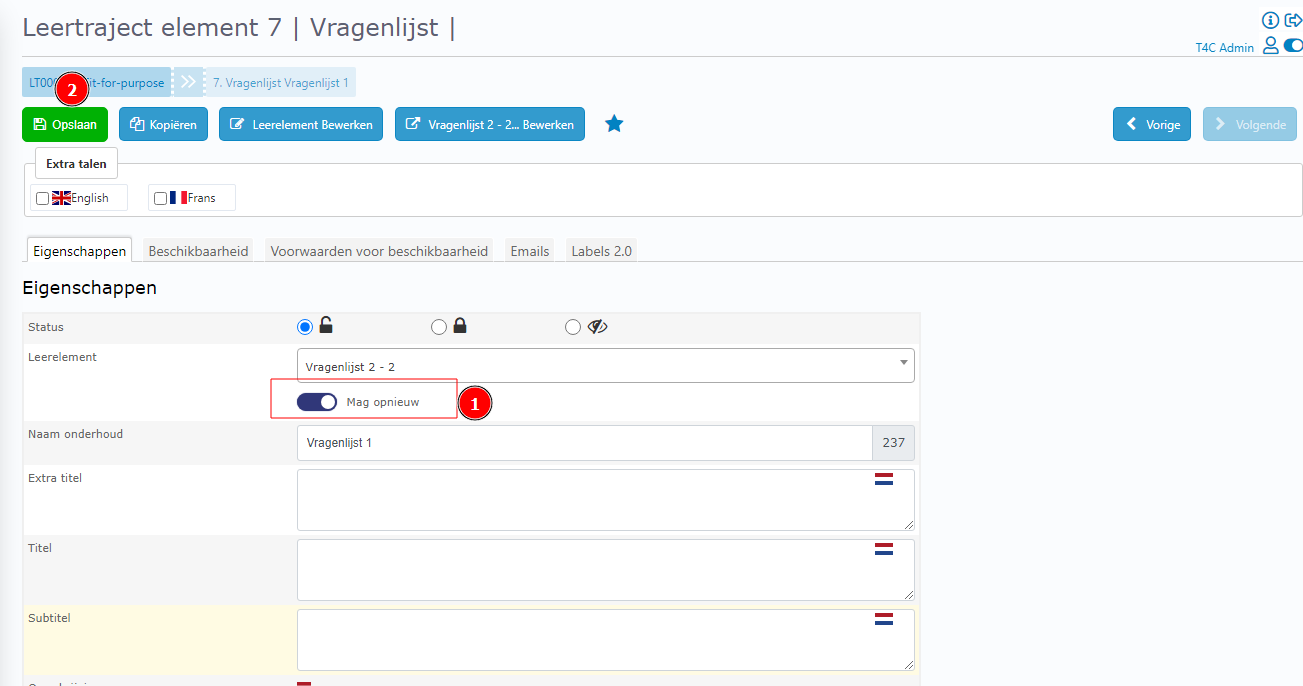
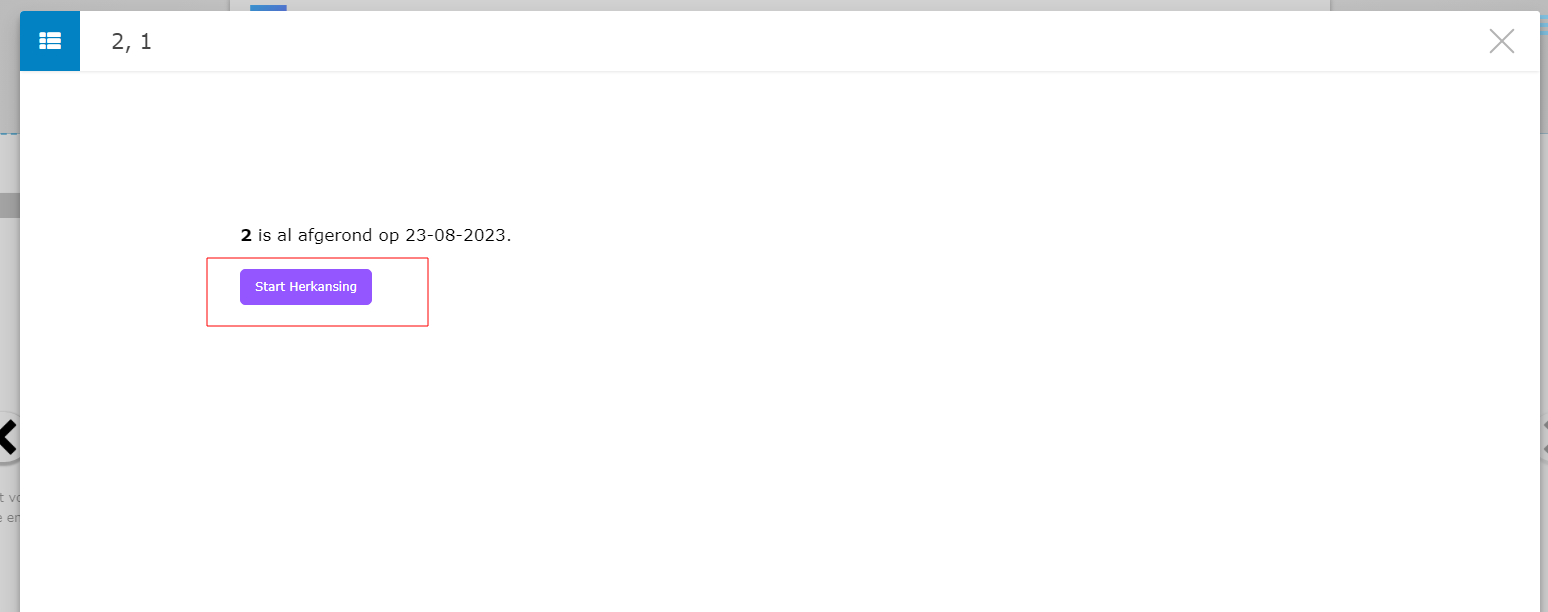
Switch on Mag opnieuw button and click Opslaan button to save.
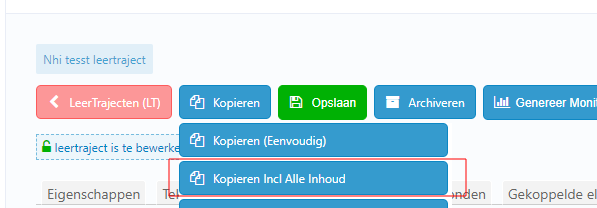
7 How many ways to copy a LeerTraject?