A. Adding a label available to a course
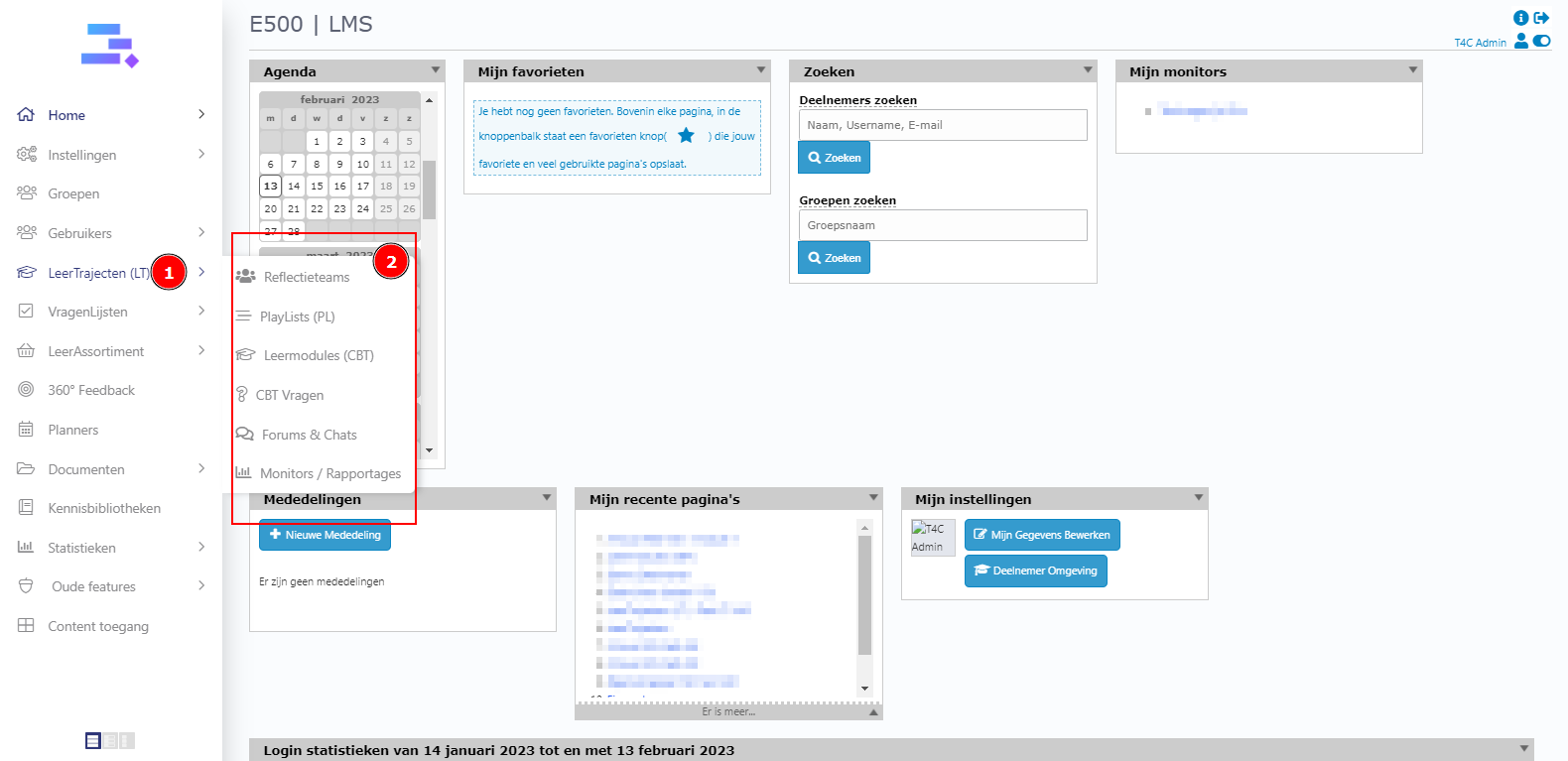
1. Login with your administration account. Hover into Leertrajecten and choose the module with a course where you want to add a label to.
2. On the right of any course, there is a blue tag icon. Click it to add a label available to the course.

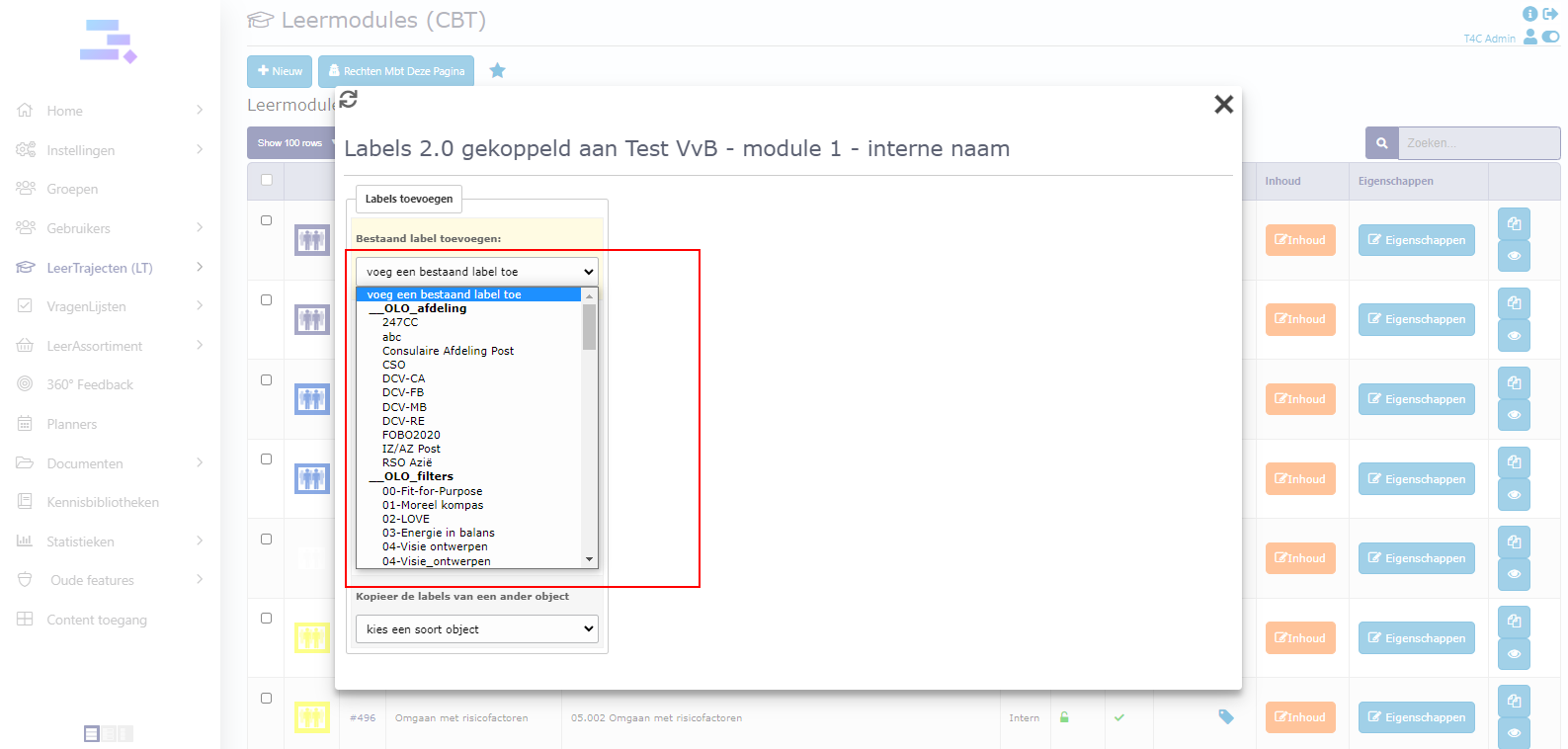
3. Click voeg een bestaand label toe and choose a label available for the course. After click on any label, it will be auto choosed

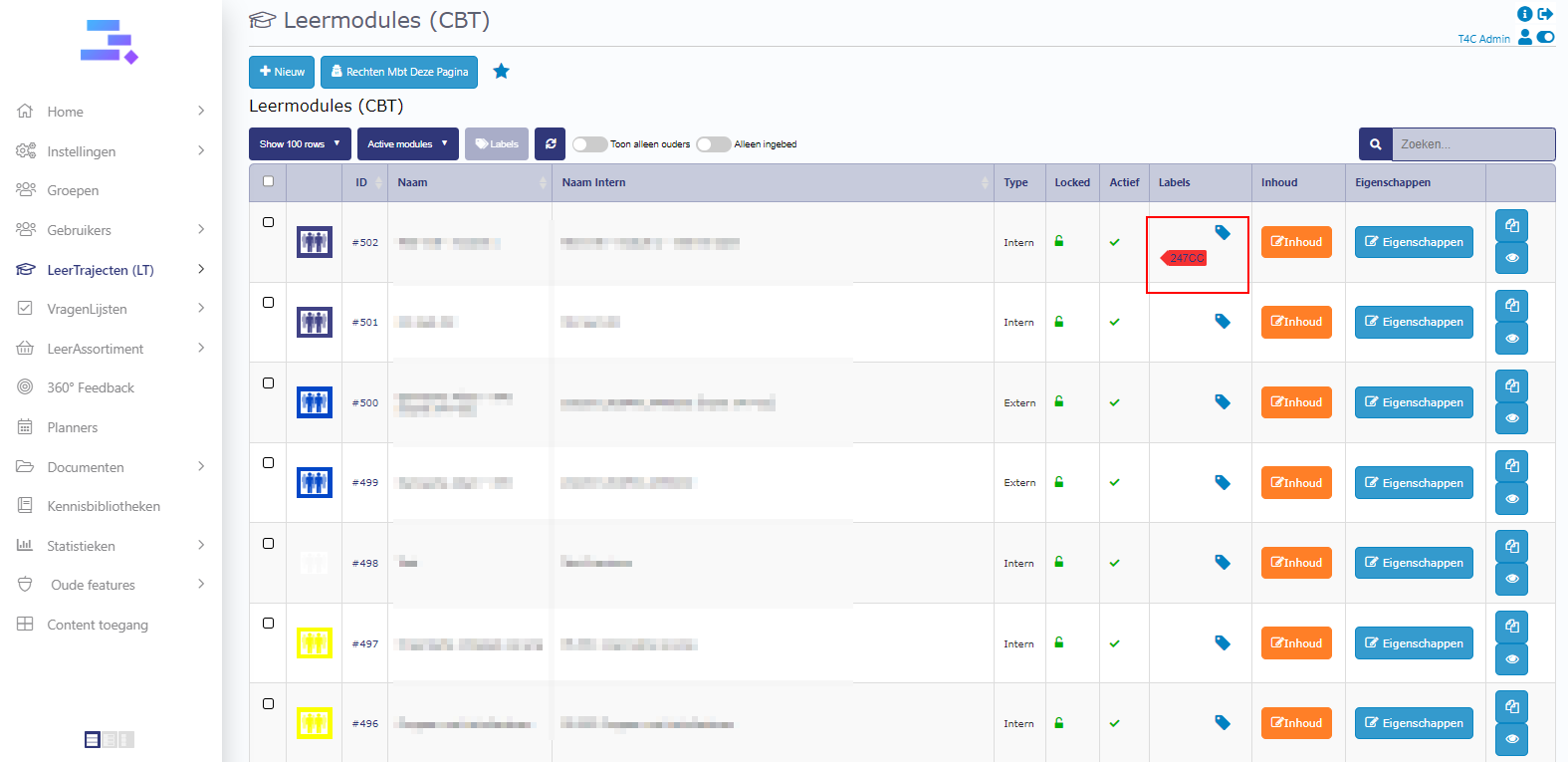
4. Close the popup and reload this page. Then, you can see the label is added to the course!
B. Change the label available for the course
1. Click the blue tag icon on the right of the course where you want to change the current label.
2. Hover into the label. The recycle bin icon will appear. Click it to delete the current label.

3. After you deleted the current label, add a new label available for the course with the steps that were done in section A!
Good luck !!