How to create a new Aanmeldpagina’s
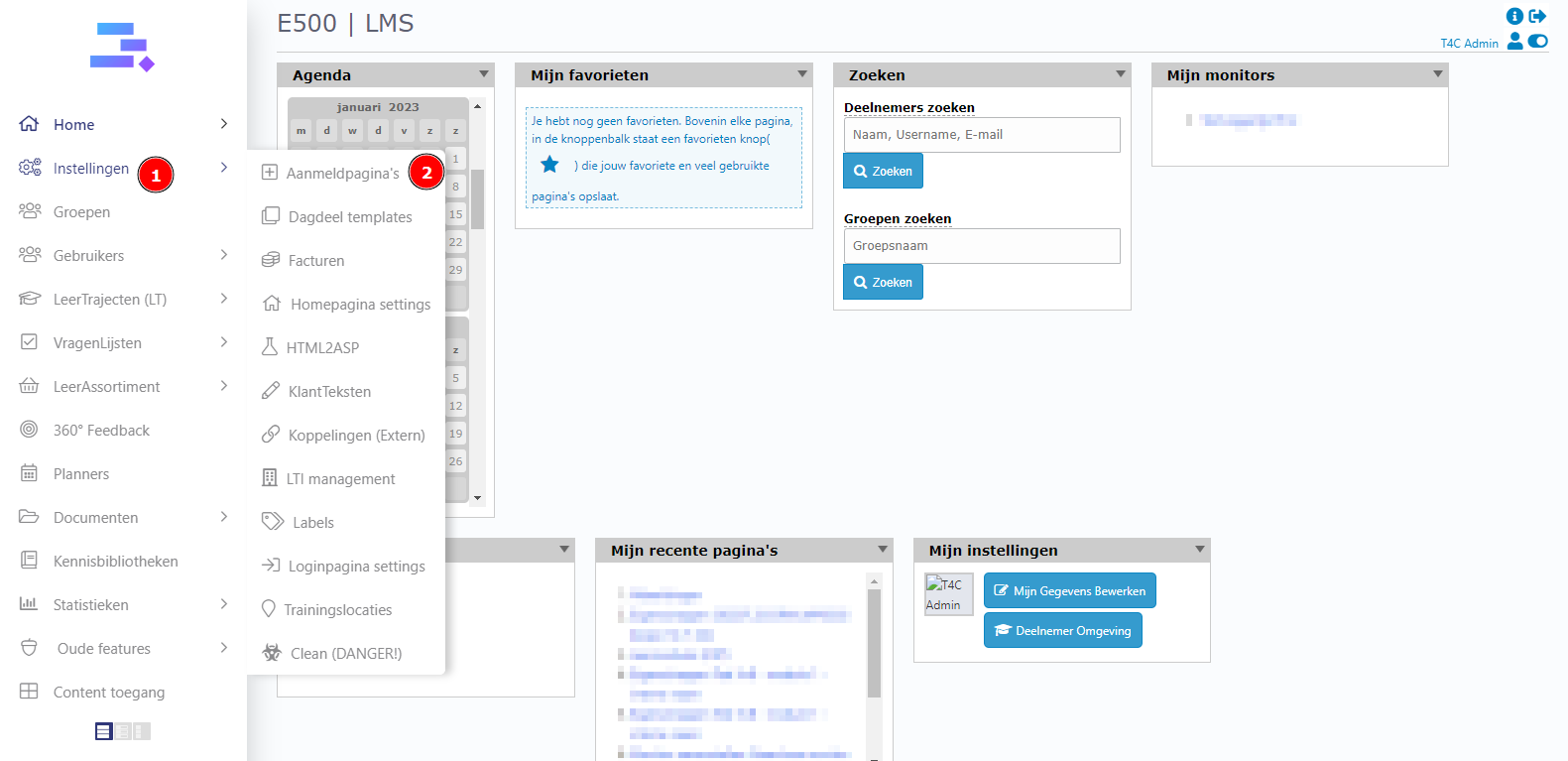
- Login with your administration account. Hover into Instelligen and click on Aanmeldpagina’s
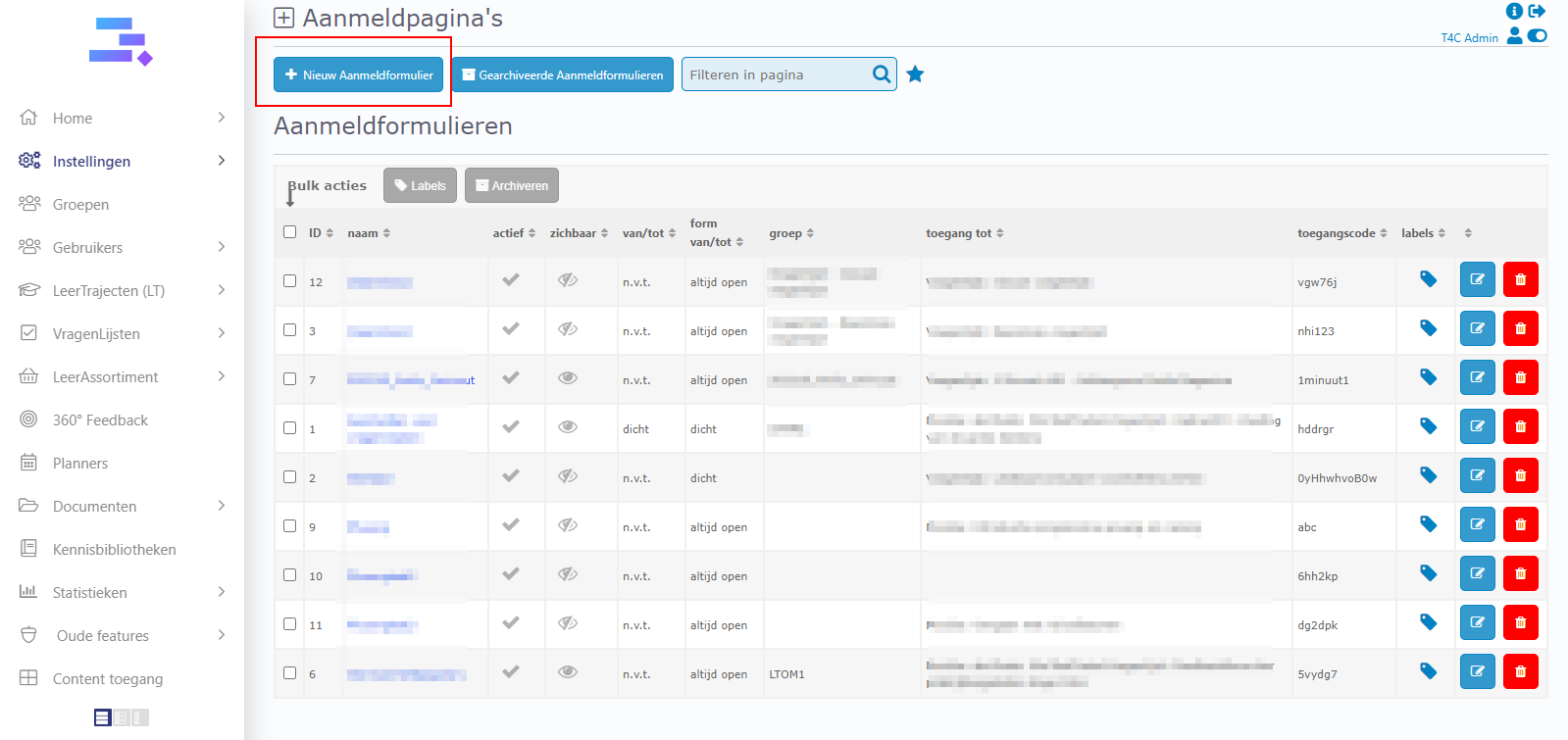
2. On the top left, click on + Niew Aanmeldformulier
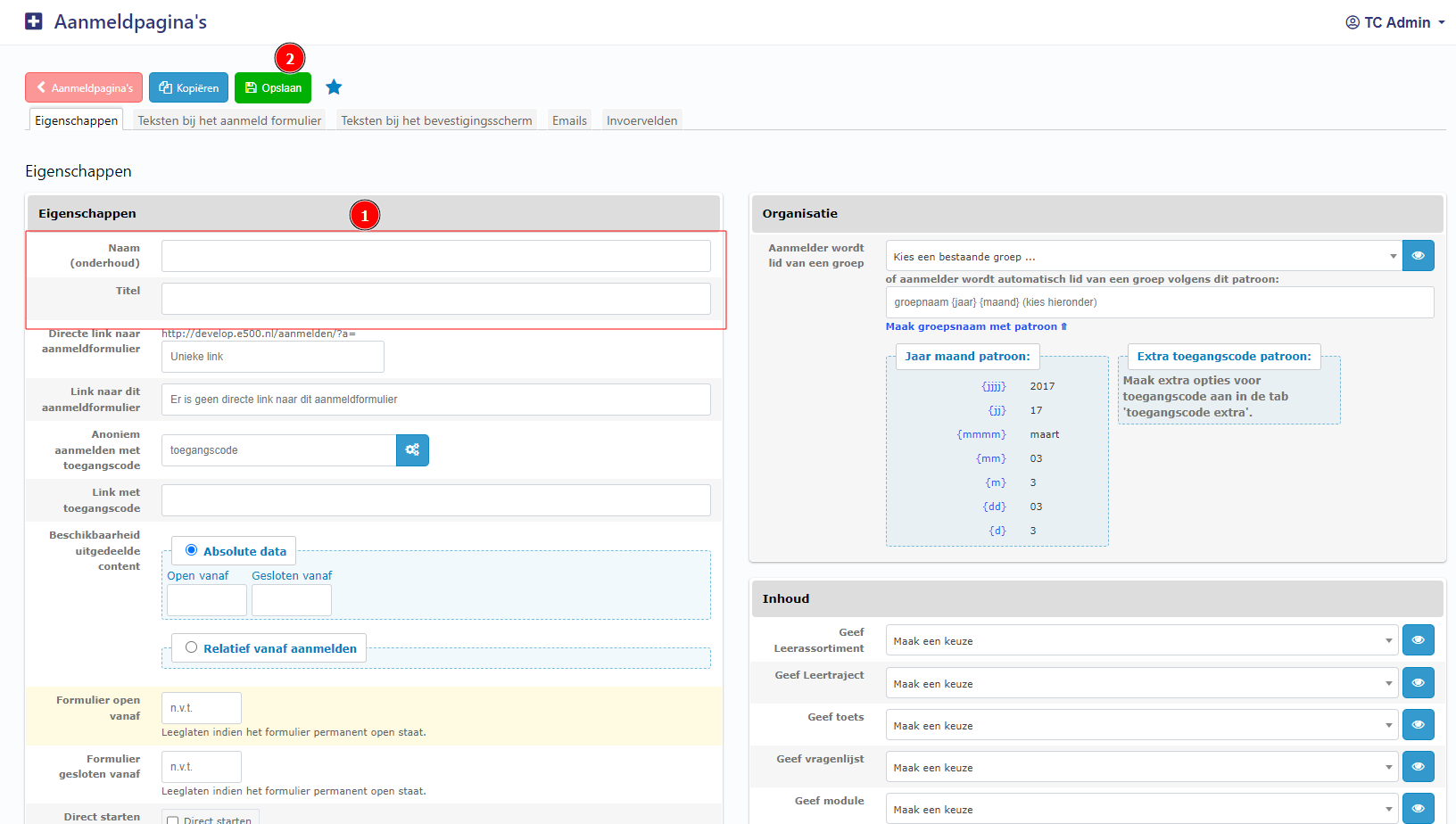
3. Fill name and title in this form and then click Opslaan to save
How to add contents for Aanmeldpagina’s
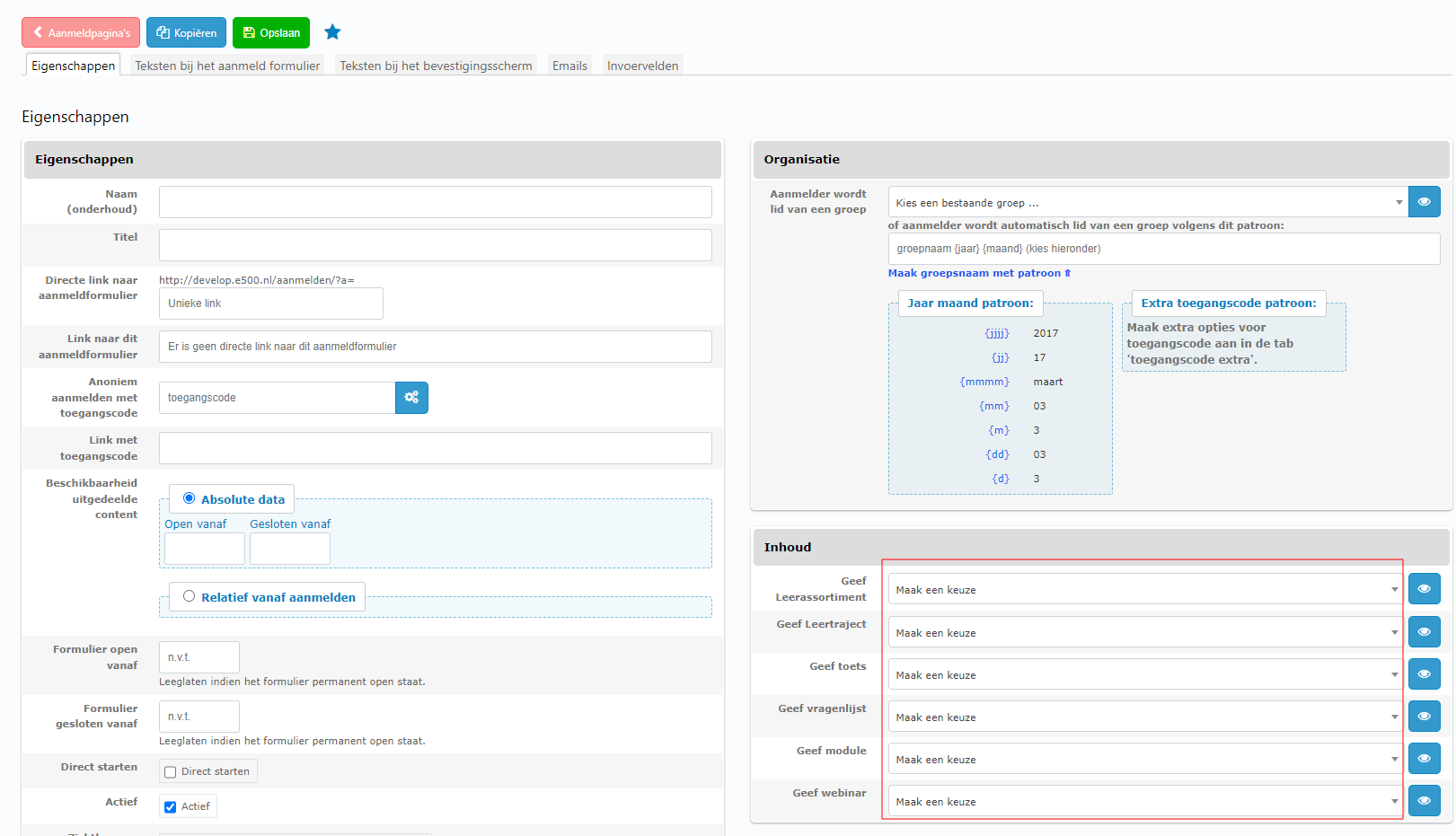
At Inbound, You can select item for this Aanmeldform. After selecting, click Opslaan to save them.
How to add an oranization to Aanmeldpagina’s
If you add an organization to Aameldform, then the anonymous user access to this Aameldform by toegang code will be added to that organization.
How to add an organization to Aameldform:
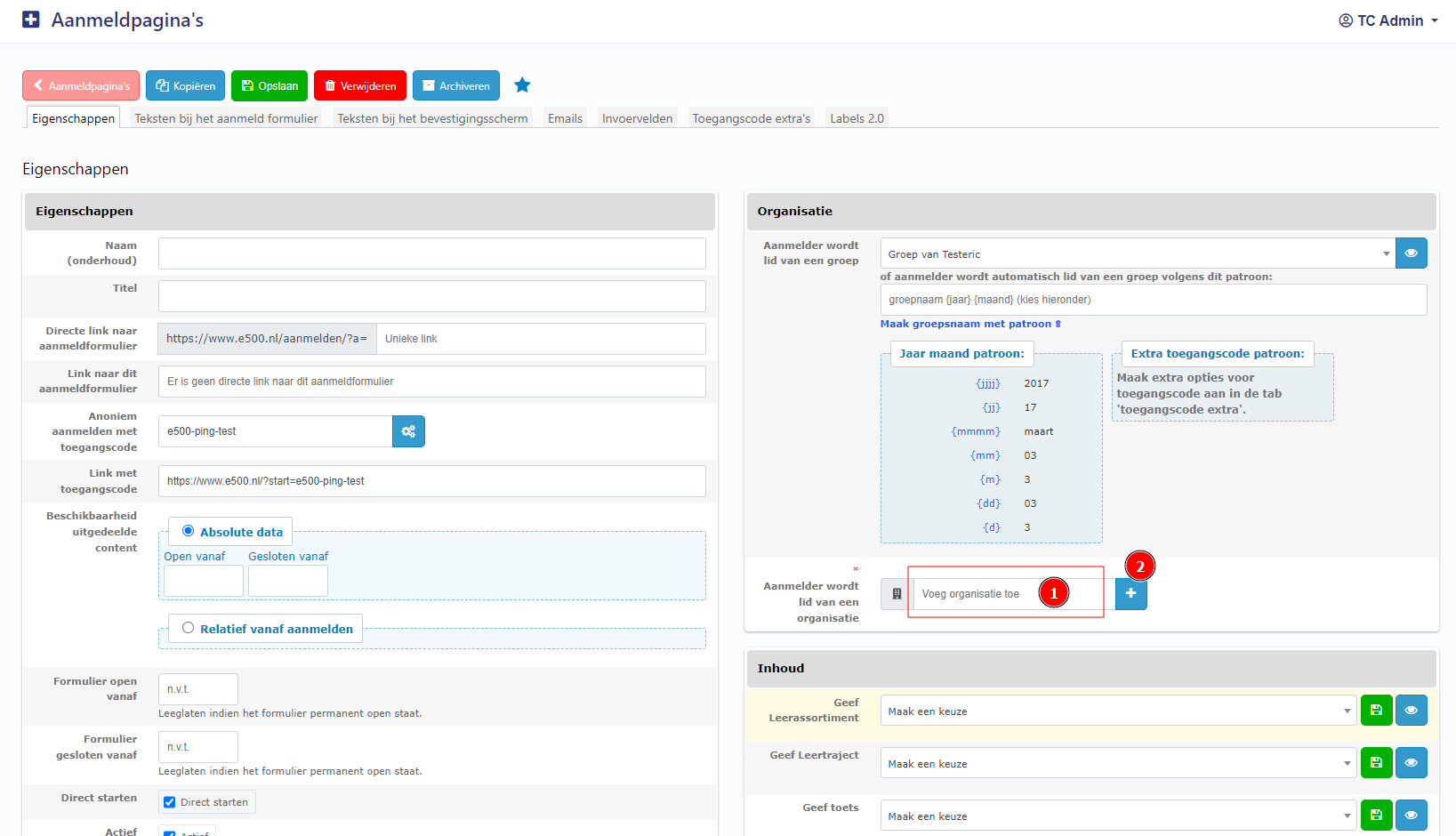
At Aanmelder wordt lid van een organisatie input, enter name of organization then click on (+) button.
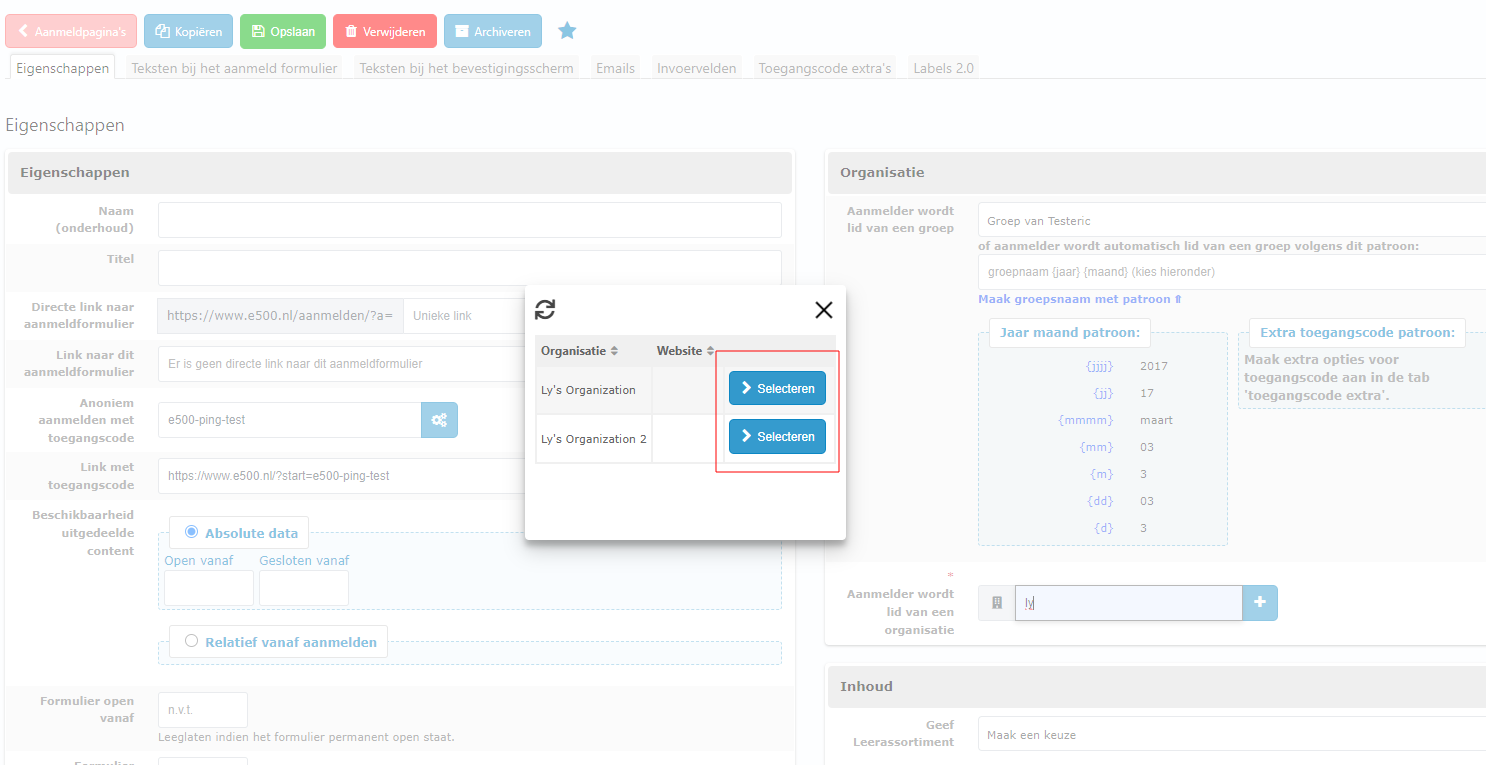
List of organization click seleteren button by right side of the one which you want to added. It is done! now with an Aameldform you can only add one organization for it.
How to create Toegangcode to access Aanmeldpagina’s
Don’t forget to create a toegang code to access this Aanmeldpagina’s.
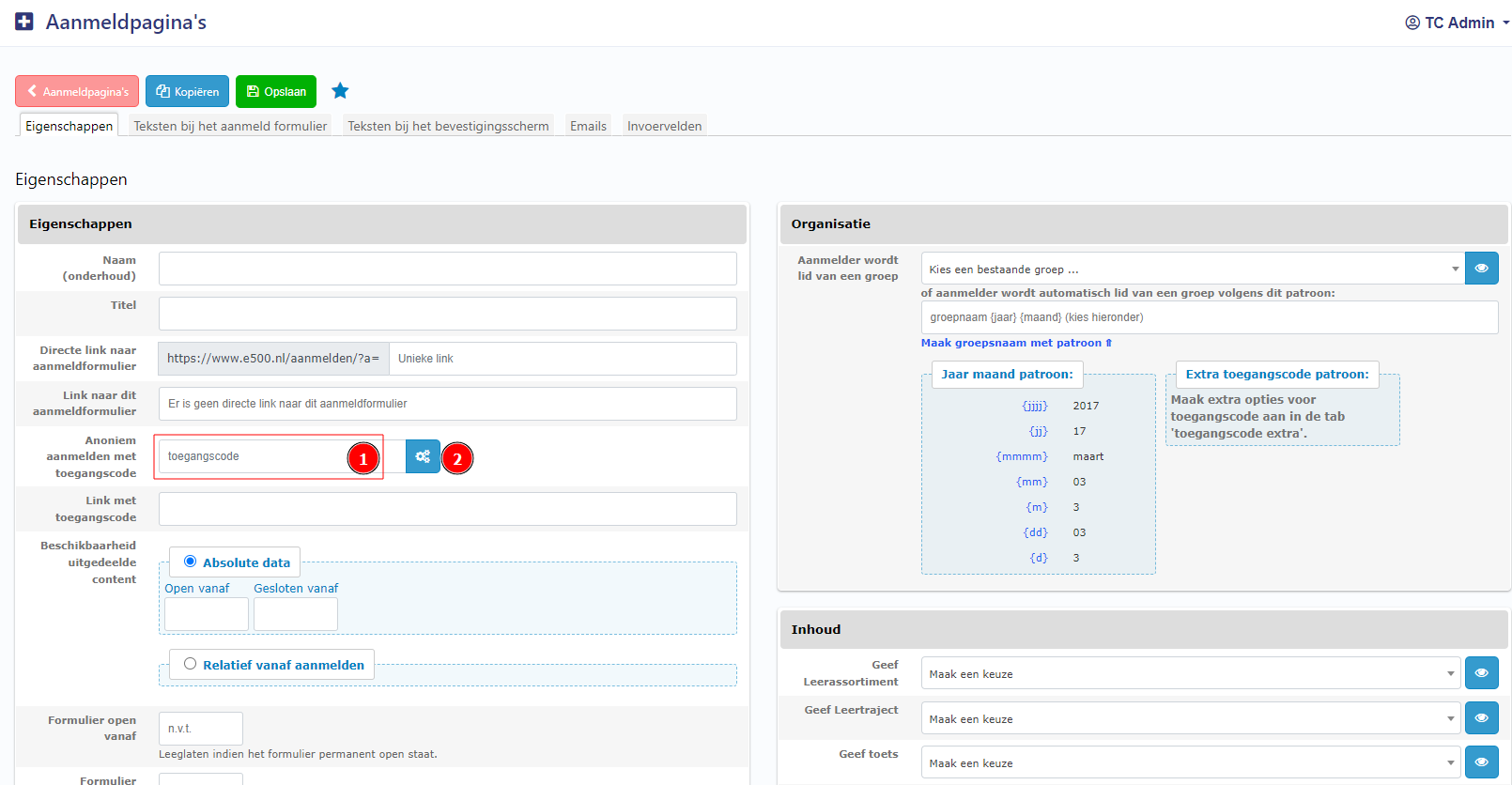
You can add your code to the input of toegangscode, then click Opslaan to save.
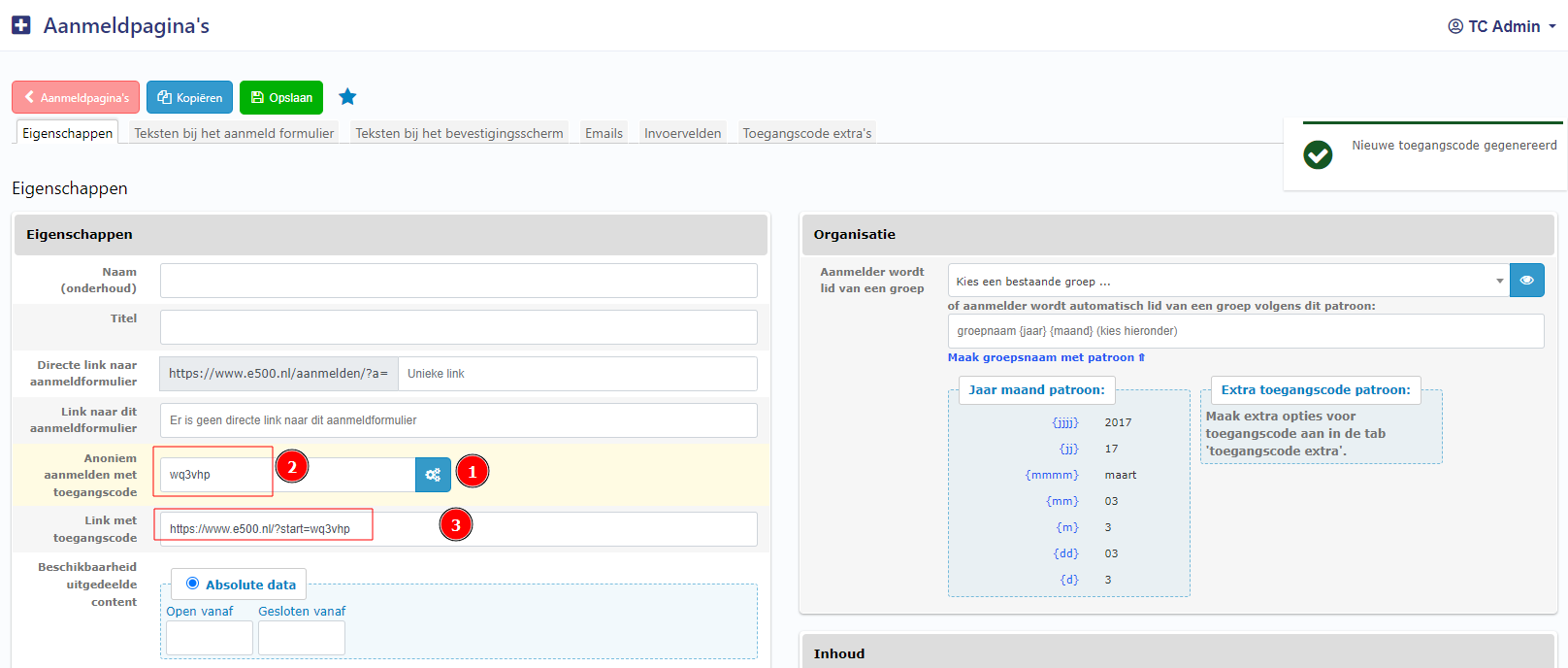
Or you can use a random code by clicking Genereer Toegangscode button. It will give you a code and link to access then.
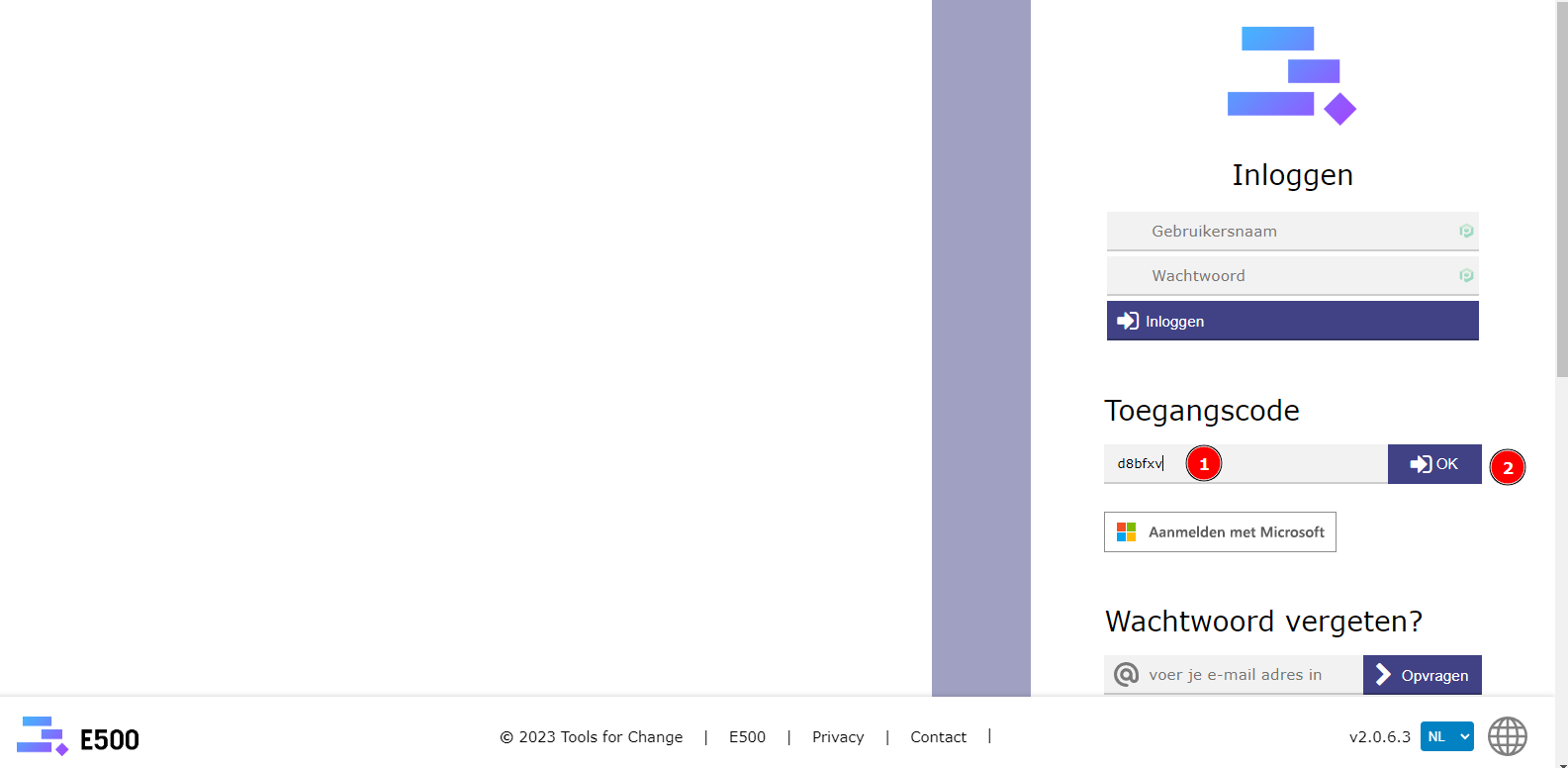
To access the Aanmeldpagina’s by code: Let’s back to the loginpage, enter the code which you have just created to this input. Then click OK, it will take you to Aanmeldpagina’s immediately
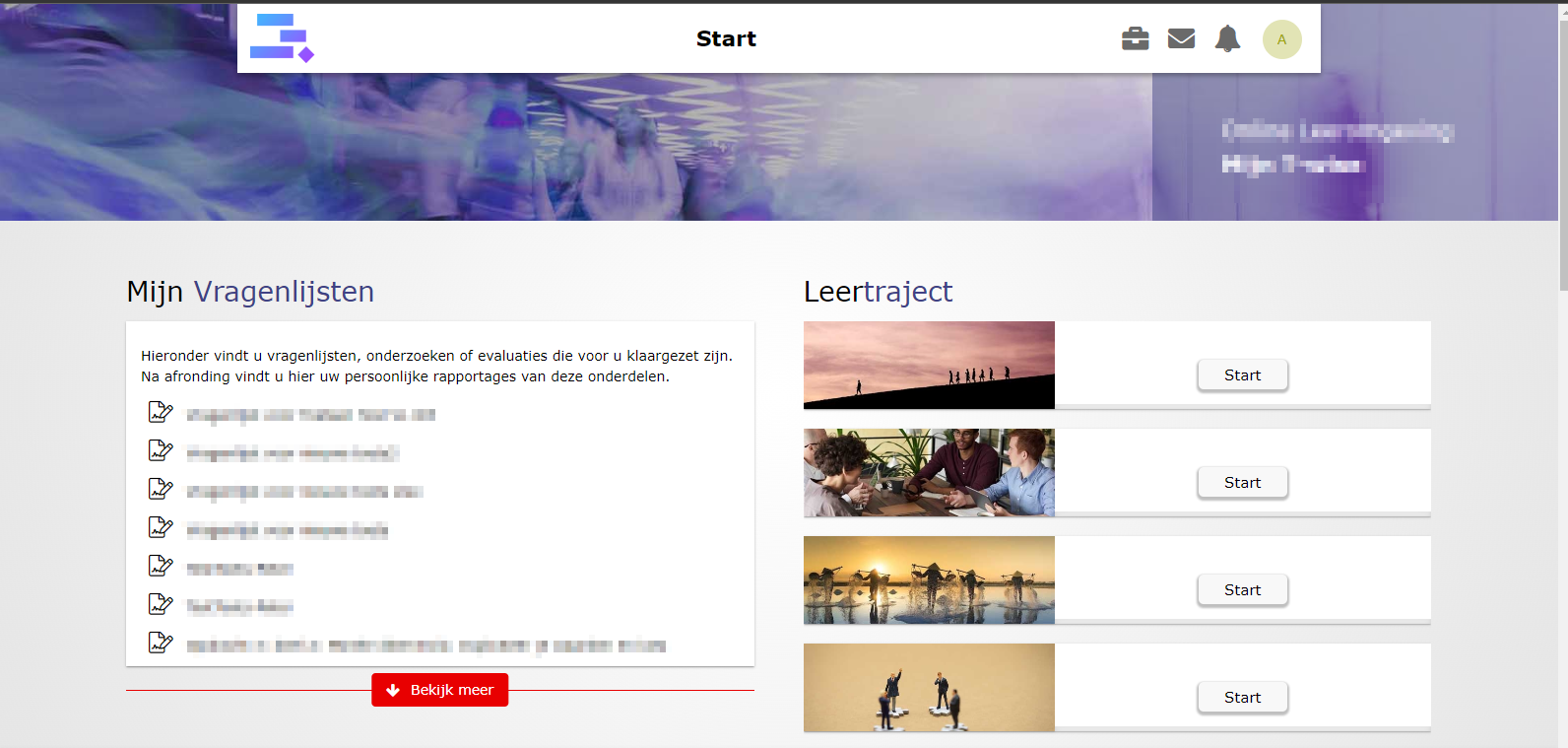
Yeah now you can see your content in Aanmeldpagina’s. Thank for reading and good luck!