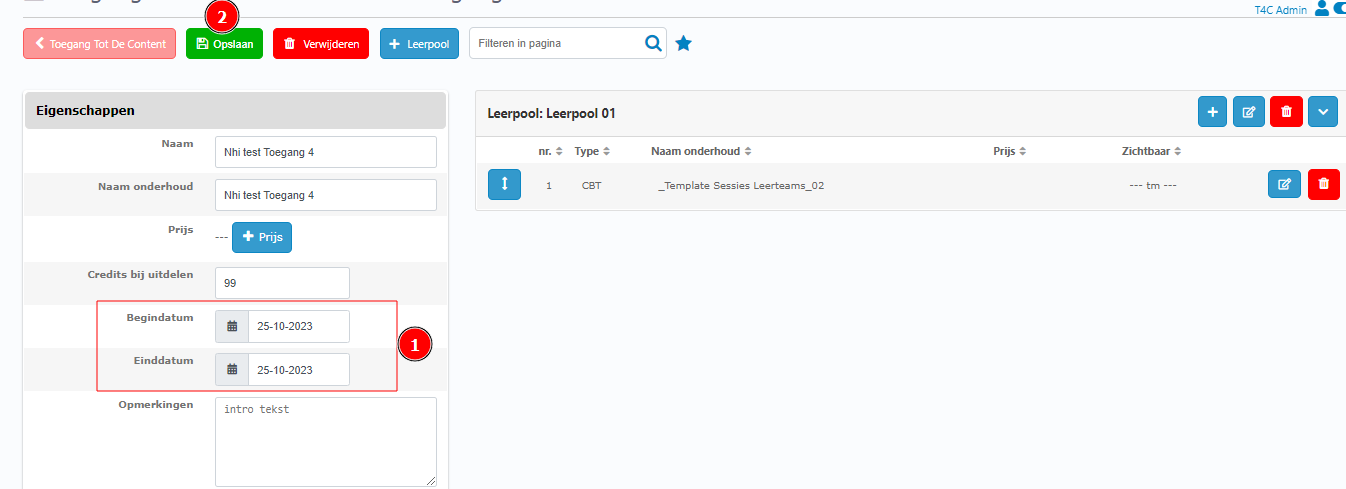
LeerAsortiment(Content toegang) is a list of module. It’s contain many learning content for users.
How to create a new Content toegang
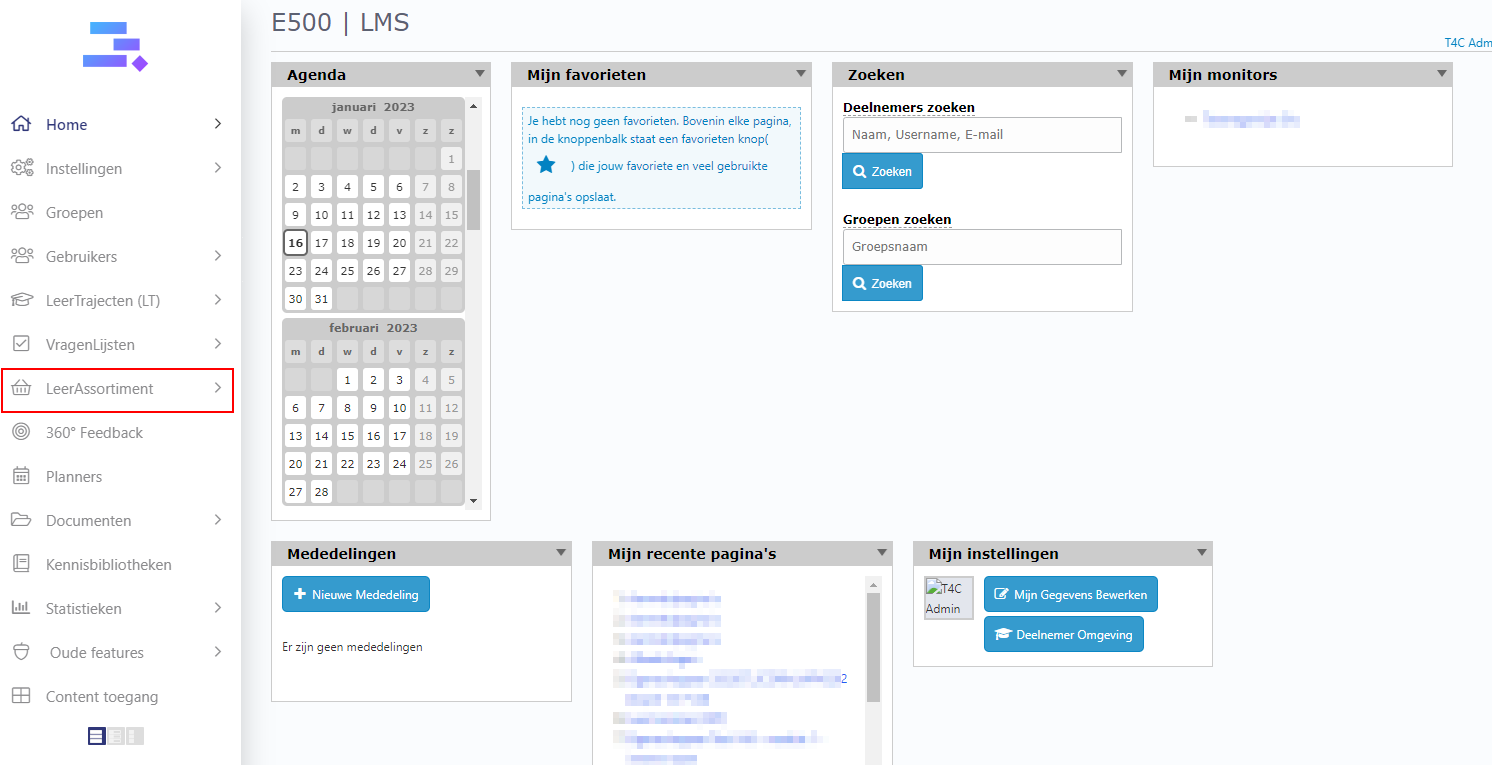
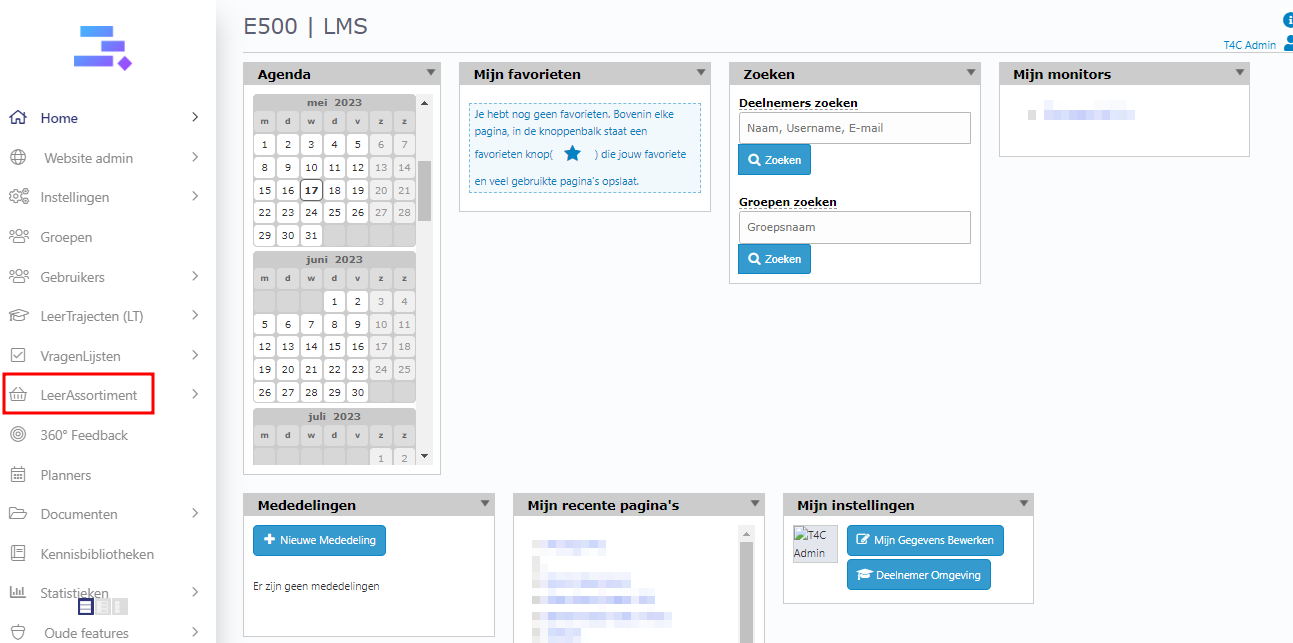
Login with your administration account and click on LeerAssortiment
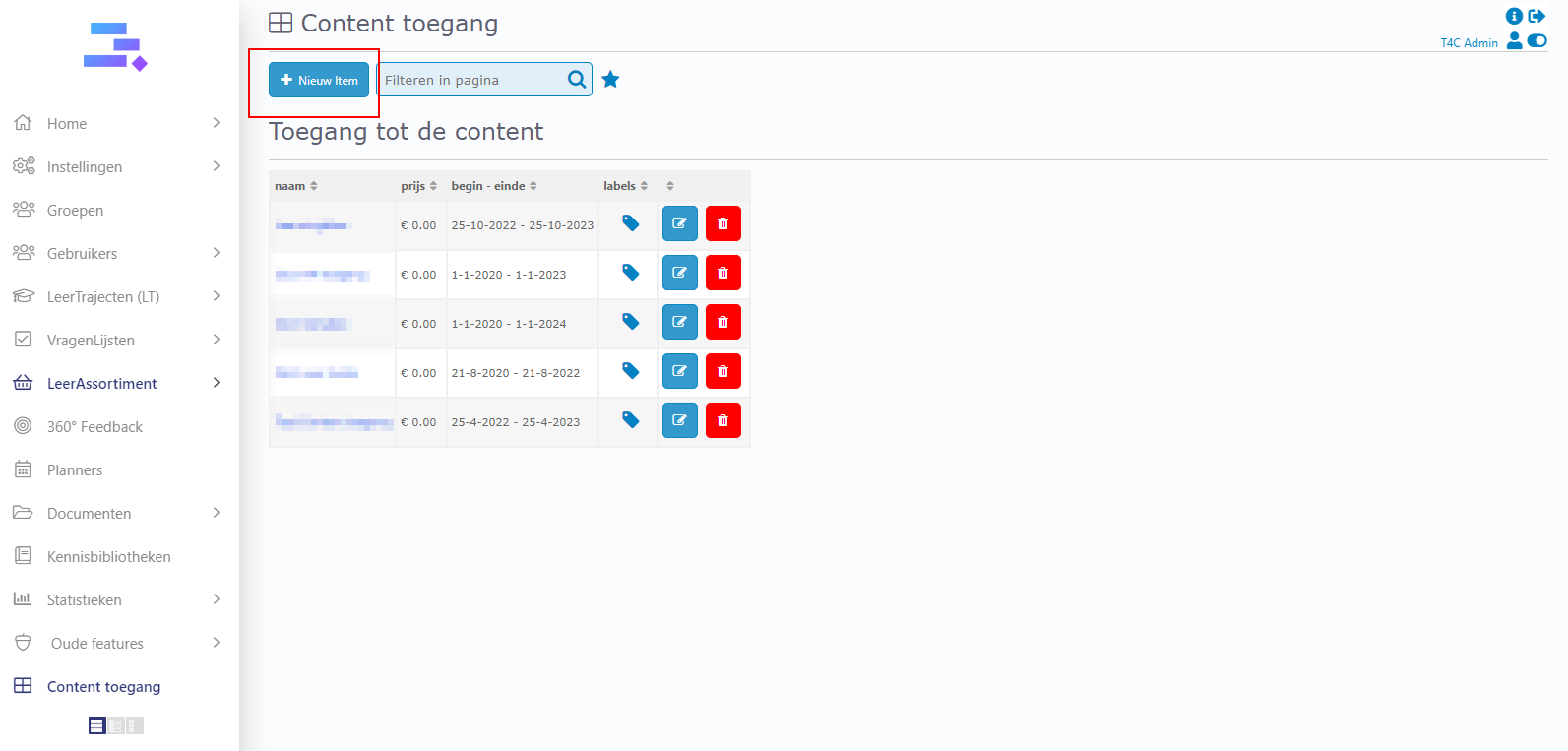
On the top left, click on + Niew Item
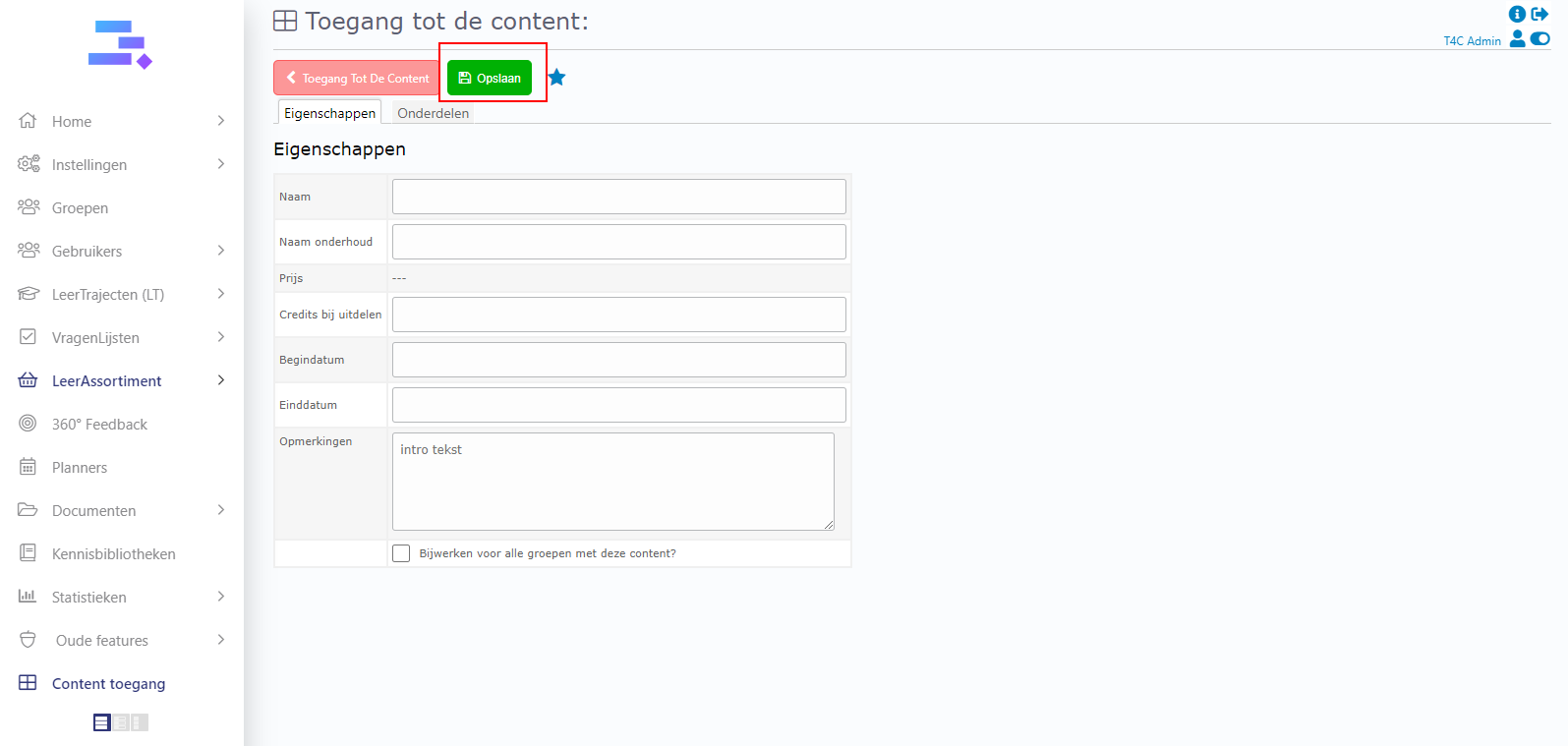
Fill in this form and click Opslaan to save
How to add components for a Content Toegang
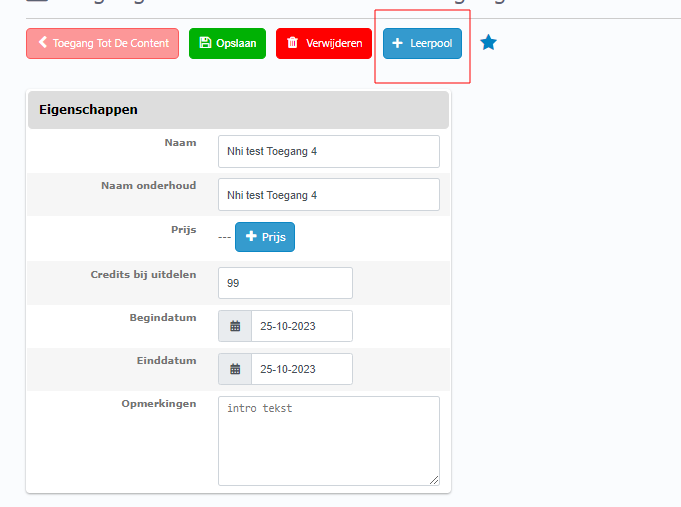
In the details page of the content toegang, click on + Leerpool button on the top bar.
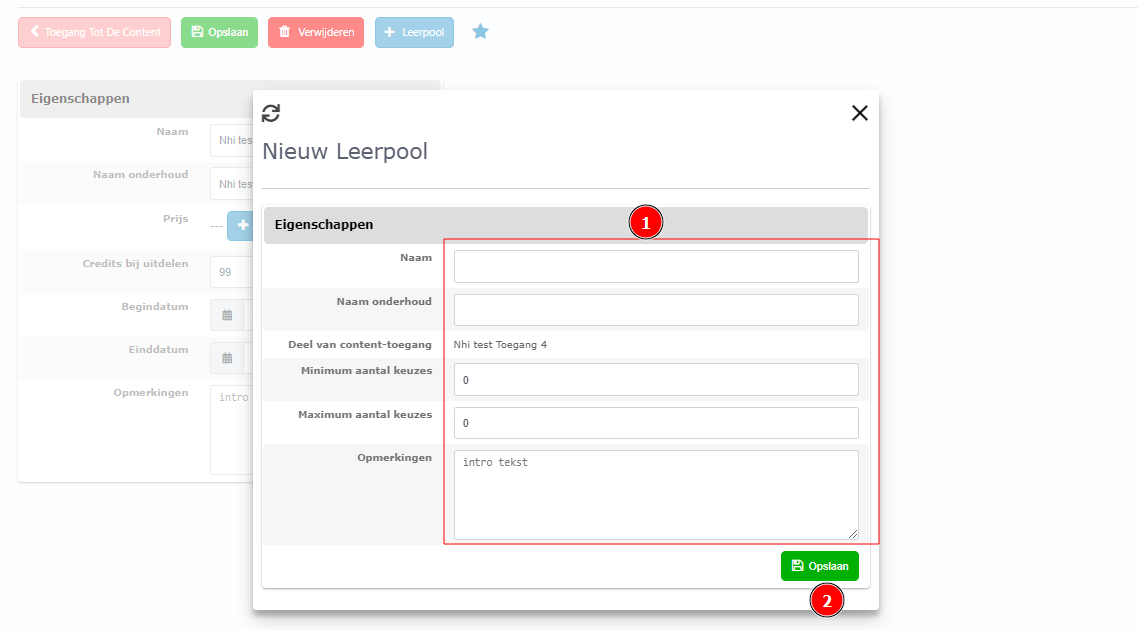
Filling in this form and click Opslaan to save
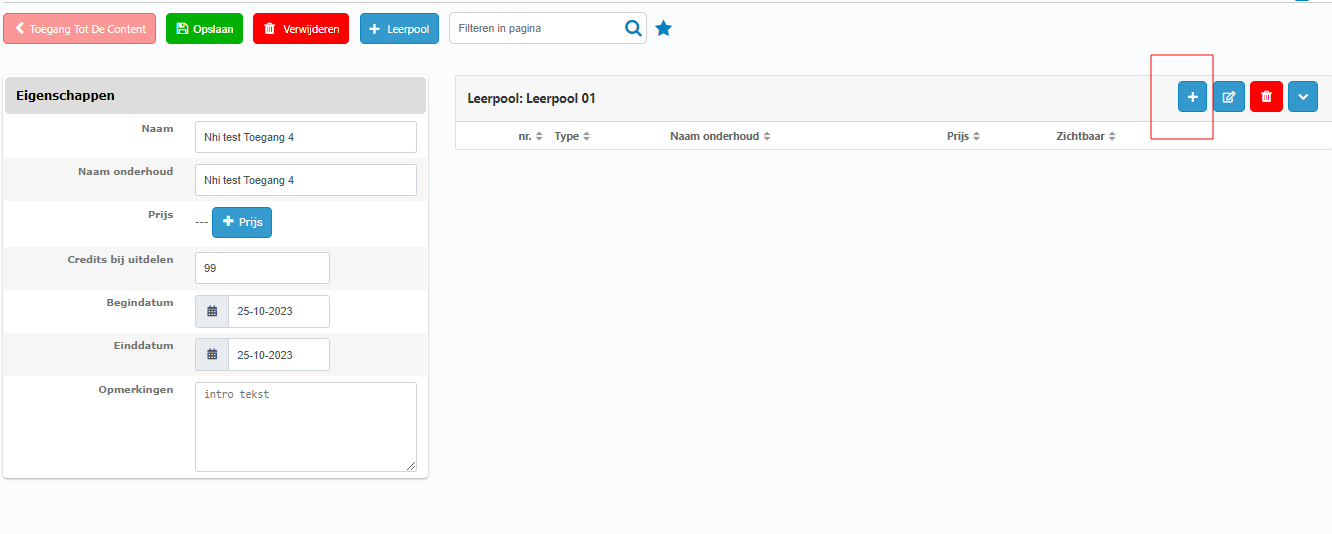
The new Leerpool is created. Click on (+) button to add element it.
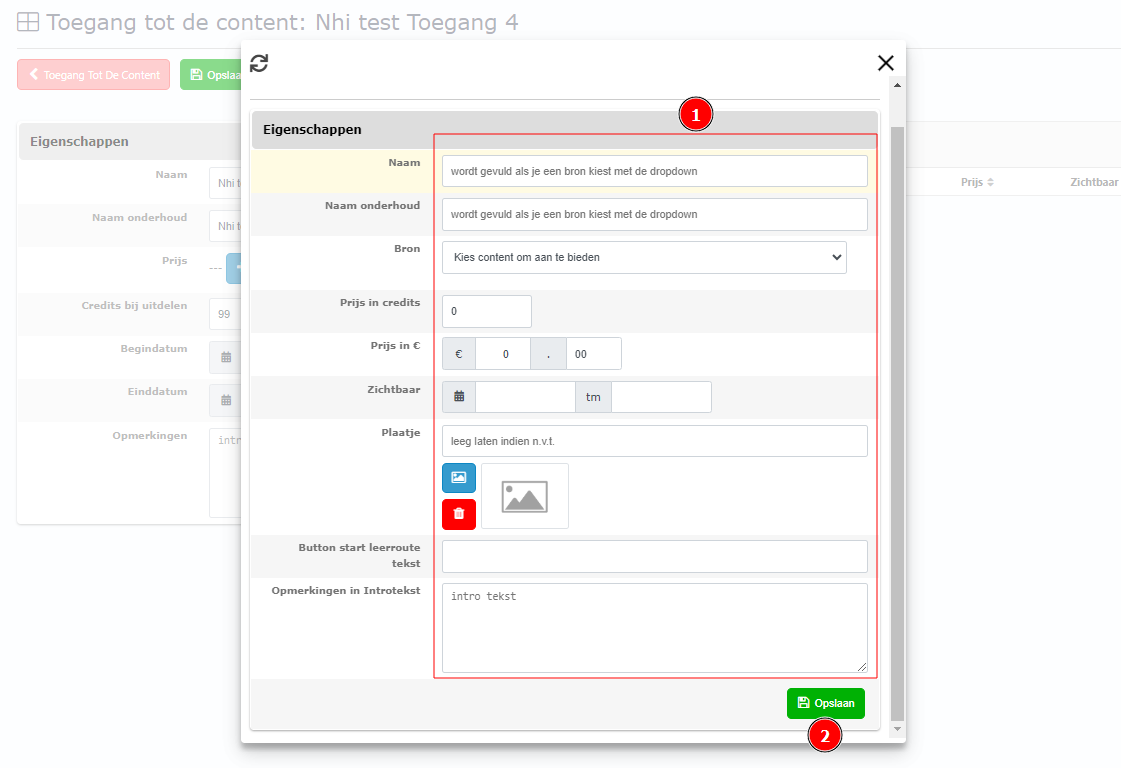
Select content and filling in the form, then click Opslaan to save.
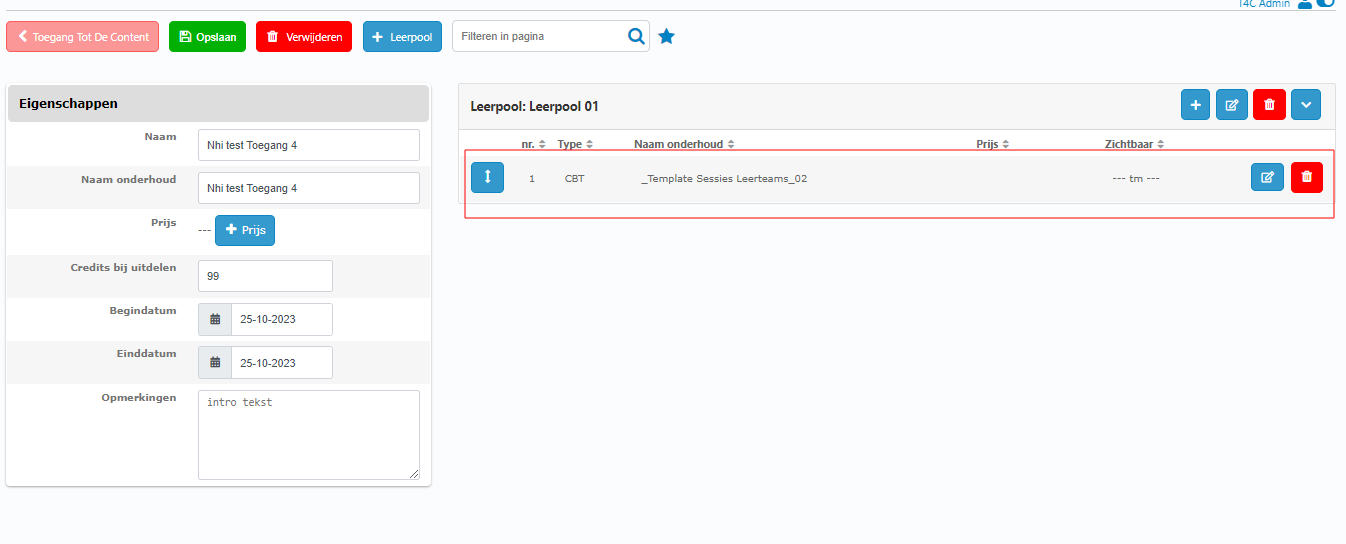
Now you can see the selected component here. You can add more and more element for your Content toegang by the same way!
How to change date for LeerAssortiment (content toegang)
There are 3 ways to change date for Content toegang. Let’s choose the way suit for your case.
-
Change date of LeerAssortiment for each users
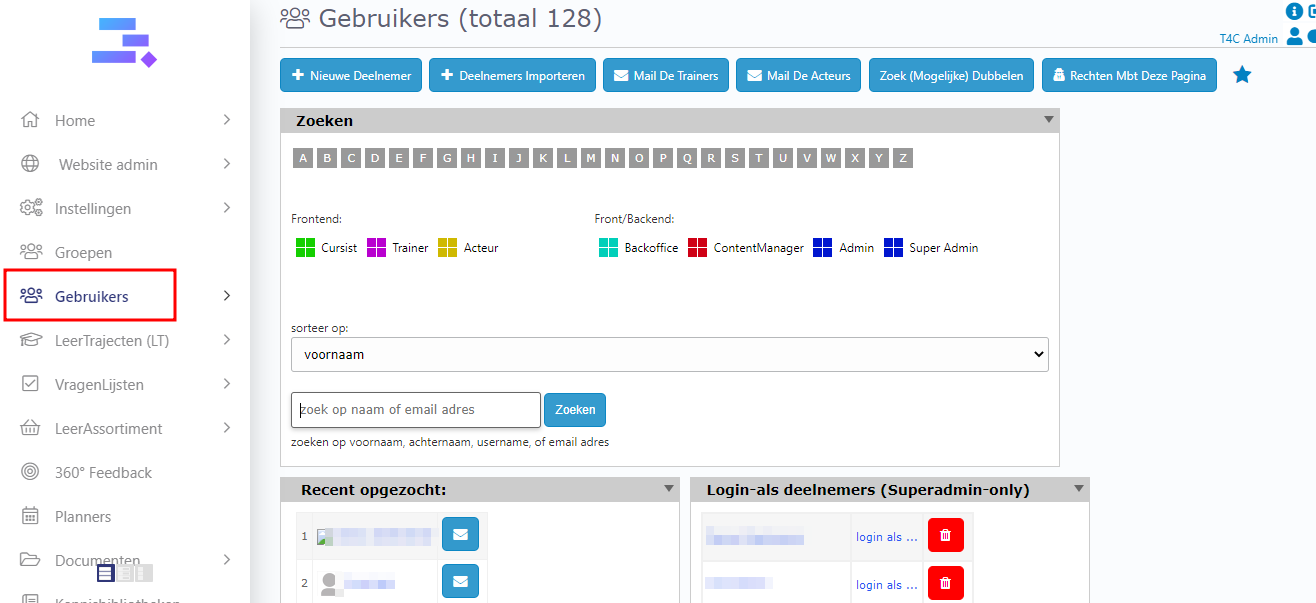
Login with your administration account and go to Gebruikers.
Search name of user whom you want to change his/her LeerAssortiment date
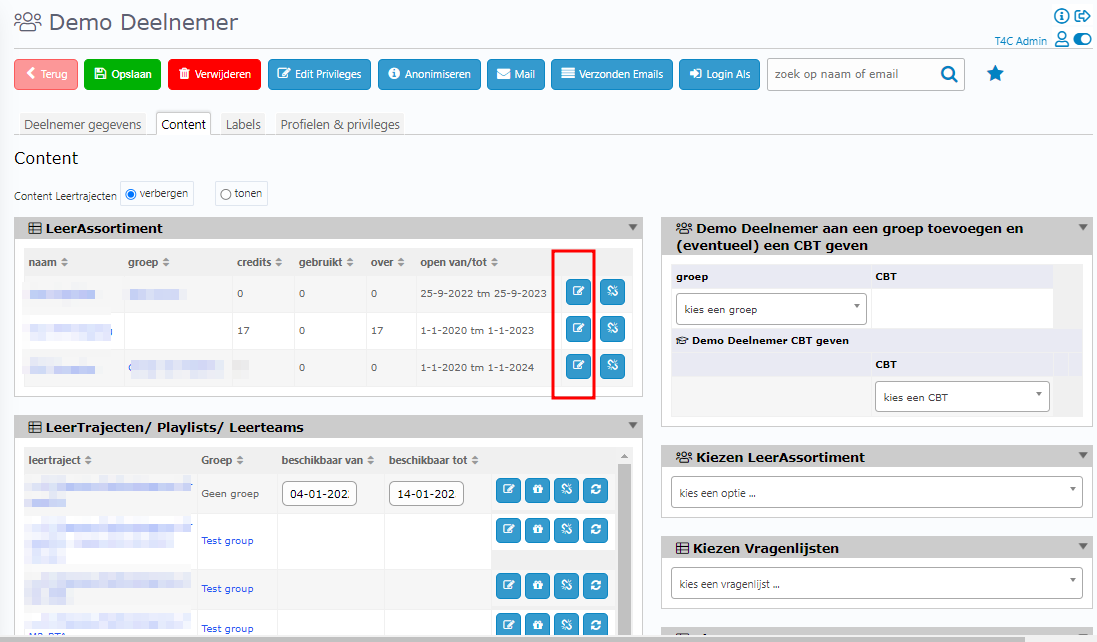
In the user’s detail, go to Content tab. On the right of LeerAssortiment block, click on edit button.
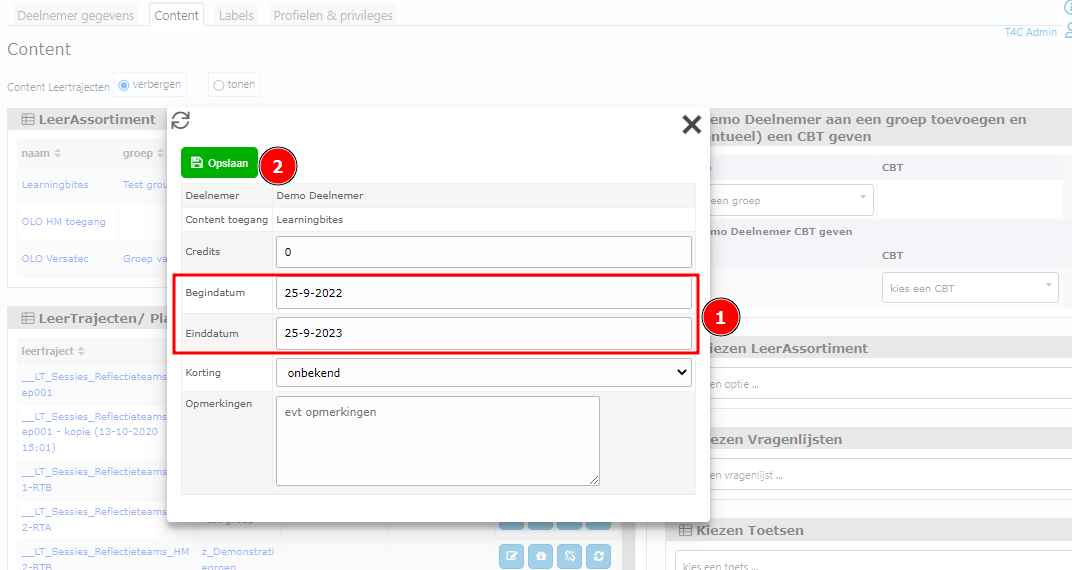
An popup appear, now you can edit date of this LeerAssortiment for the user. And don’t forget to click on Opslaan button to save!
2. Change date of LeerAssortiment in a group
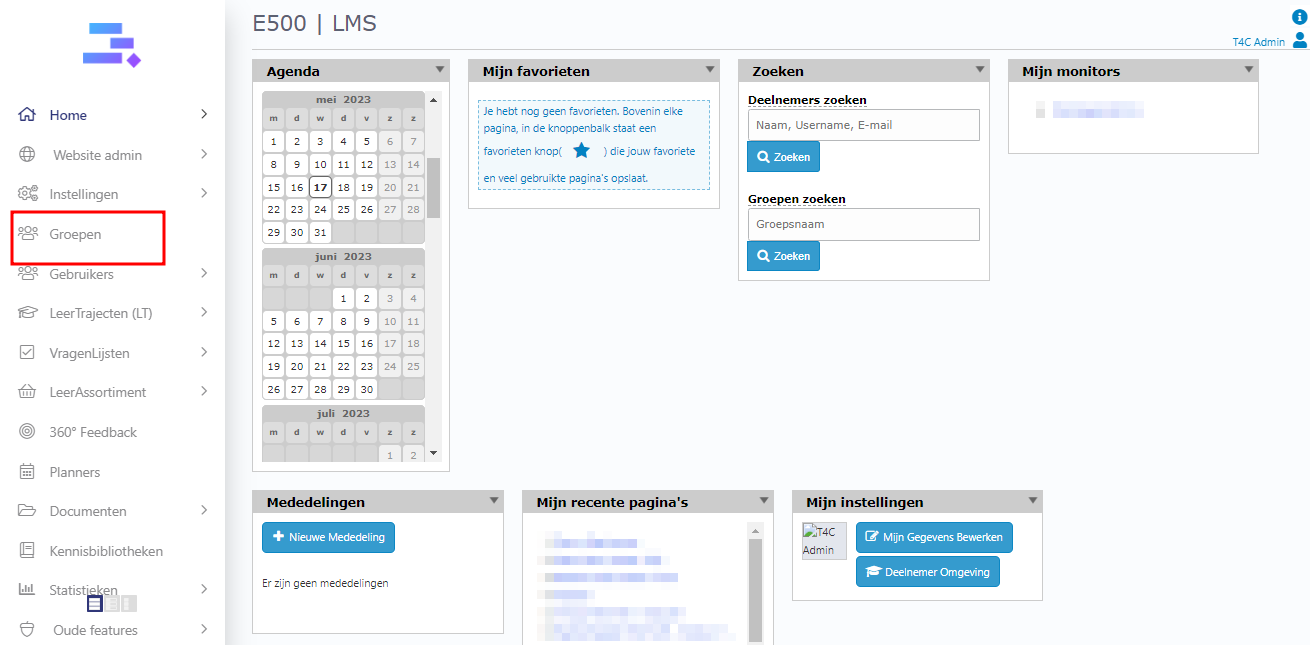
Login with your administration account and click on Groepen.
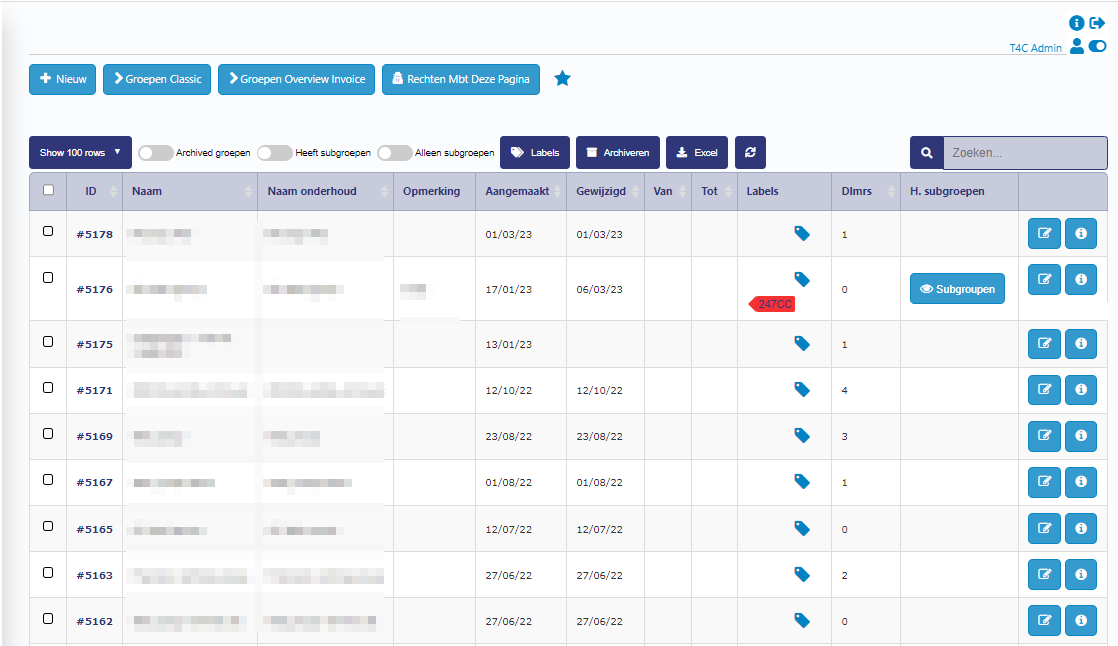
Then go to a group which you want to change date for LeerAssortiment in it.
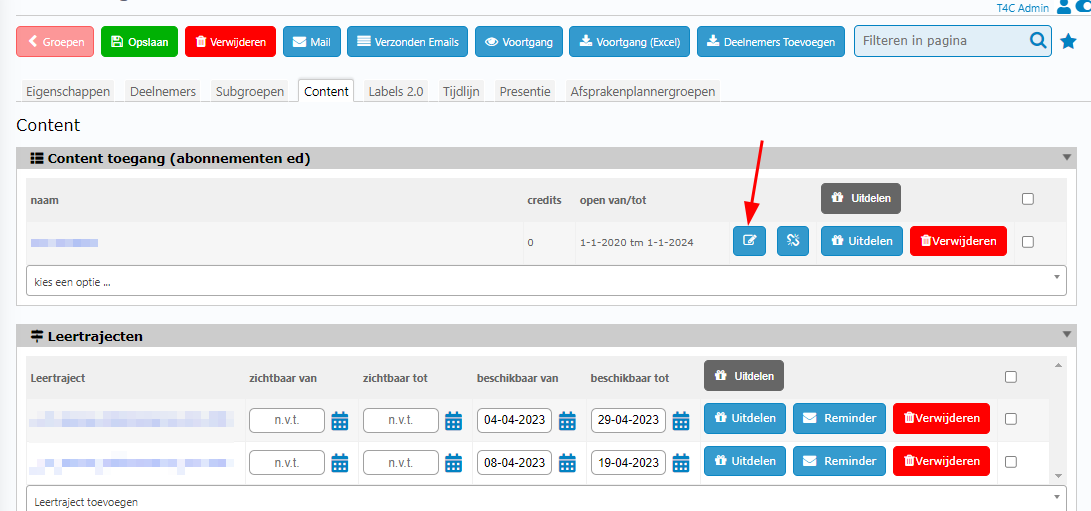
In the group, go to Content tab and click on edit button on the right of the LeerAssortiment
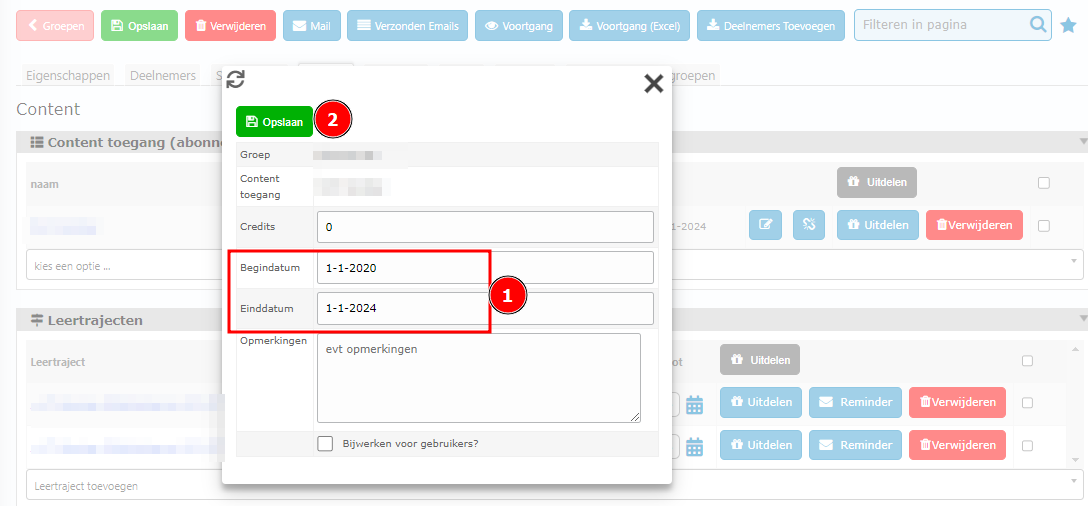
A popup appear. Let’s choose another date for it. And you see the checkbox Bijwerken voor alle leden van deze group?. If you active this checkbox, it will update the new date of this LeerAssortiment for all user in this group. If it is not activated, it only change date for the LeerAssortiment in this group at present. The others groups and users have this LeerAssortiment before will not effected. Finally, click Opslaan to save the change
3. Change the date for the LeerAssortiment itself
Login with your administration account and click on LeerAssortiment.
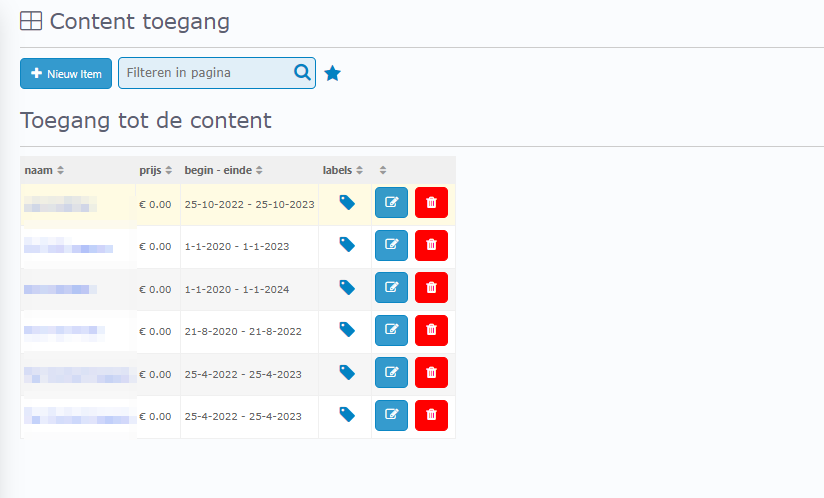
Go to the LeerAssortiment which you want to change its date.
In Eigenschappen tab, you can edit date for it. Then click Opslaan to save the change.