Monitor show the result of the courses are linked to it.
How to create a new monitor
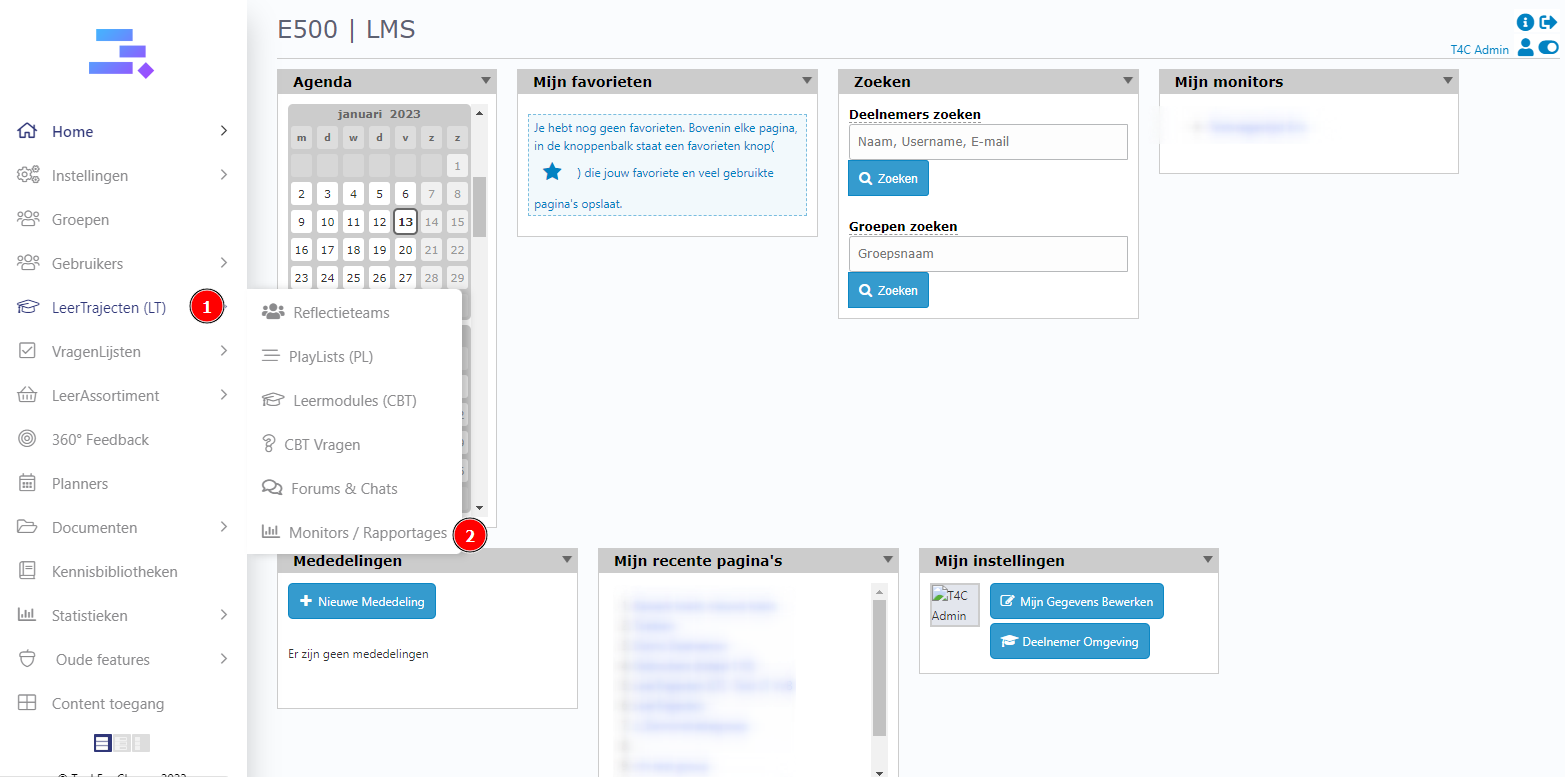
First, login with your administration account. Hover into Leertrajecten and click on Monitors.
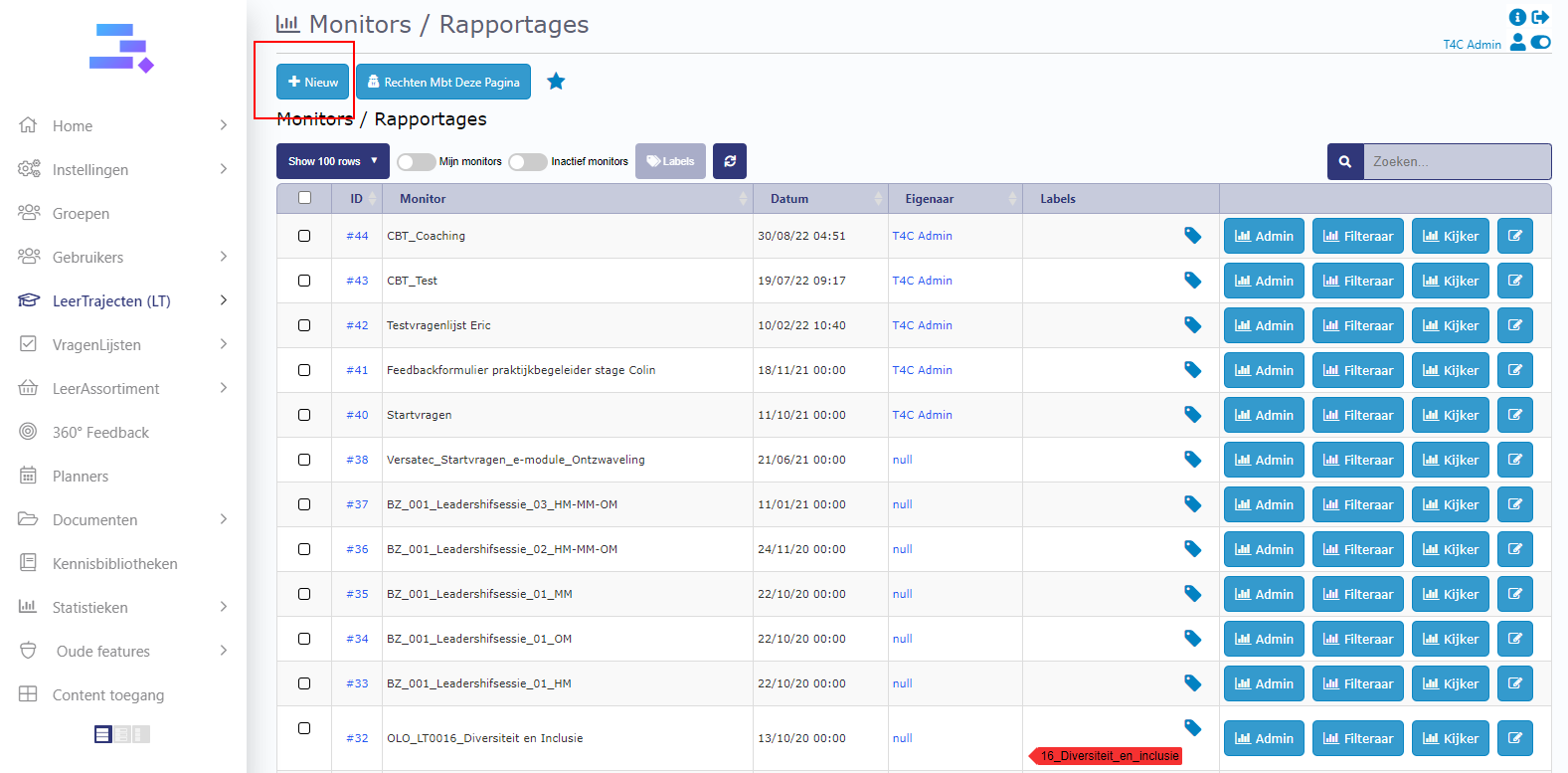
In the Monitors page, click on Nieuw to create a new Monitor.
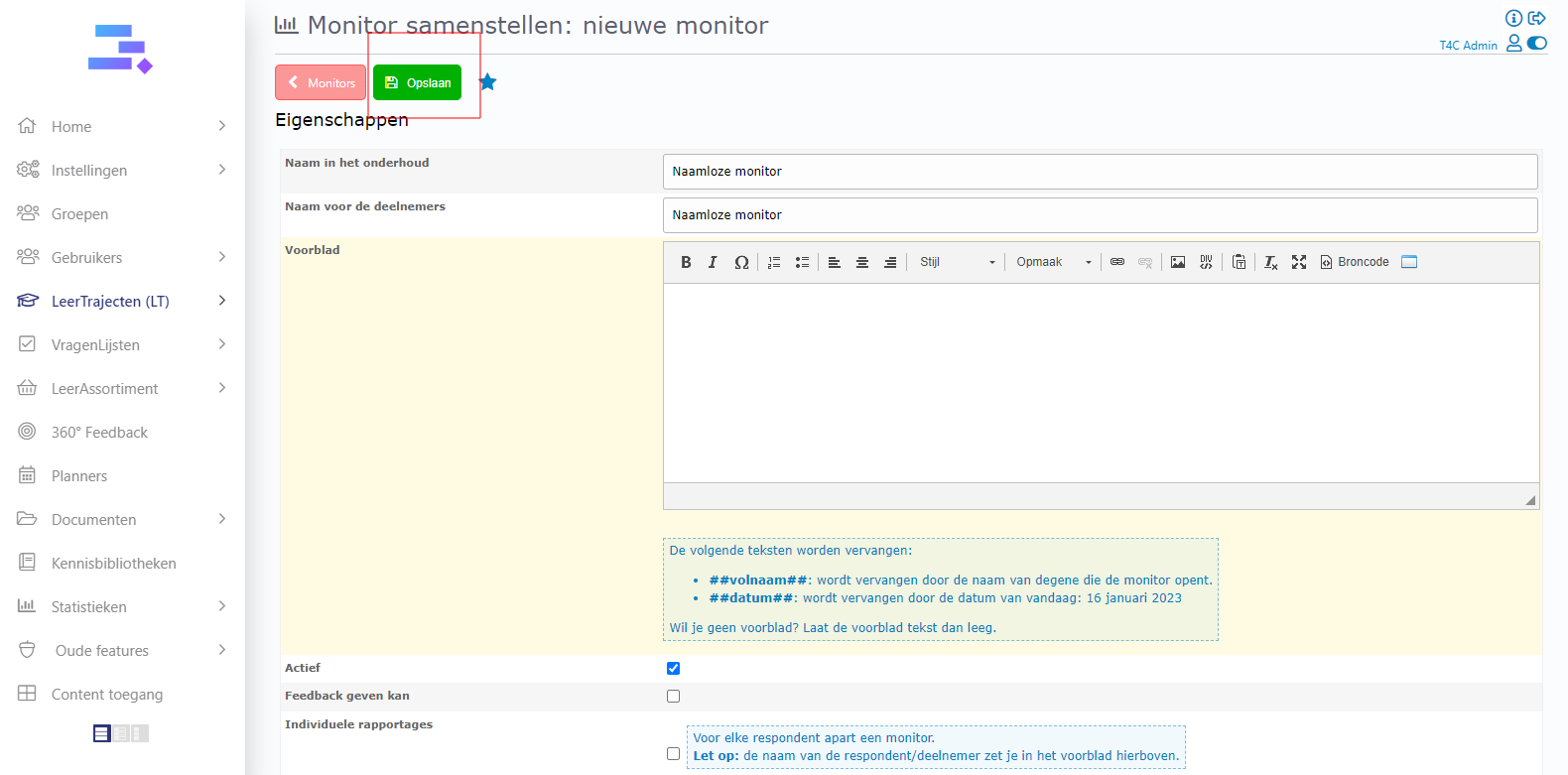
Fill in the information for the new monitor, then click on Opslaan to create it.
How to add a content to the monitor
In the detail page of monitor, go to Inhound van deze monitor tab and click on Wat wil je toevoegen.
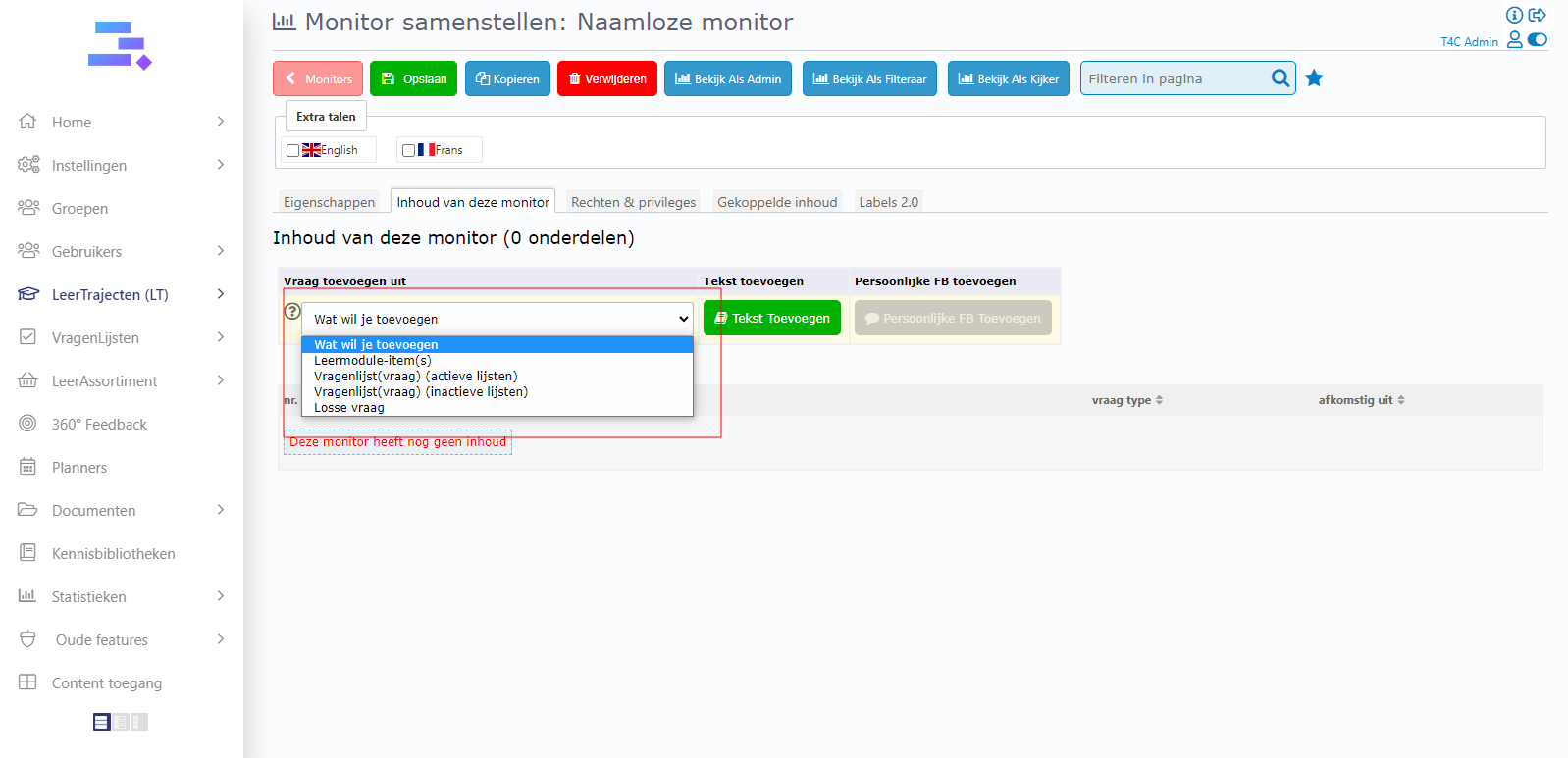
Click on beschikbare selectbox to select a type of course.
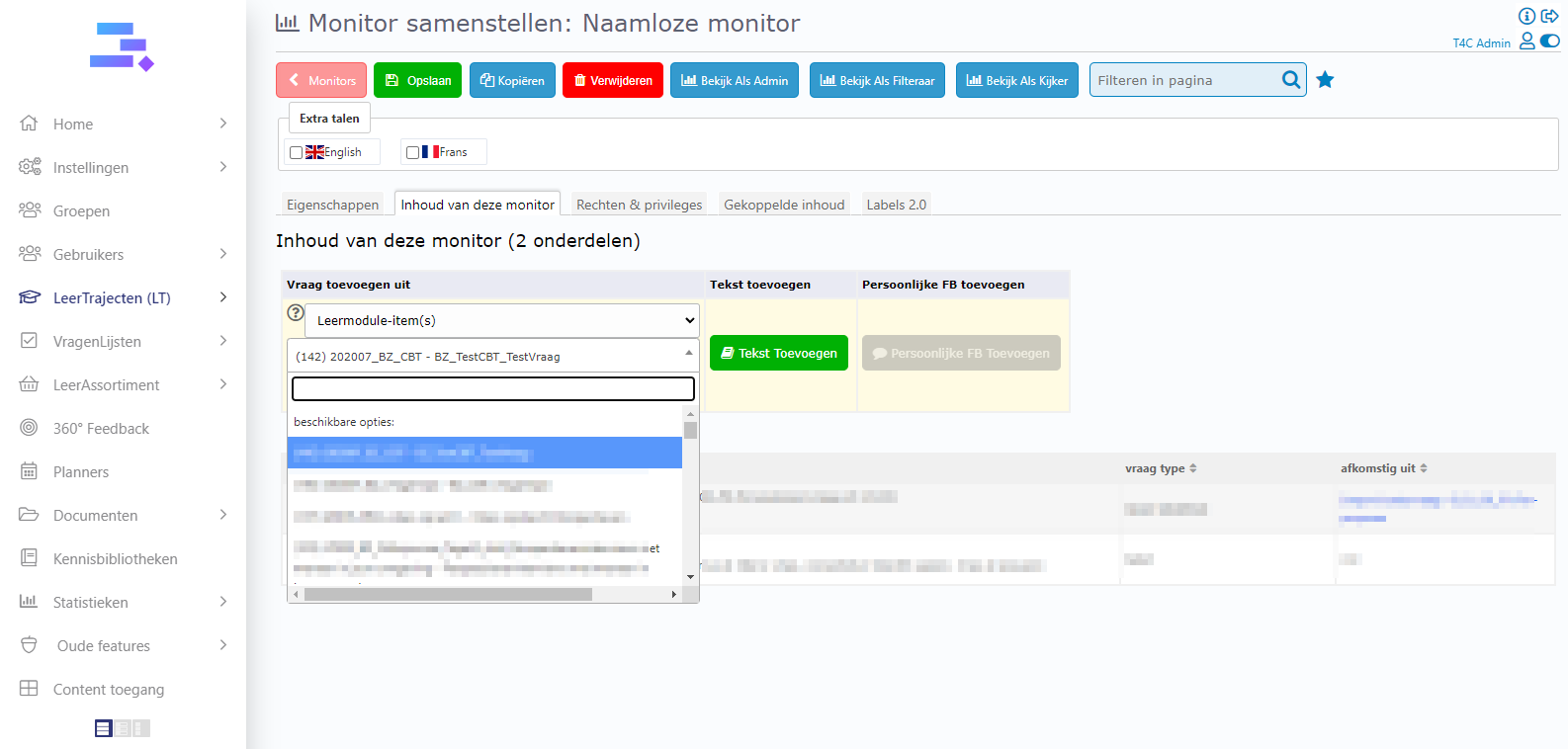
To continue, click on beschikbare opties selectbox to select a content.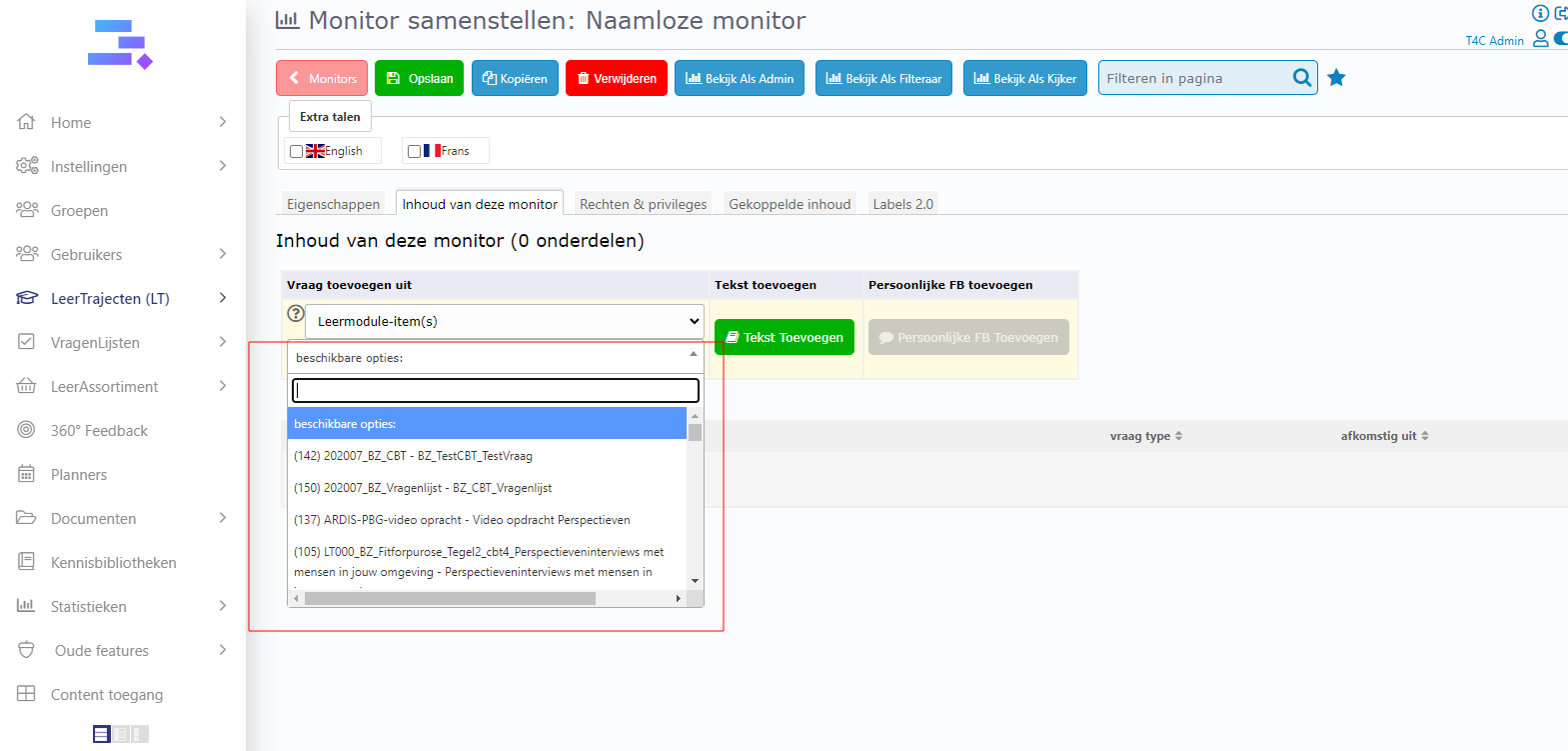
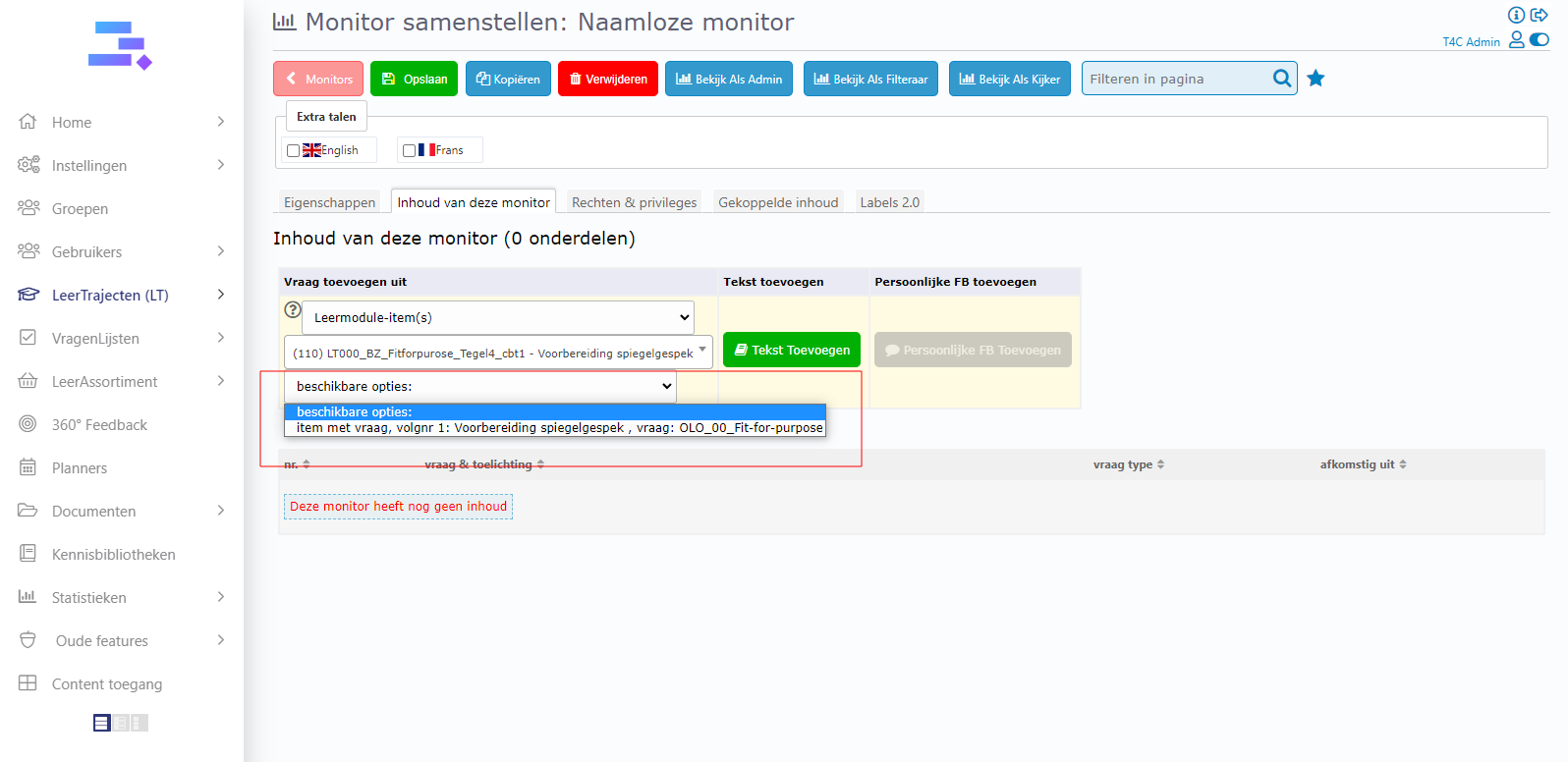
After that, you are finished, or you can add text to the monitor by clicking on Tekst toevoegen.
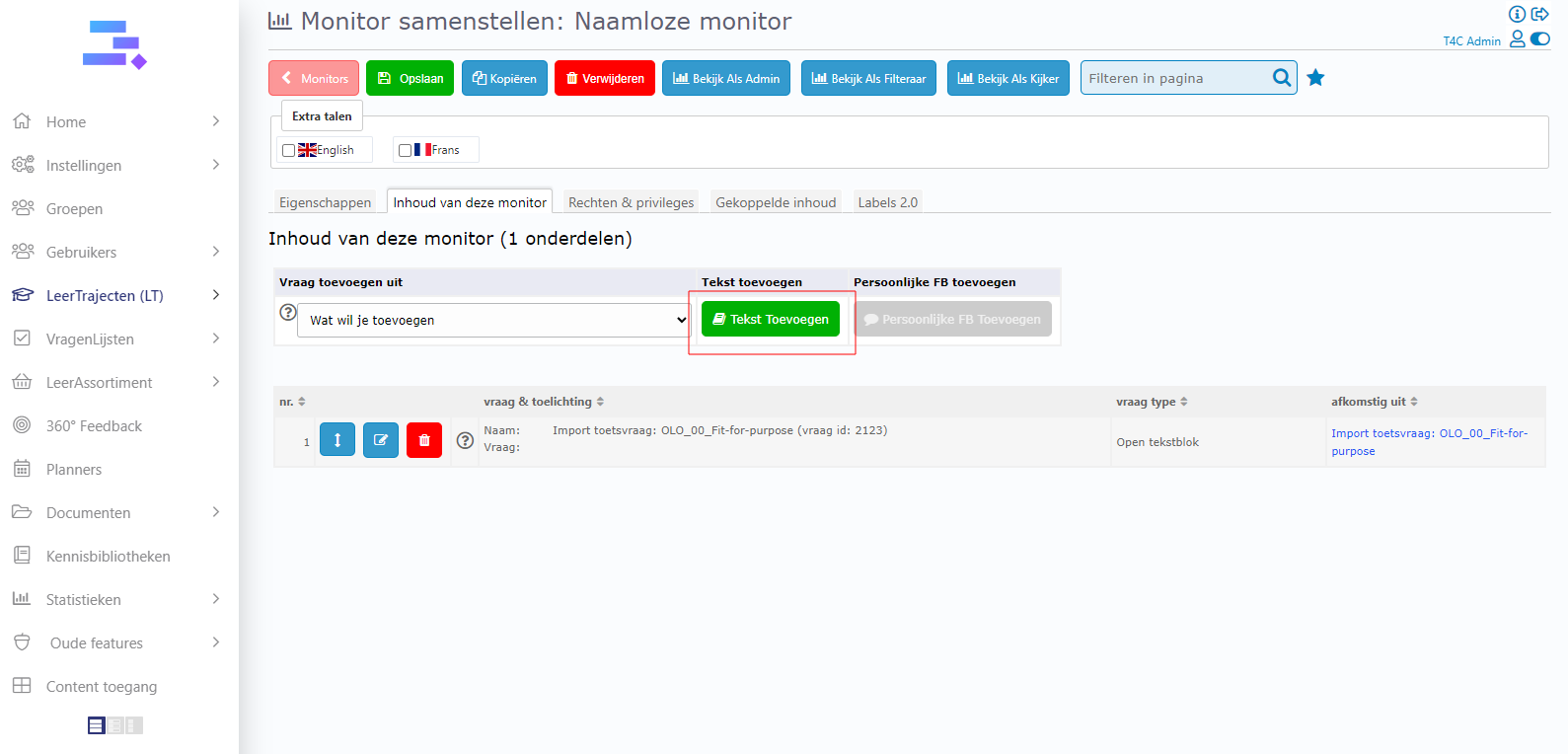
Click Voeg een tekst toe to add the text for it and click on Opslaan to save.
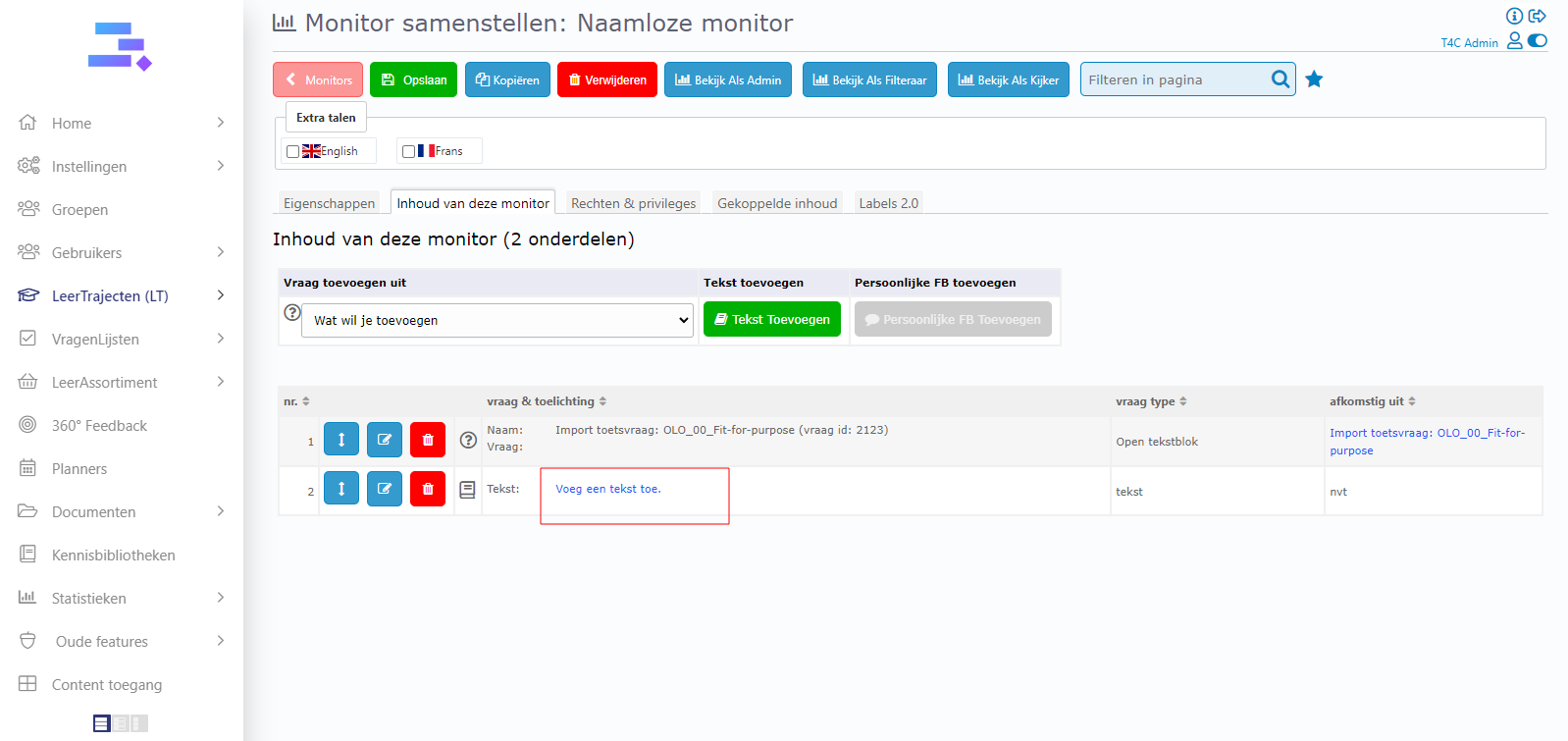
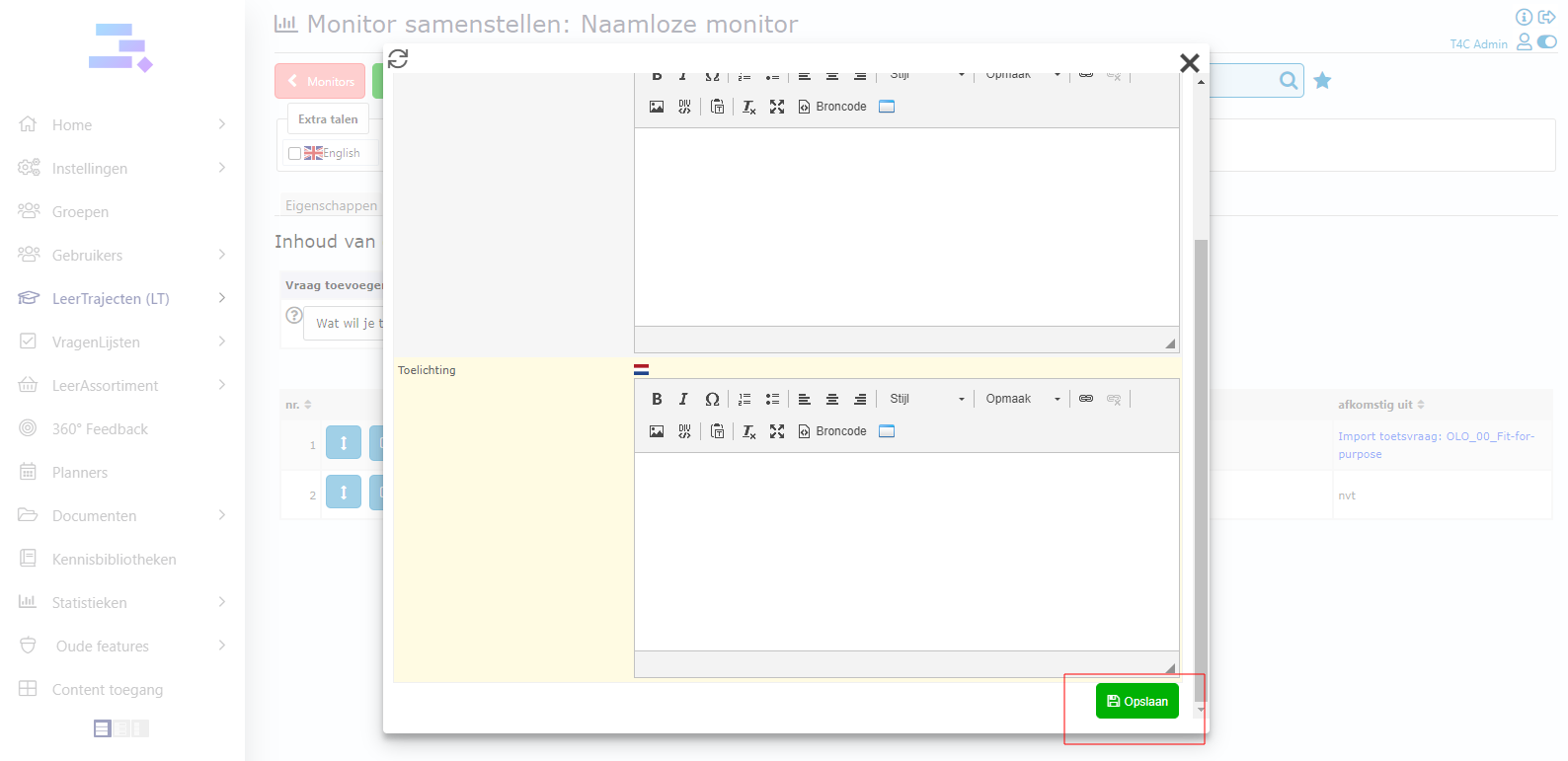
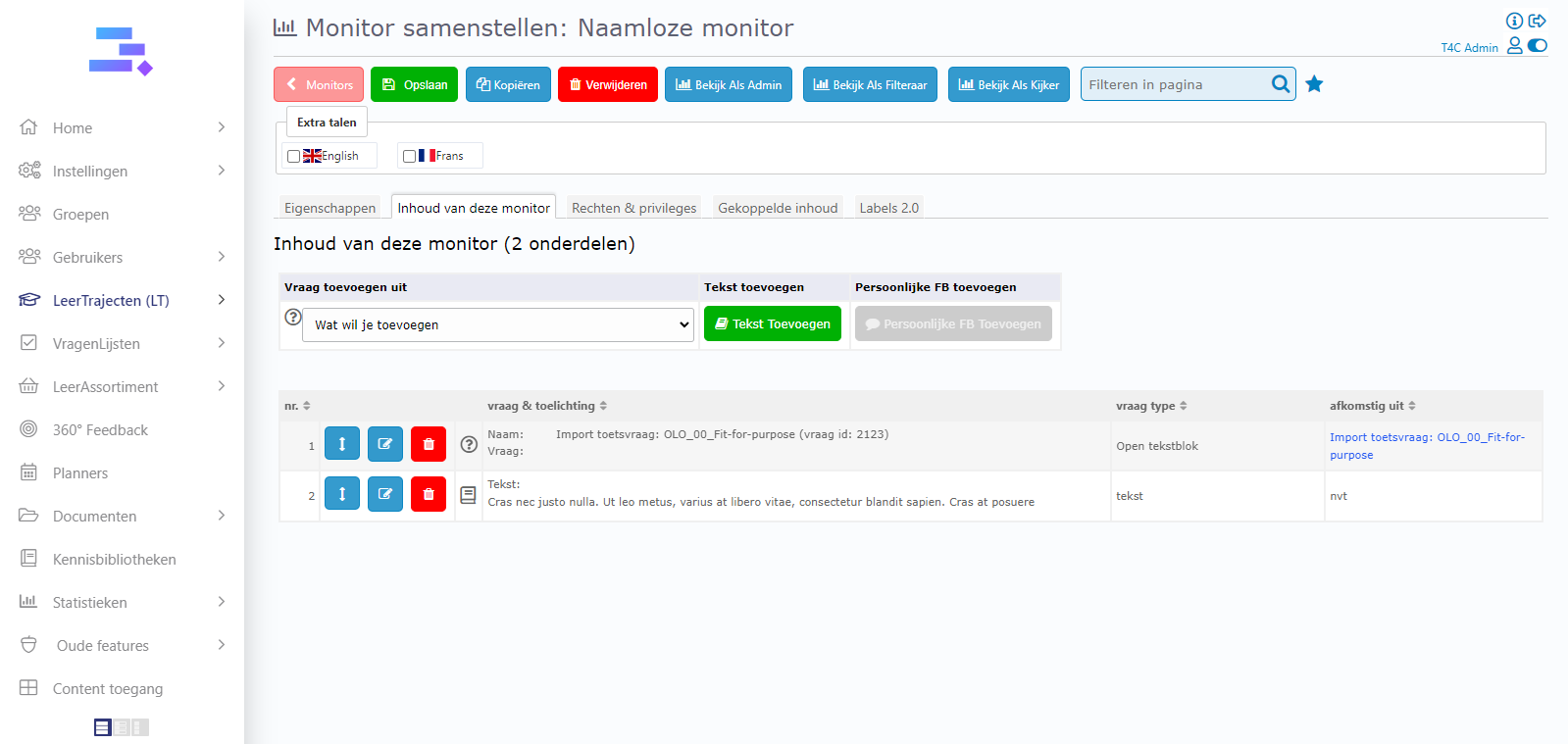
Now it is done! You add more and more content to this monitor by the same way.
How to link a course to monitor and use PDF button
1. How to link a course to monitor
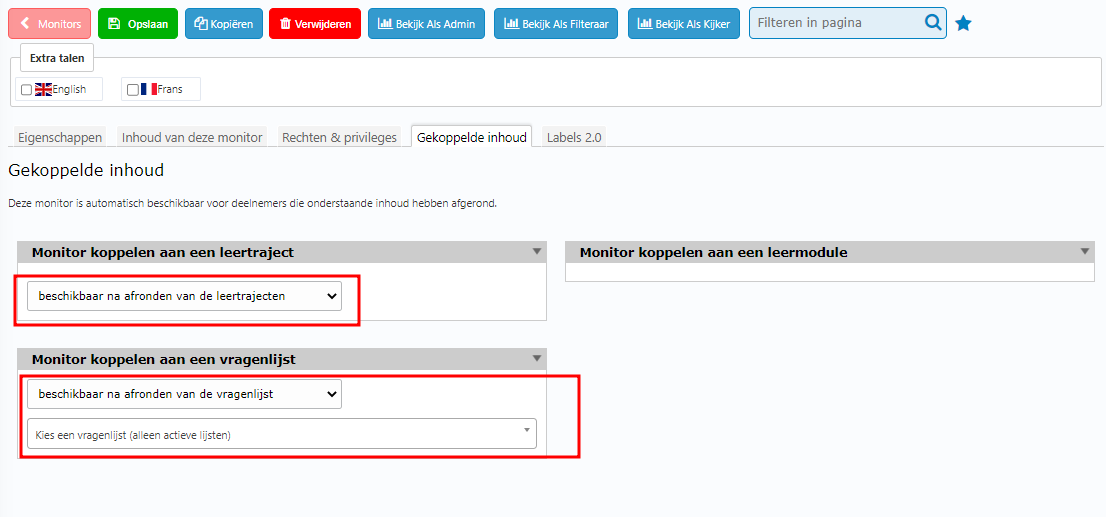
In the detail page of monitor, go to Gekoppelde inhoud tab and select a course to link to this monitor. Then it’s added!
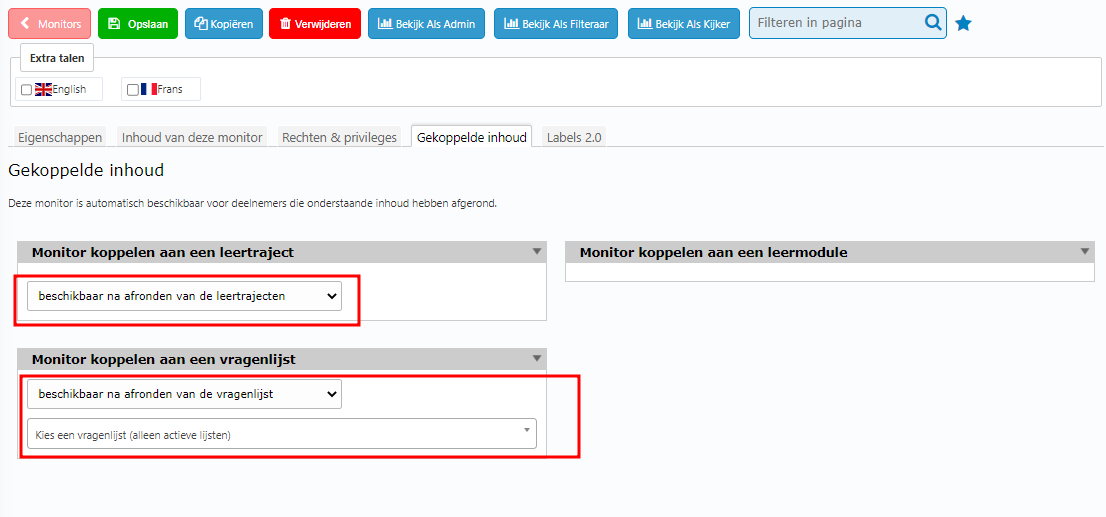
How to make the PDF button appear on homepage
After selected courses, checked the checkbox by its right side.
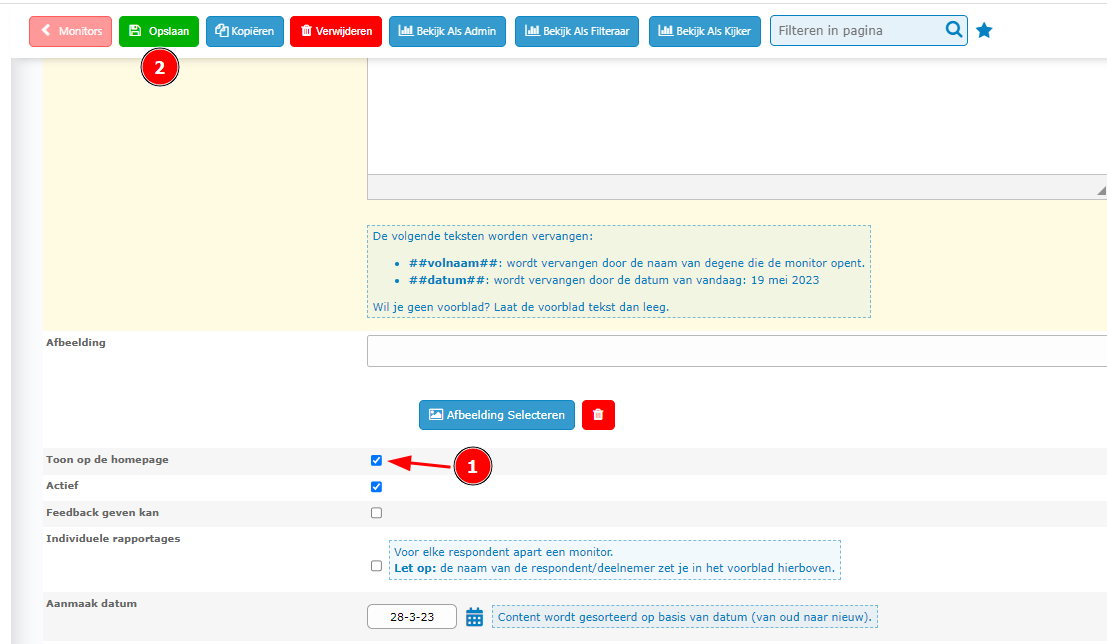
Then go to to tab Eigenschappen, checked the checkbox Toon op de homepage. And click on opslaan to save
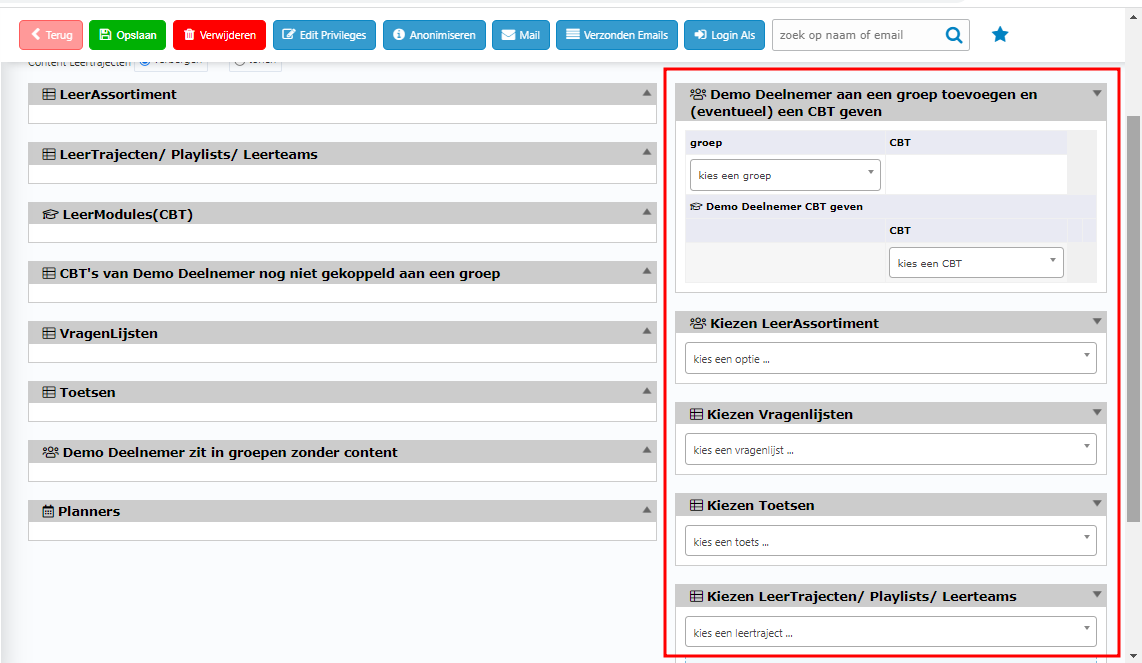
Now, go to content tab of user’s detail page and handout these courses are linked to monitor for the user.
Login as user to check!
On homepage, after make a tour playing with these content linked to monitor. Go to block Rapportages and click on the monitor which have contents linked in it
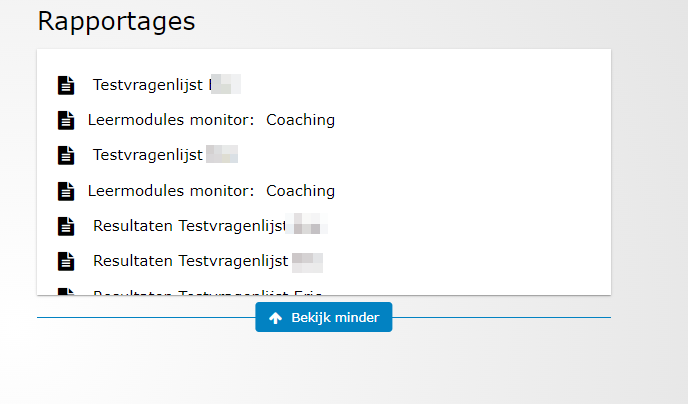
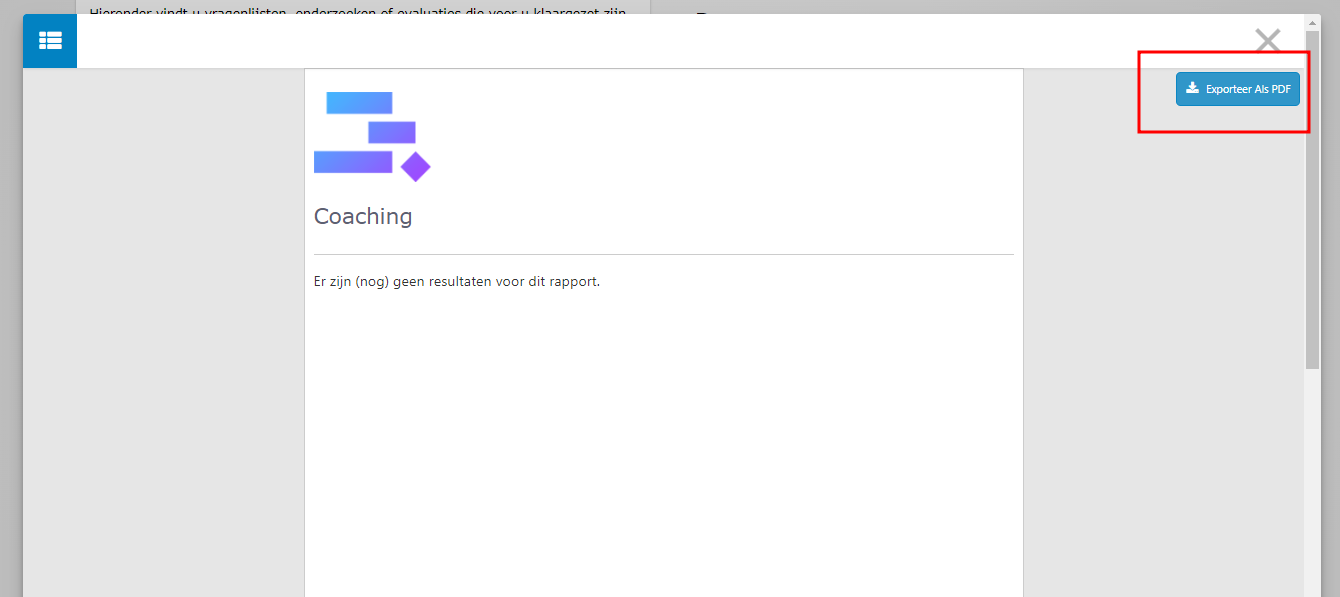
Then you will see the PDF button on the right of the popup. You can use it to print this monitor.
How to create a monitor from a Leermodule (CBT)
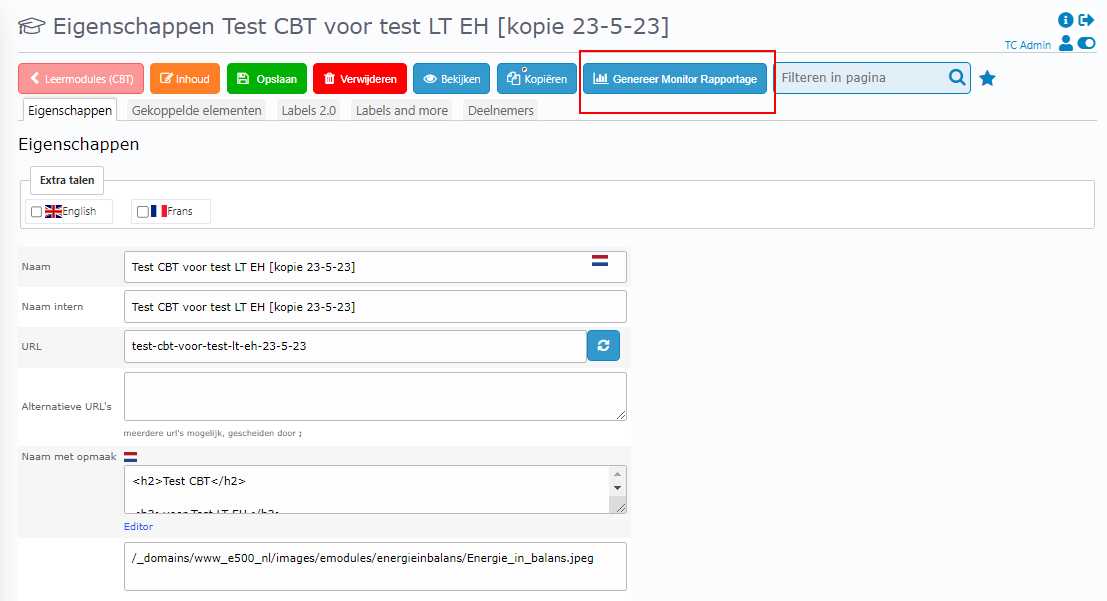
In the detail page of the CBT, you see genereer monitor rapportage button on the top bar. Click on it and next click OK to approve it become a monitor.
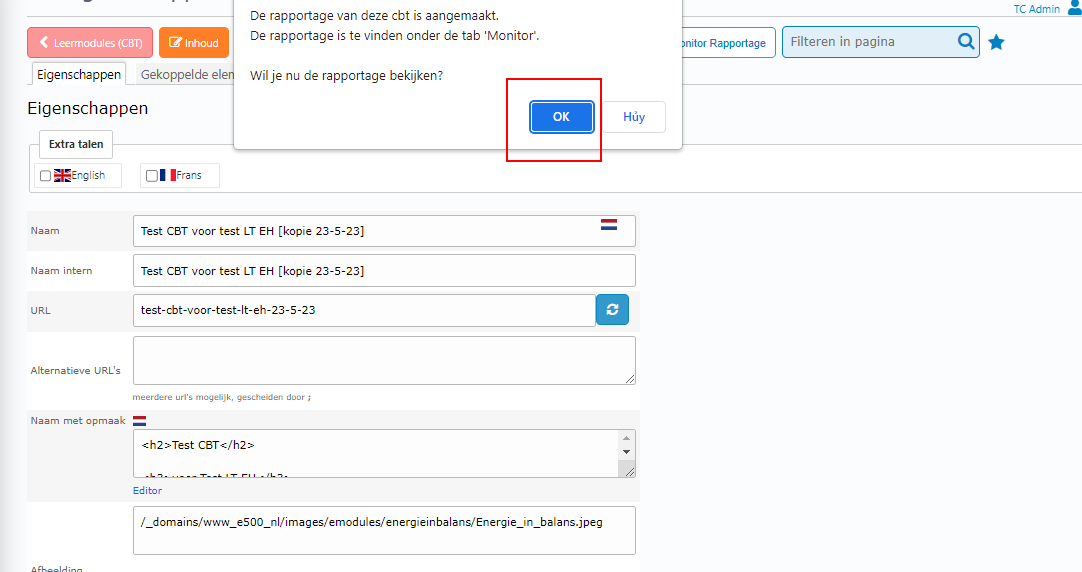
Tadaa! Now you have a monitor from its cbt!!
How to create a monitor from a Vragenlist(questionaire)
In the detail page of vragenlist click on Monitor Rapportage Generern button.
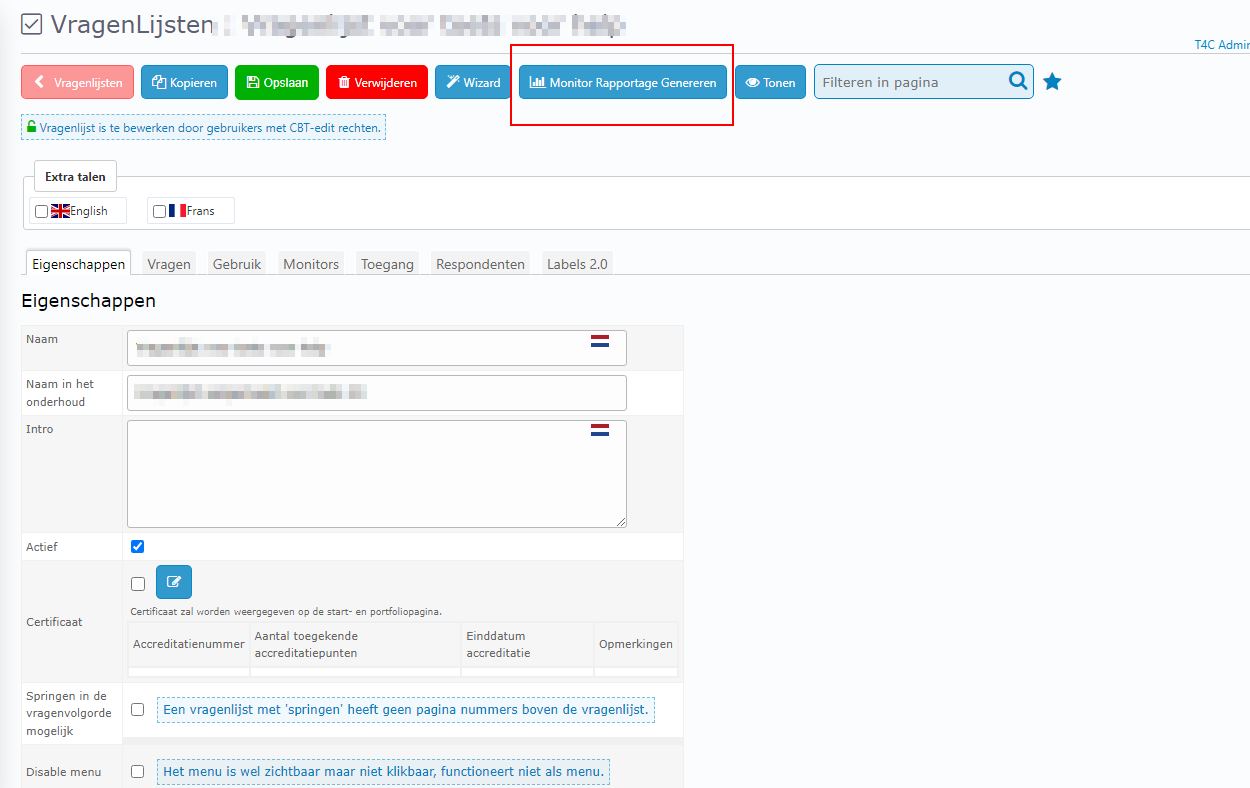
Then, click OK to to approve it become a monitor.
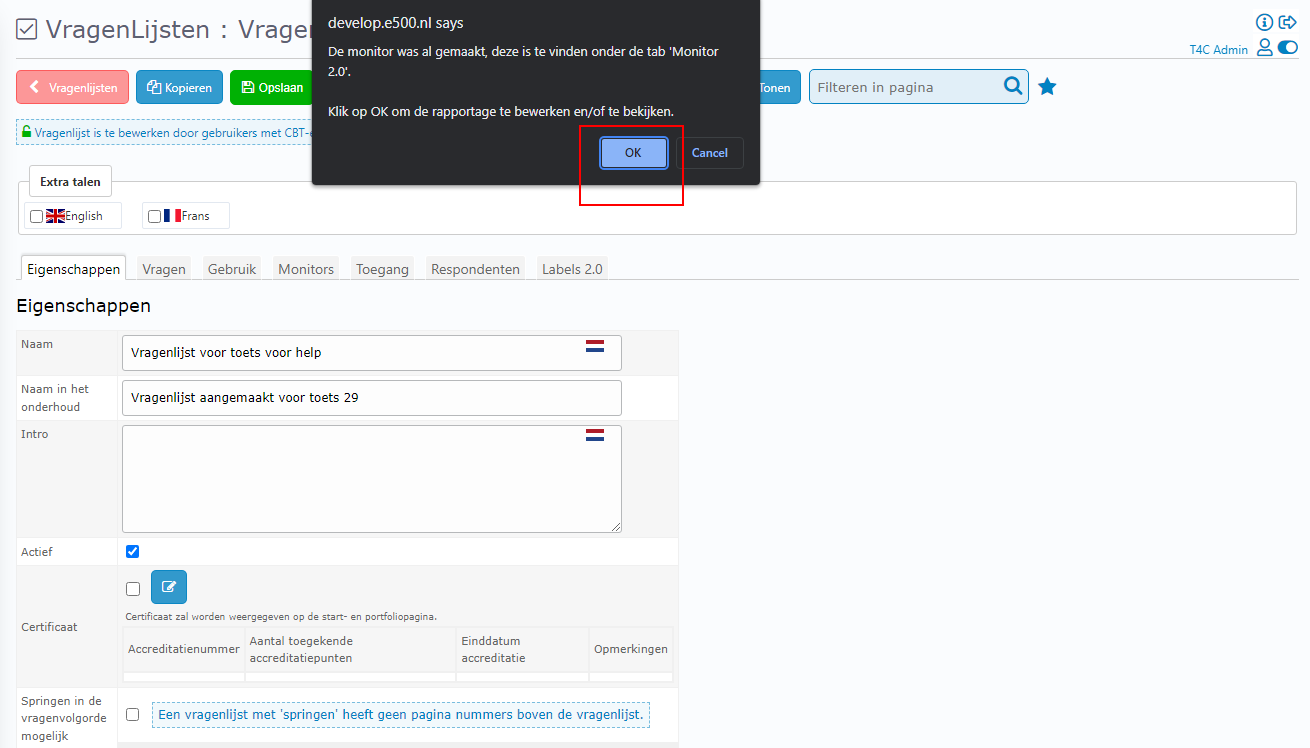
It’s done! Now you have a monitor created from vragenlist!