We can add individual users or multiple users at the same time to a group. Here is a tutorial on how to do it!
1. To add individual user to a group
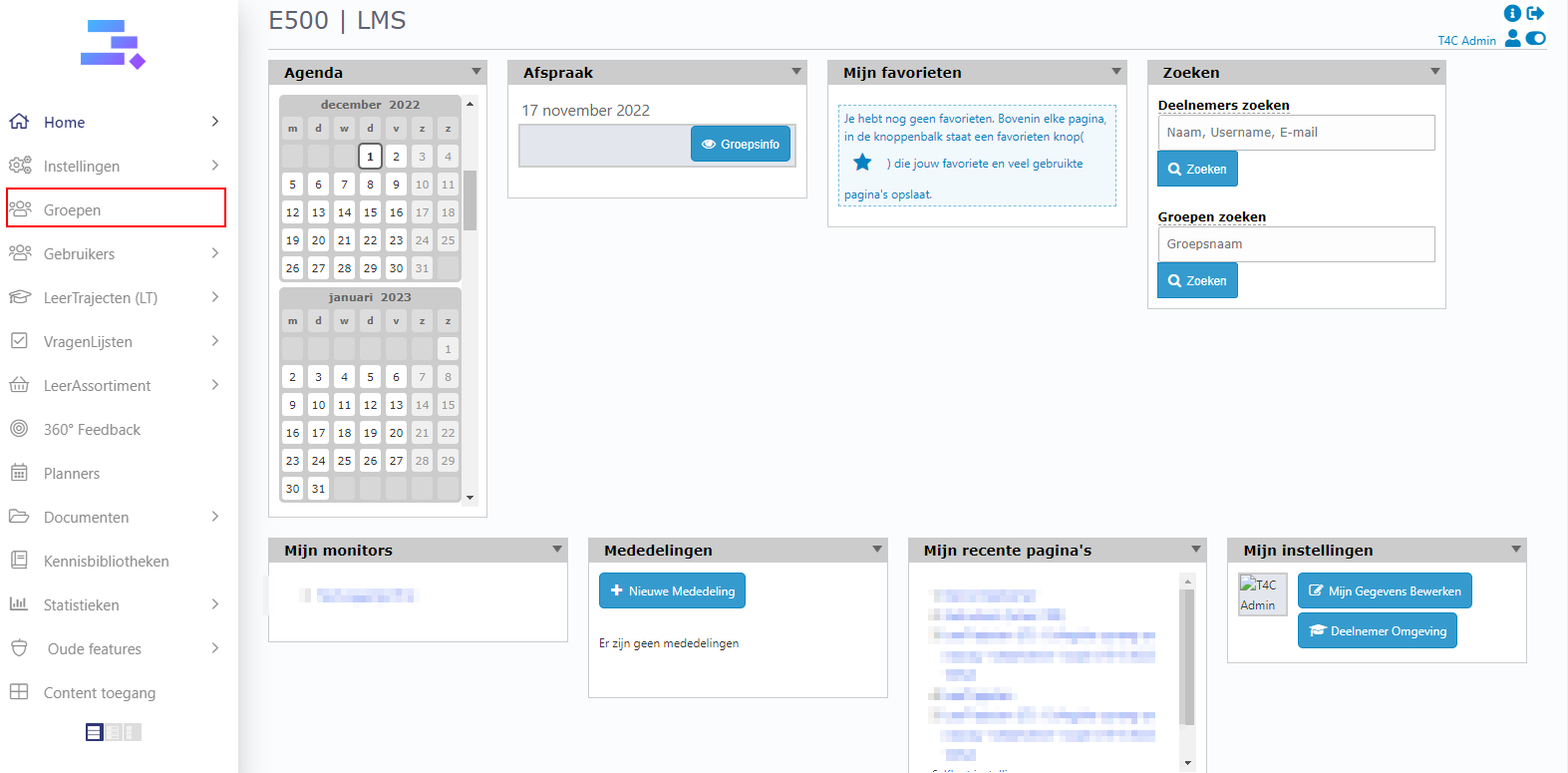
Login with your administrator account and click on Groupen
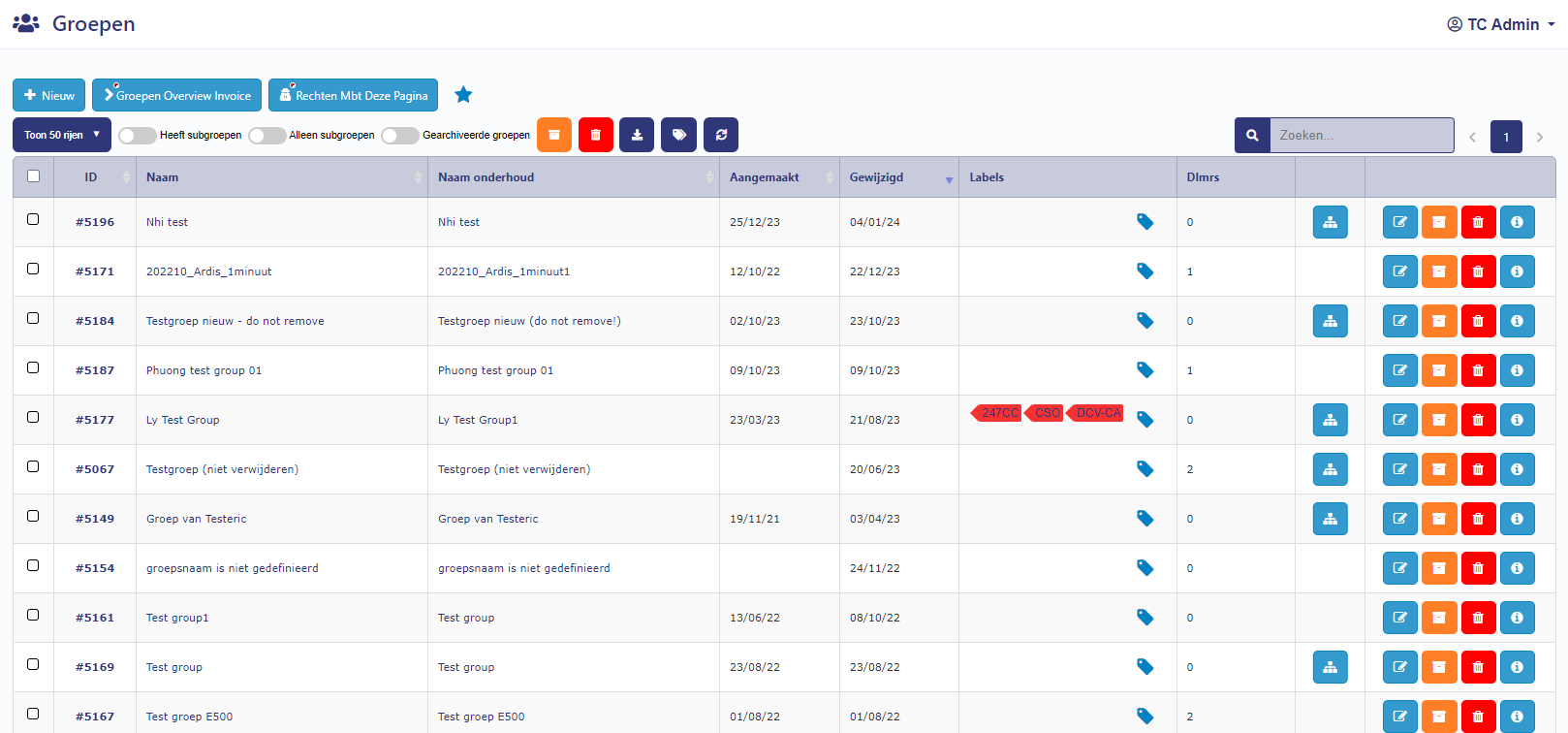
Go to a group you want to add user to
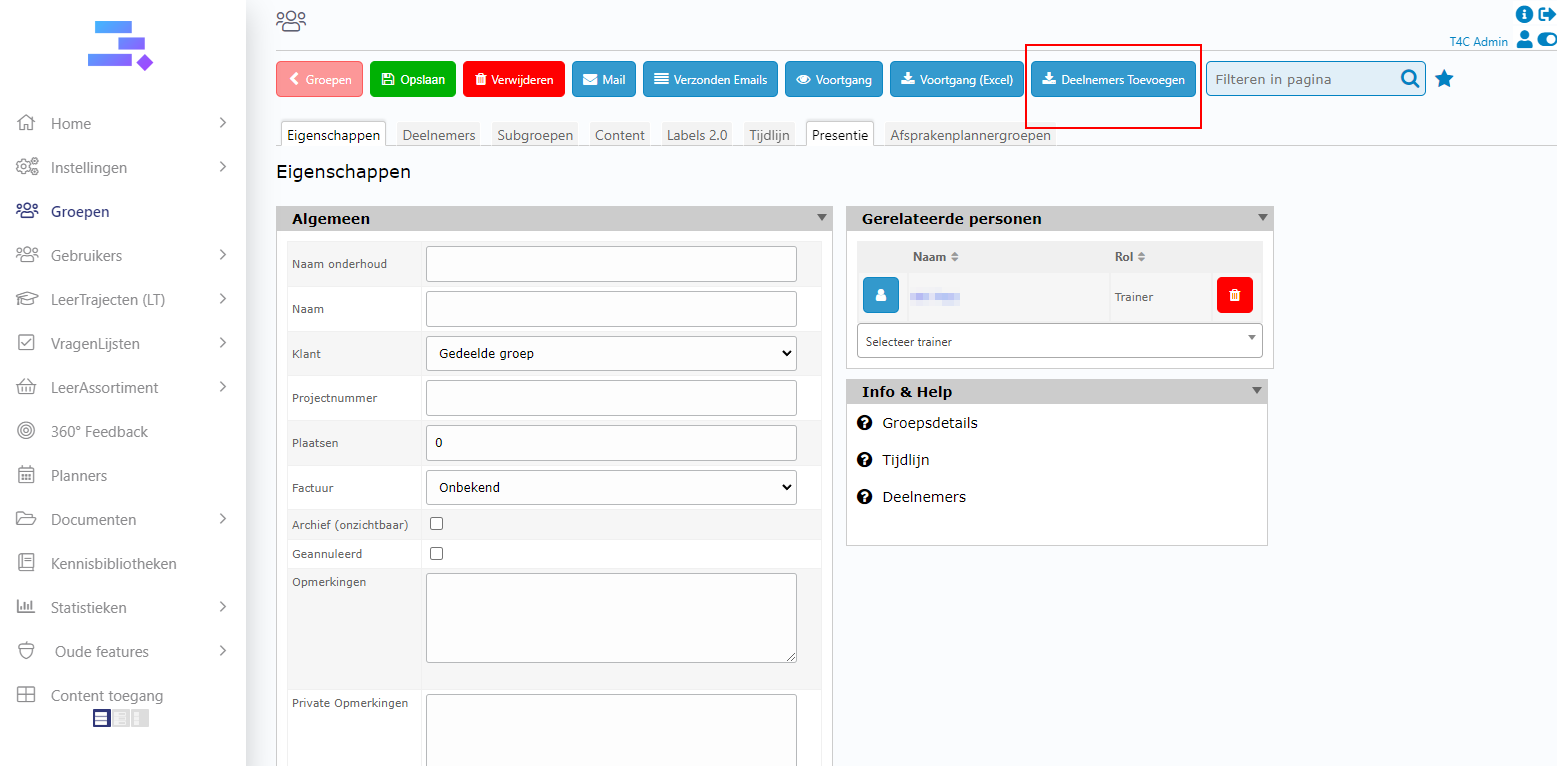
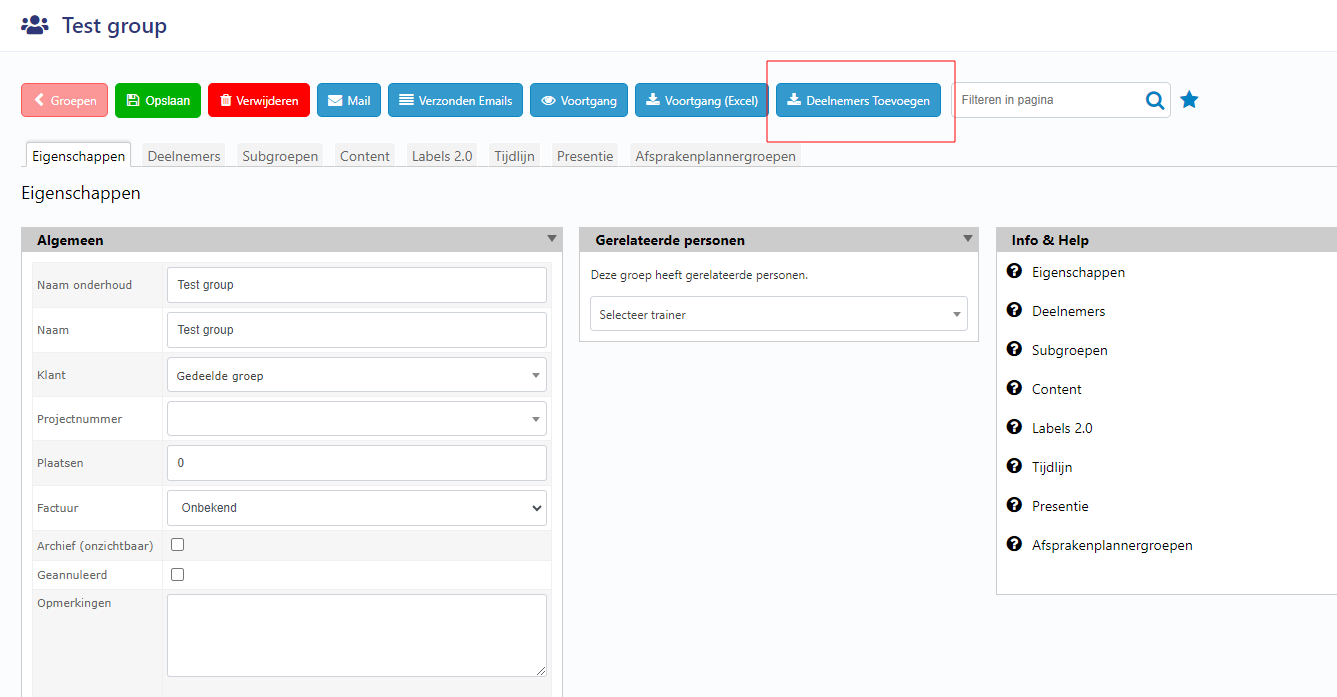
Click on Deelnemers Toevoegen button on the top
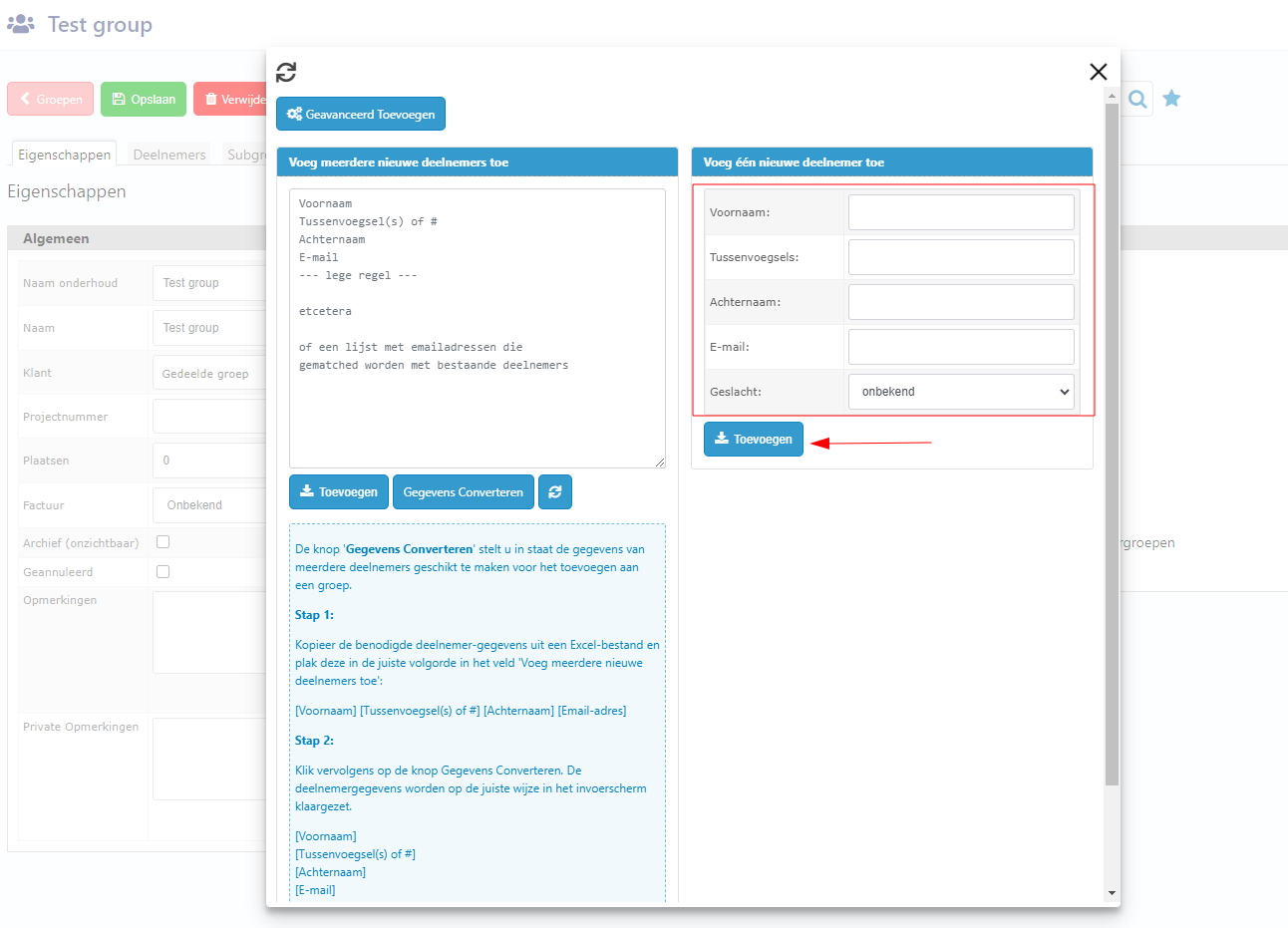
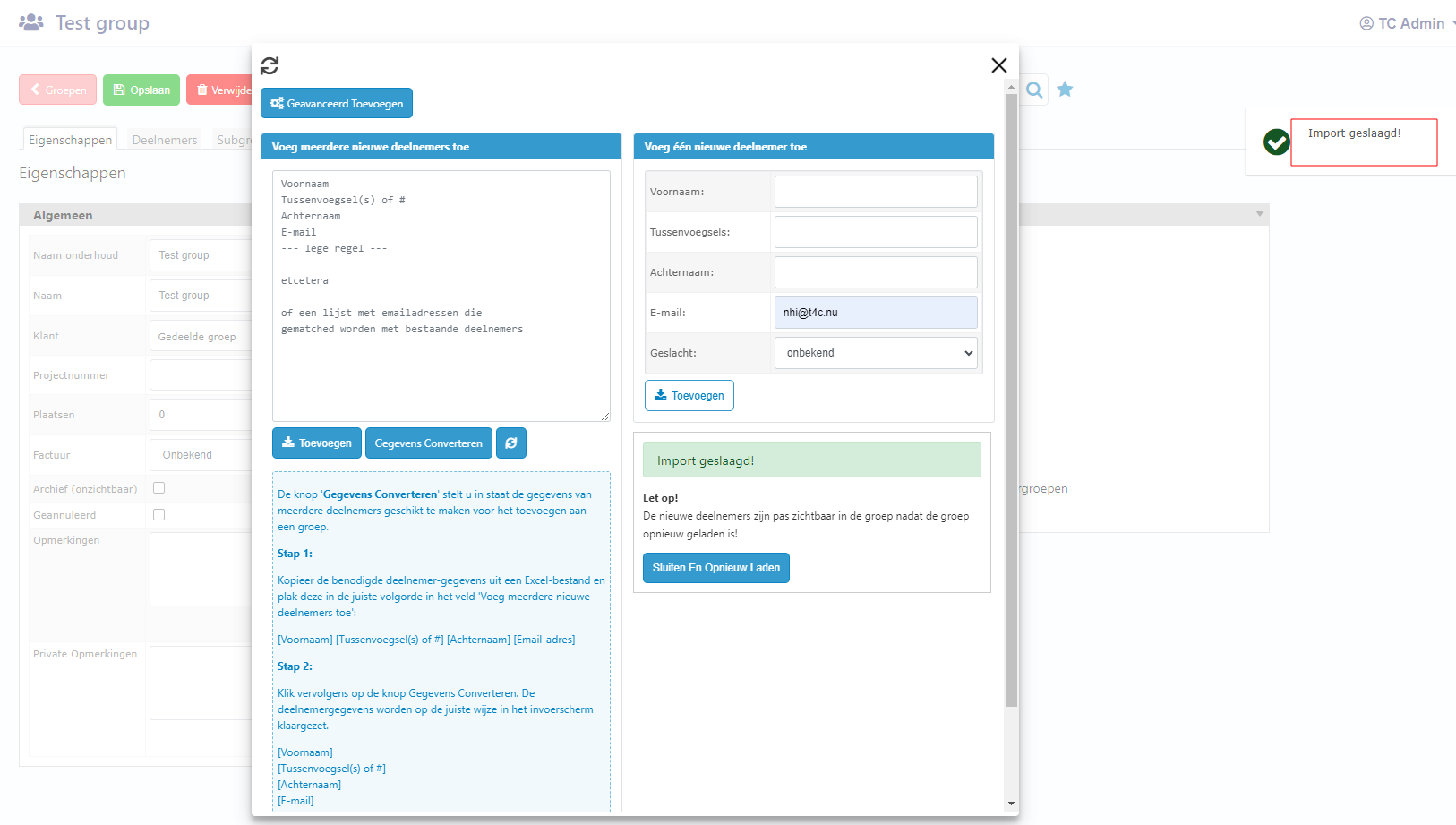
A popup appear, you have to fill the user’s information in Voeg één nieuwe deelnemer toe form. Then click Toevoegen to import user.
Now you can see the notification Import successful!. Yeah, that’s a good sign!
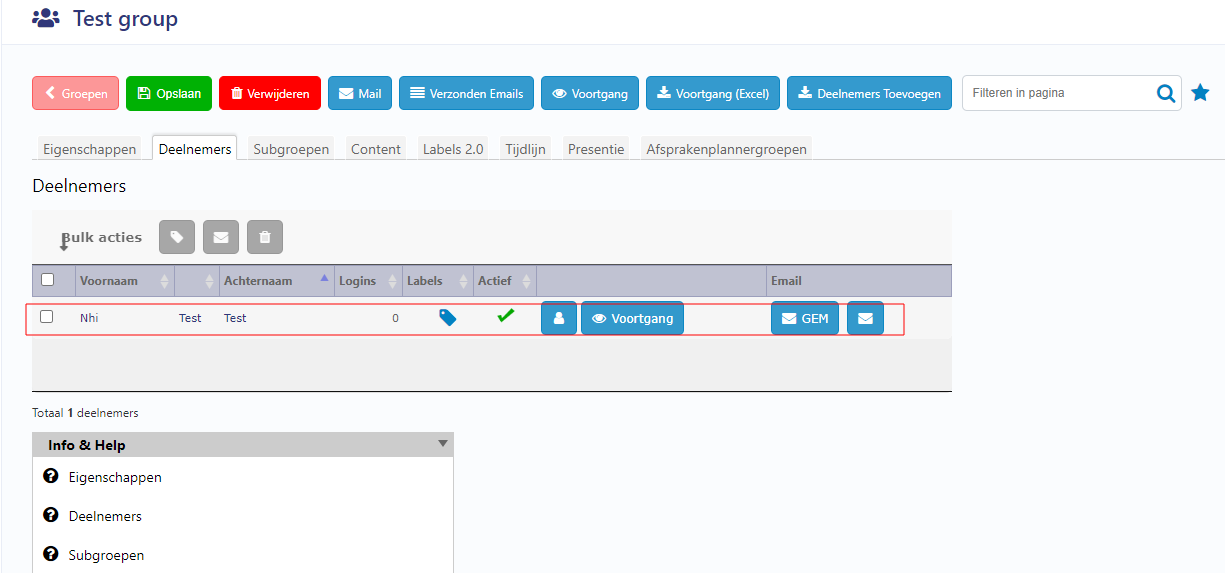
Close the popup, go to tab Deelnemers and refresh this page. Then you can see the user whom you have just imported!
2. To add multiple users at the same time to a group
A. Do it manually
In the group, click on Deelnemers Toevoegen button on the top.
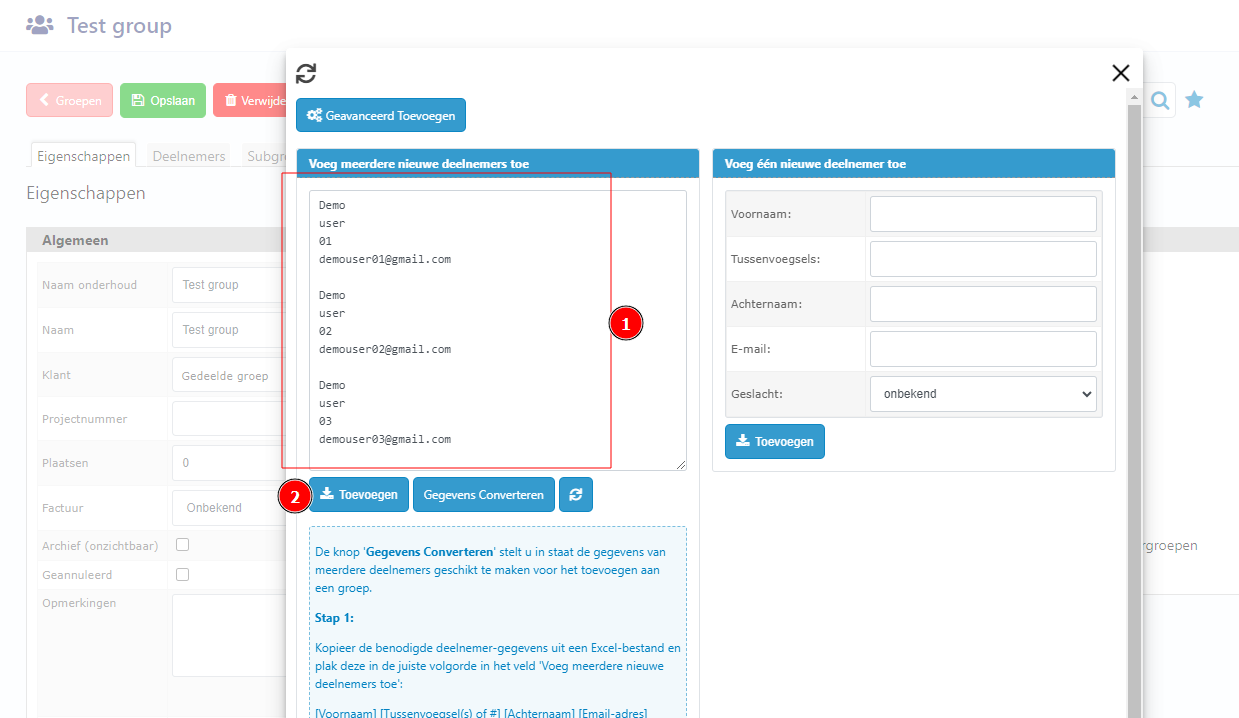
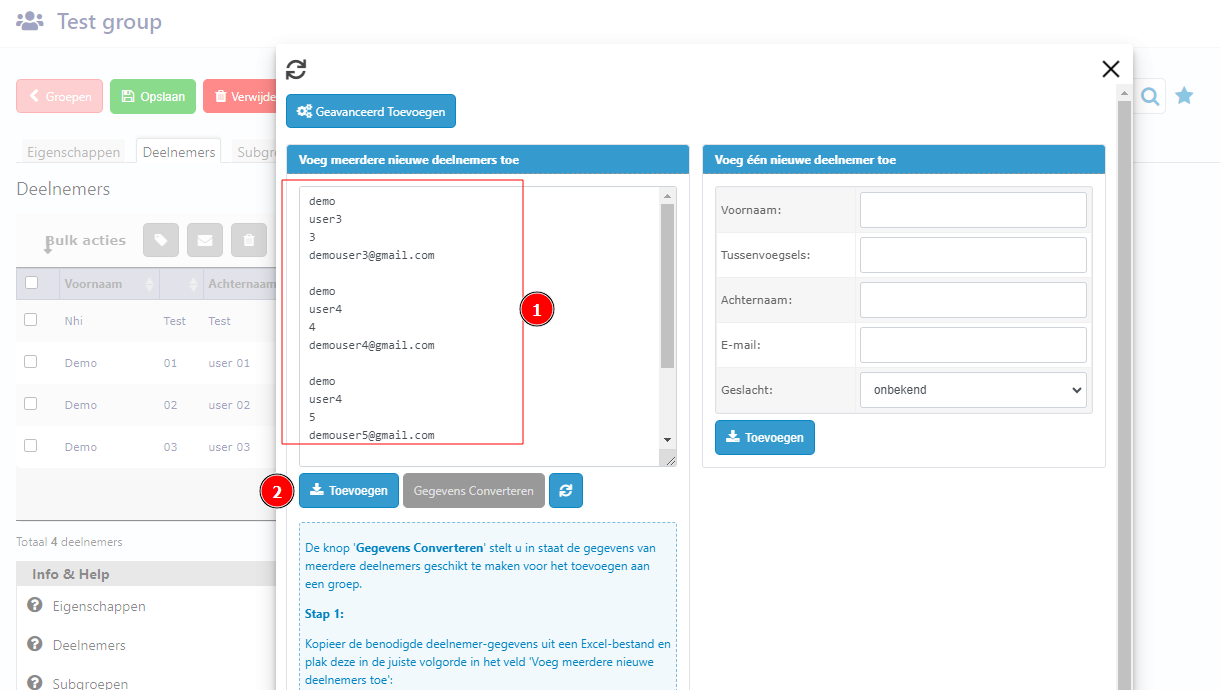
Fill the fill multi-user information in the Voeg meerdere nieuwe deelnemers toe form. Then click on Toevoegen to import multiple user to this group
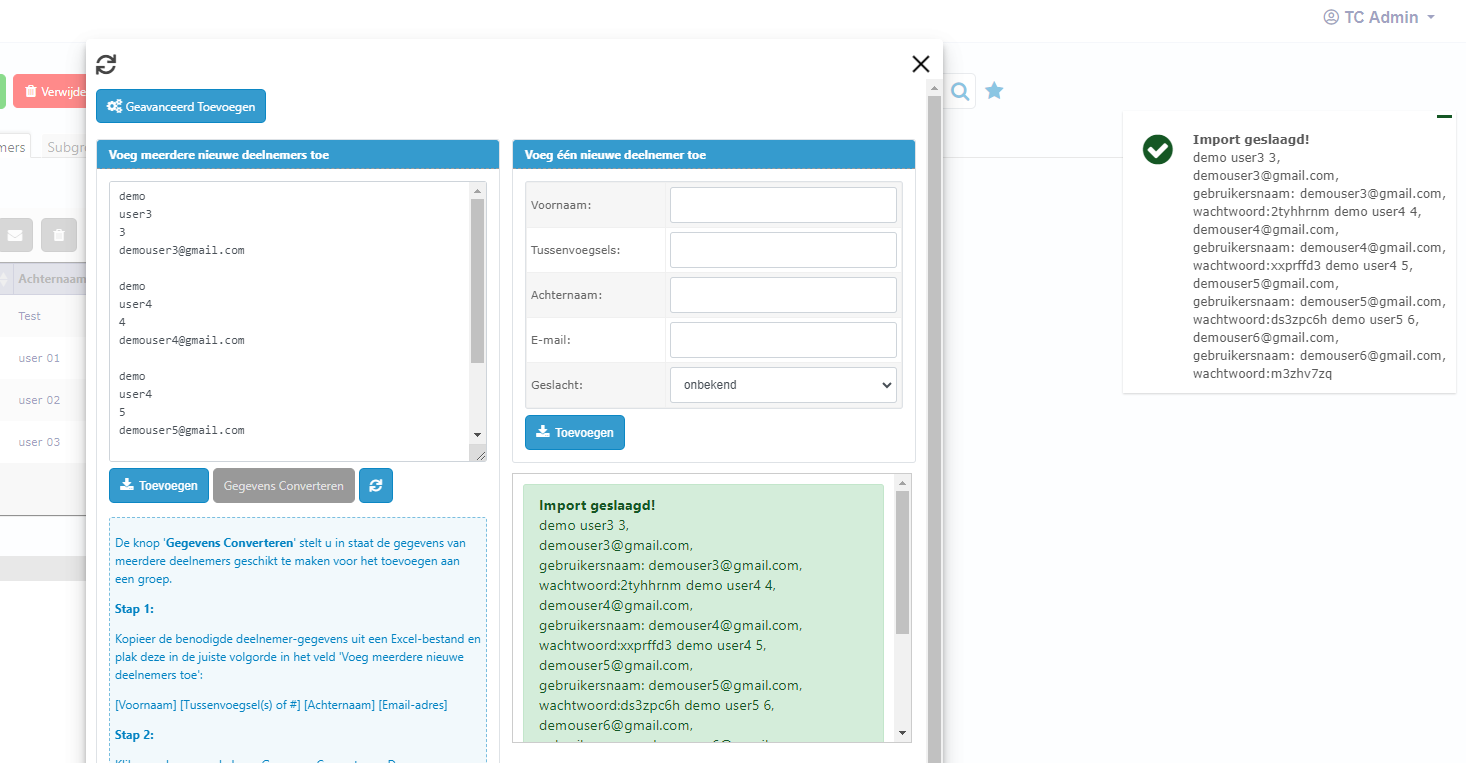
After that, a notification about Import successfull is appeared!
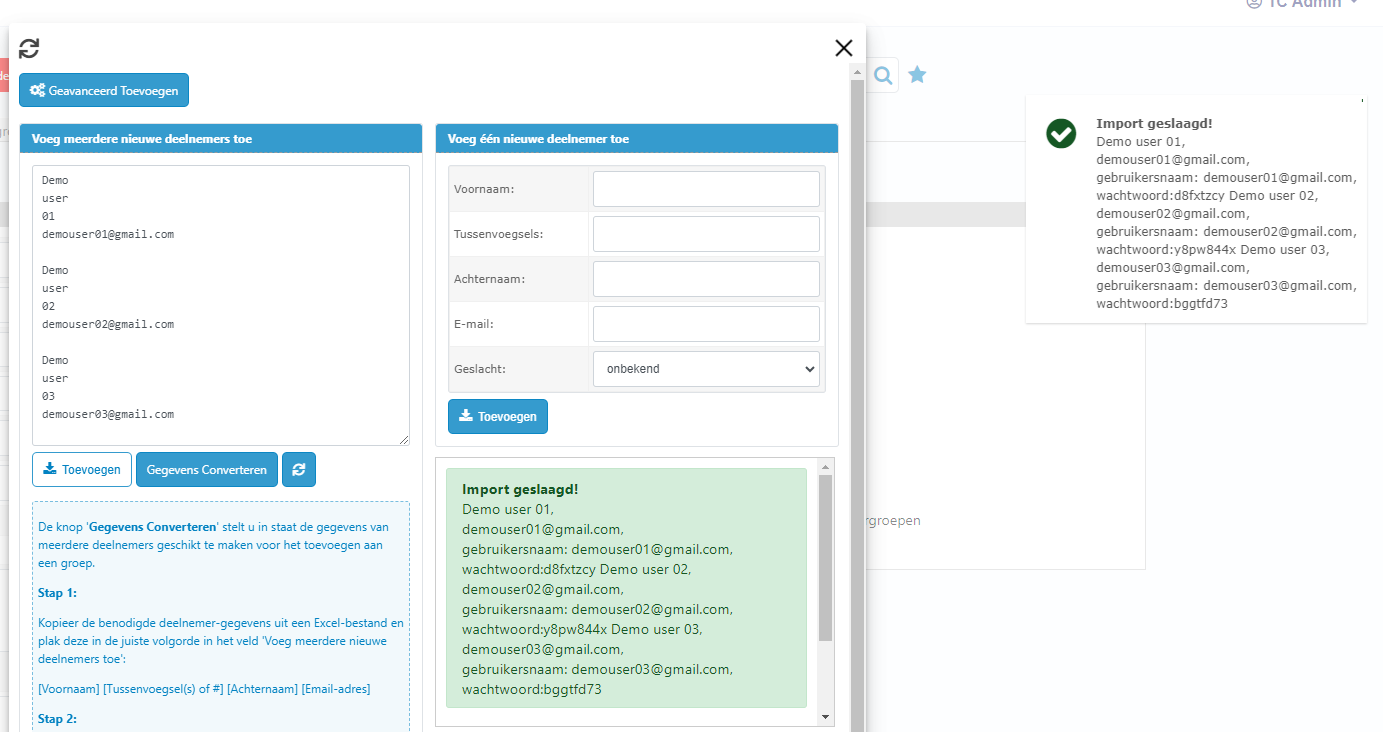
Close the popup. Go to tab Deelnemers and refresh this page. Now you can see the users that you have just added!
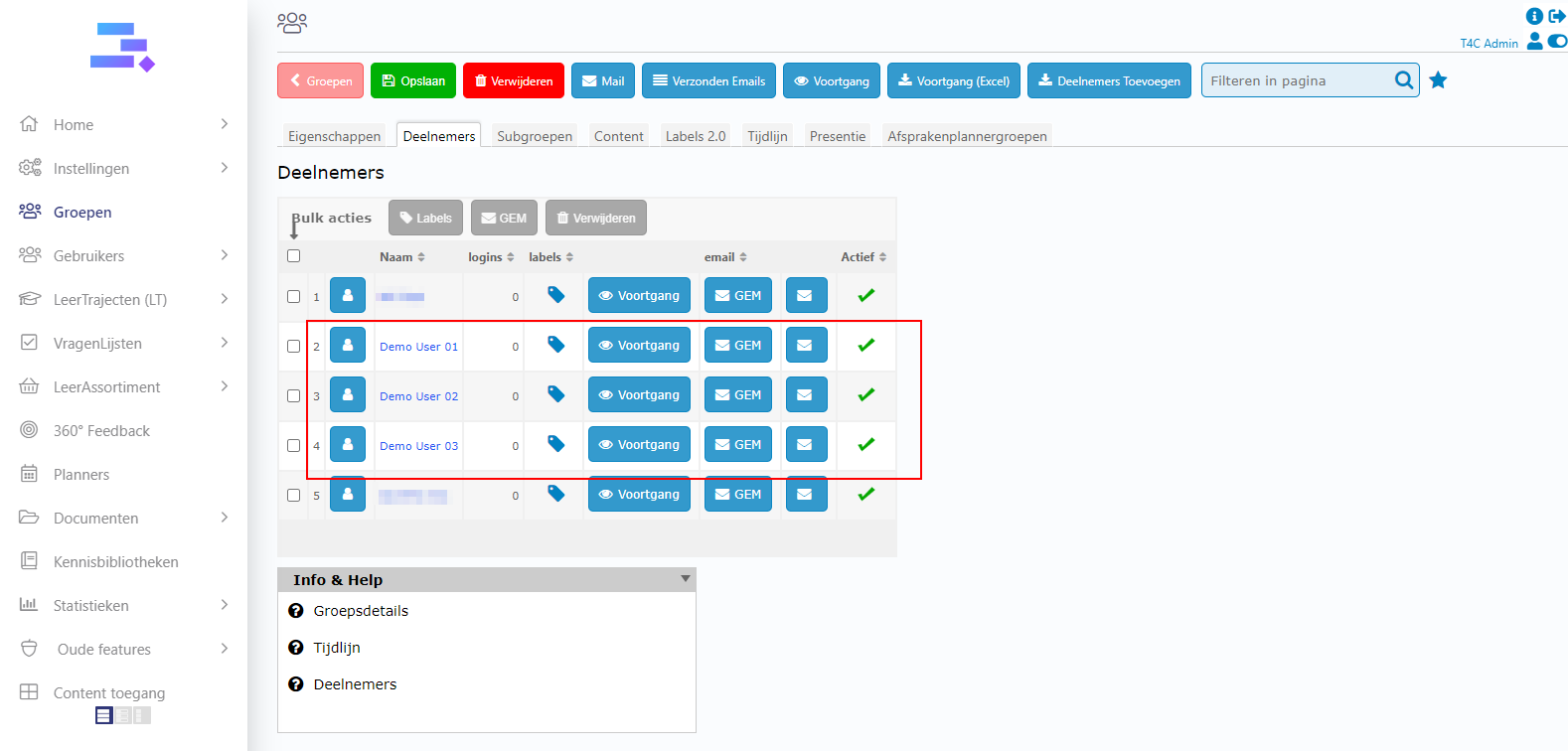
To do it according to the available file
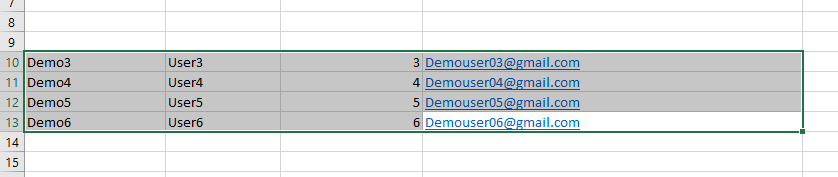
Firstly, open the excel file file and copy the multi-user information in it
Back to group and click on Deelnemers Toevoegen button
Paste the copy into the Voe meerdere niewe deelnemers toe form. Then click on Gegevens converteren, so that it is returned to the correct format.
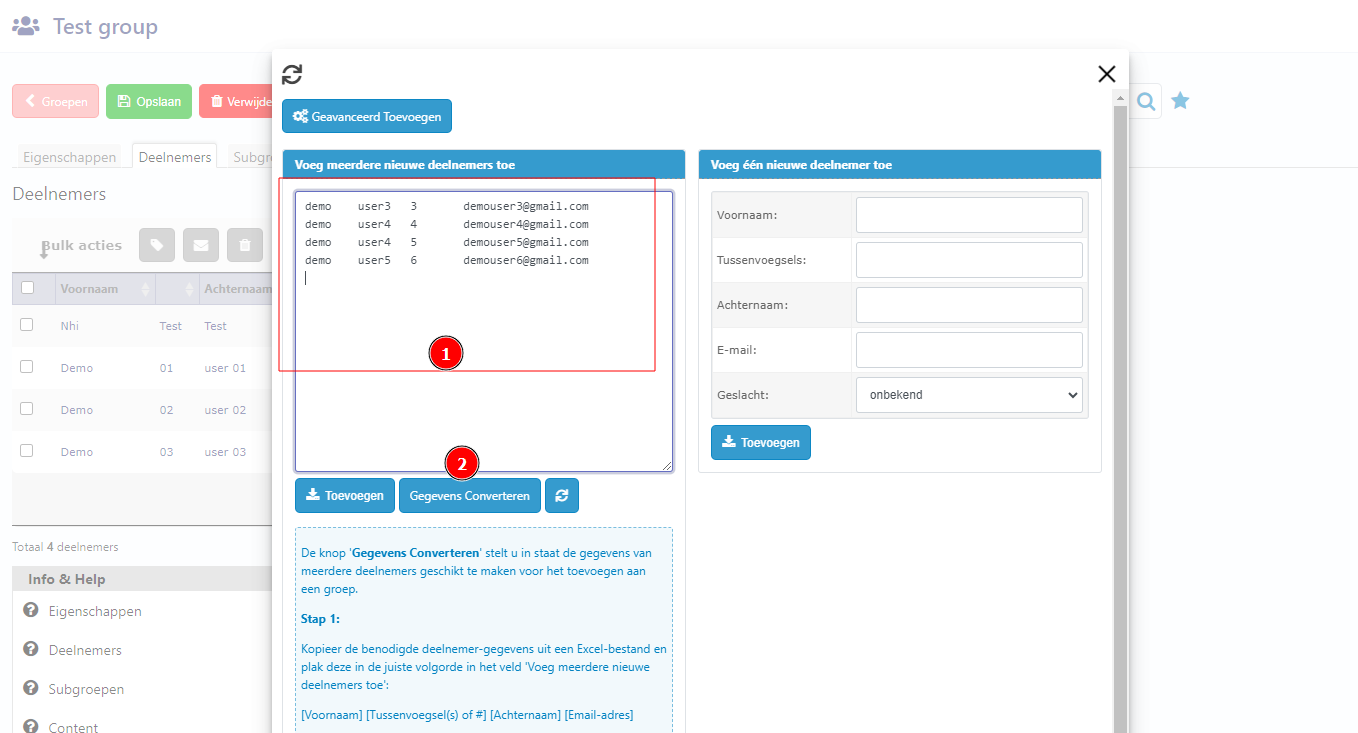
Finally, click on Toevoegen to import the users!
A notification about Import Successfull is appeared! Close the popup. Go to tab Deelnemers and refresh this page. Now you can see the users that you have just added!
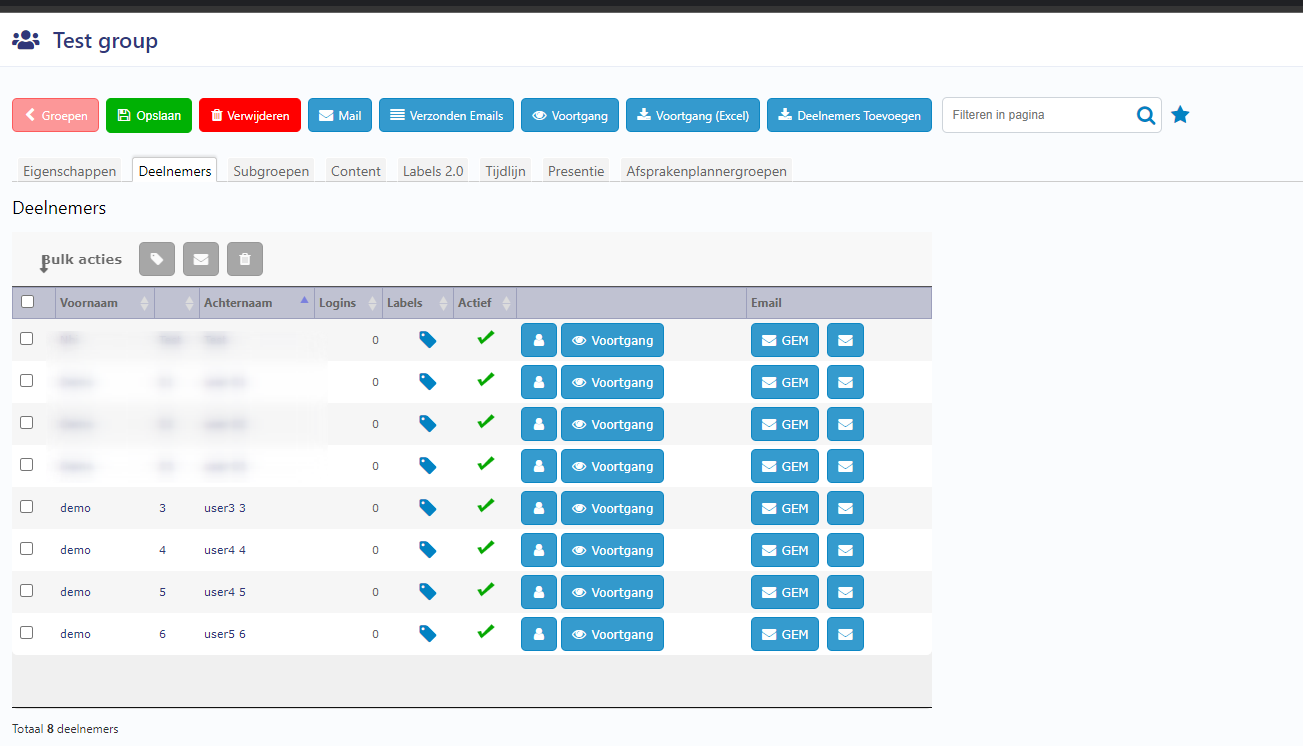
It’s done! Good luck!