Planners’ is a functionality with which you can schedule training moments with individual participants or groups of participants. Determine which parts of the day are available on which days, inform the participants by e-mail and let them decide for themselves when they participate. The system keeps you informed of which parts of the day have been chosen and where there is still room in the schedule.
-
Create a new Planner
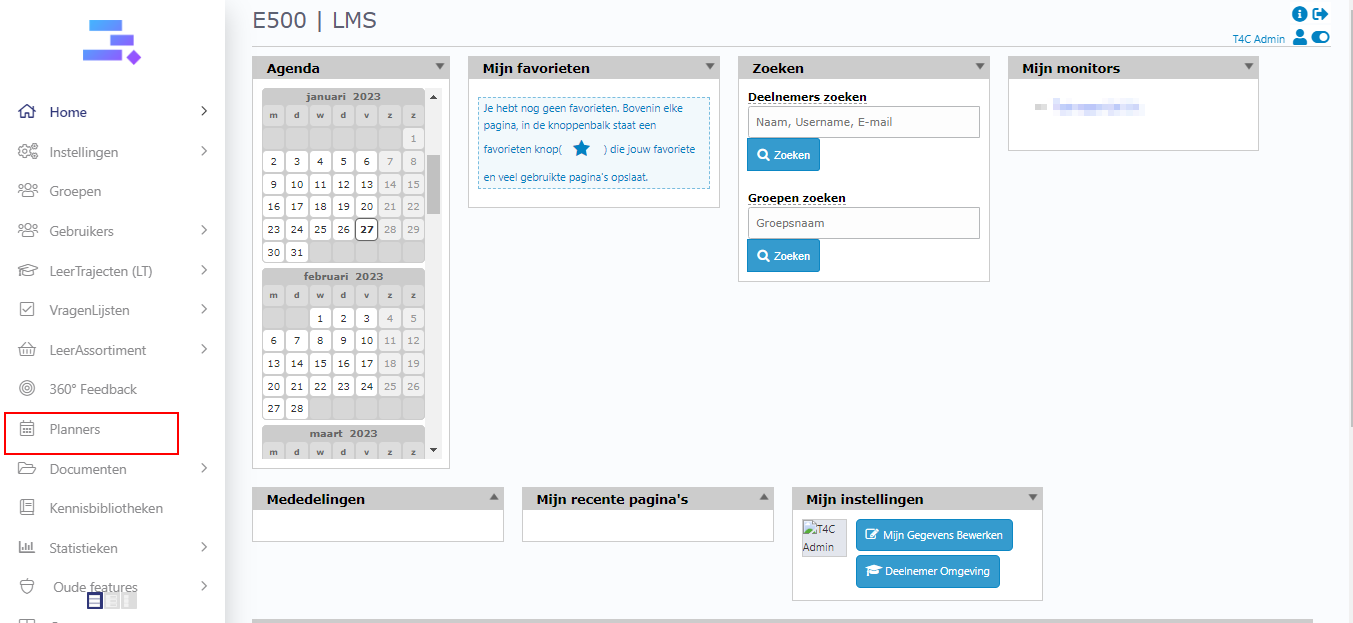
First, login with your administration account. And click on Planners
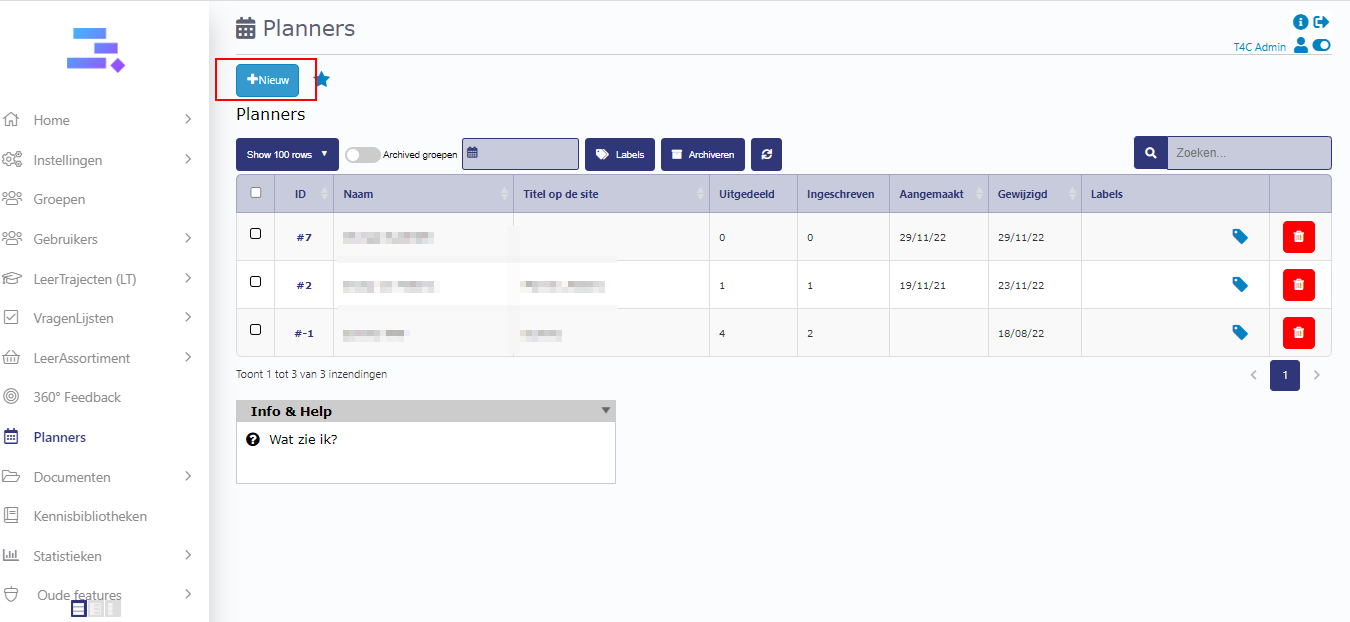
Click on +Niew button to create a new Planner
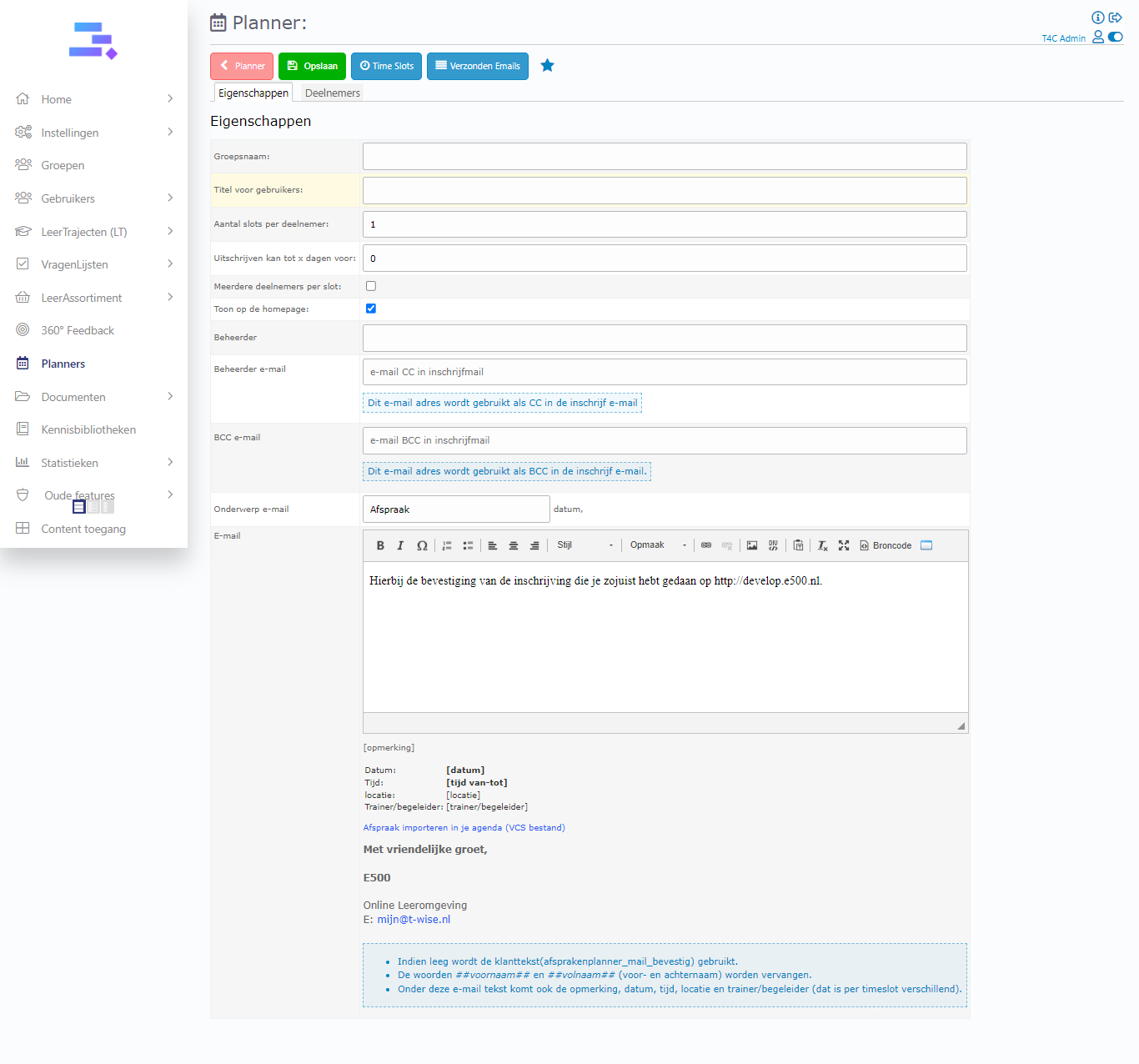
Then, you have to fill out this form with the information about your Plan. You also can set the number of slots per participant, unsubscribe up to x days before,…. When you have completed the form. Don’t forget to click Opslaan button to save the information
2. Add plan for user:
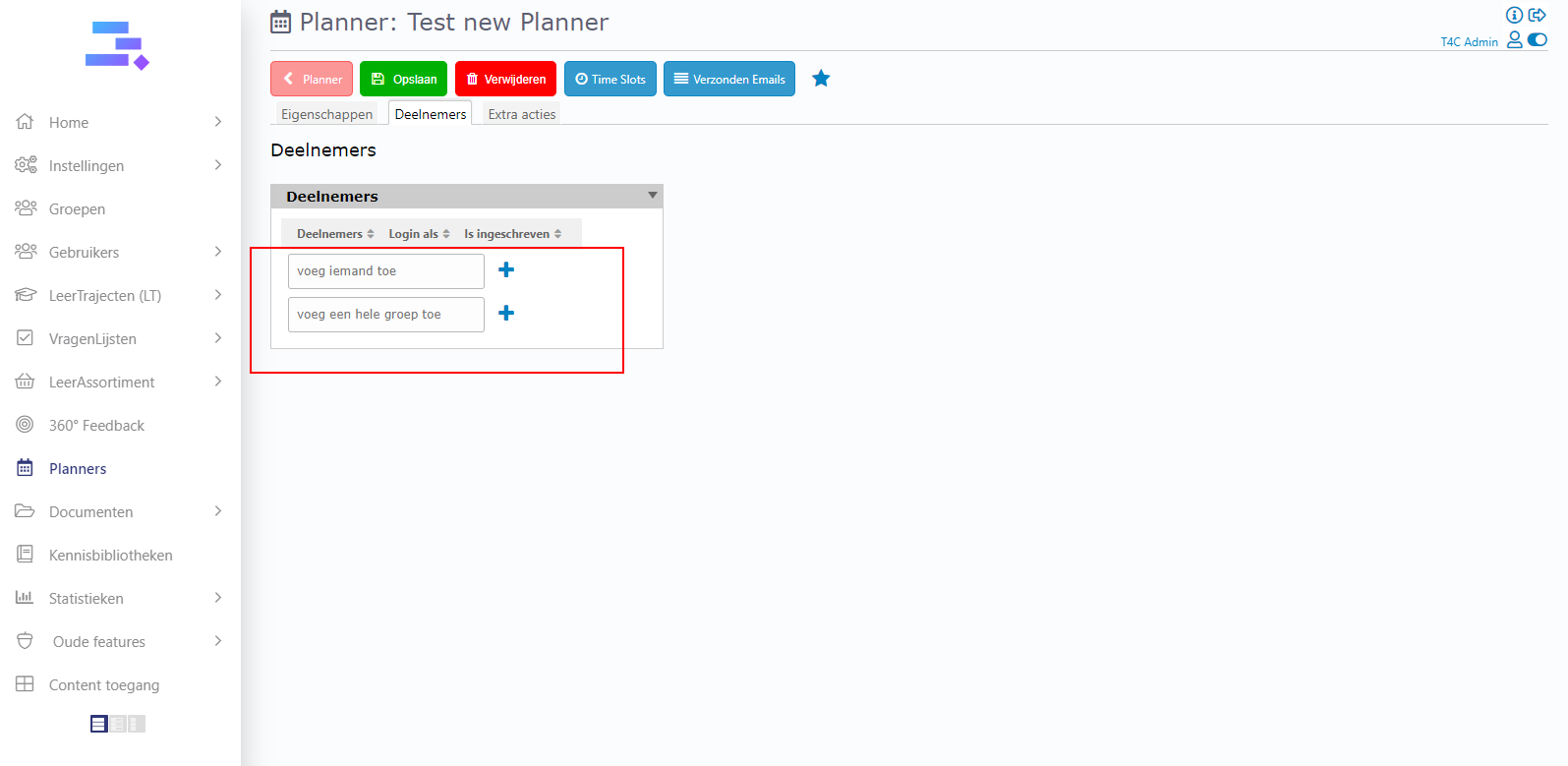
Go to tab Deelnemers to invite the others user attend your Plan. You can invite each person or all people in a group by 2 option in block Deelnemers.
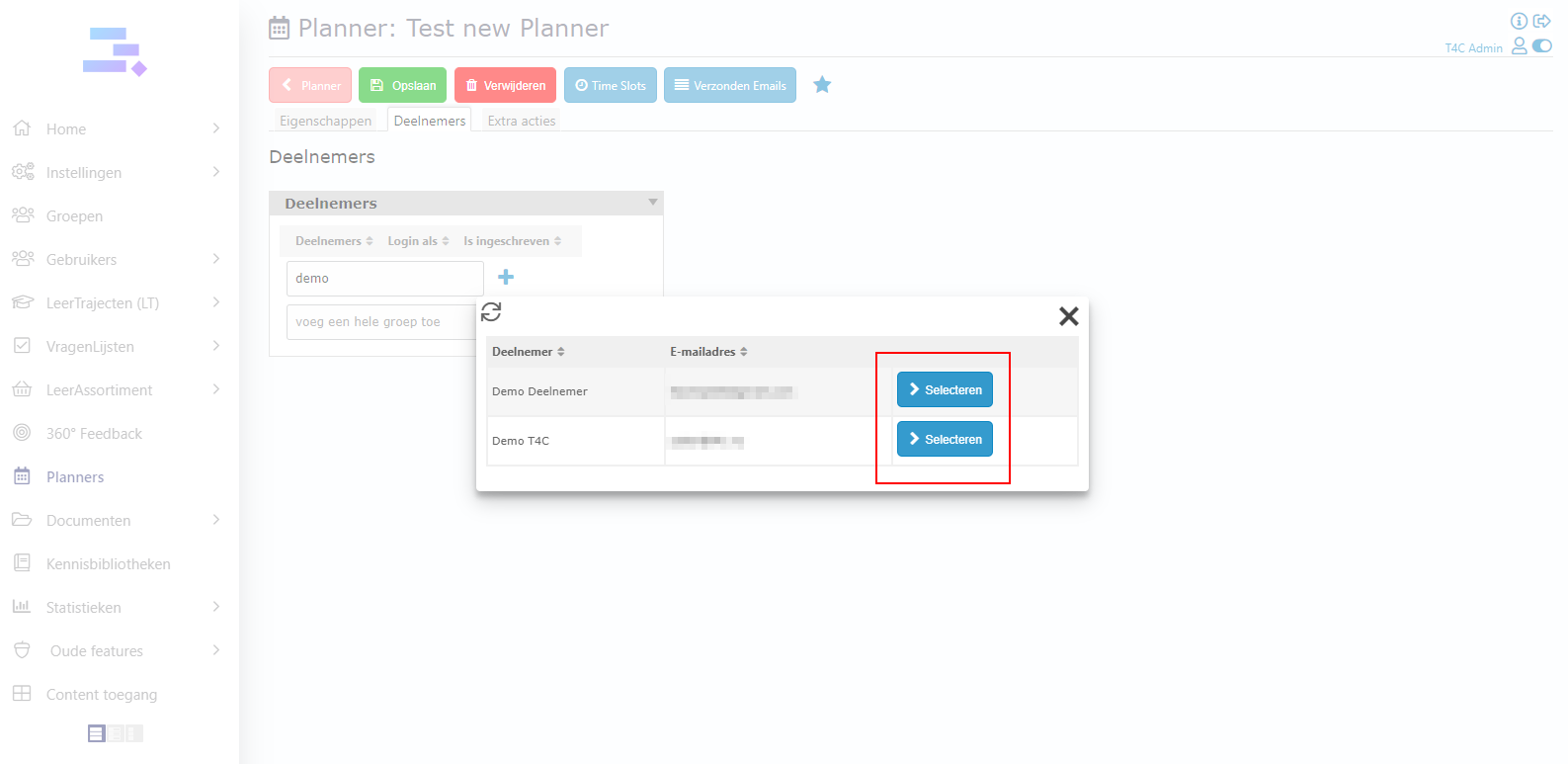
Click to a frame and fill name of the person or a group that you would like to invite. Then click + to search.
After searching, you just press the Selecteren button to invite.
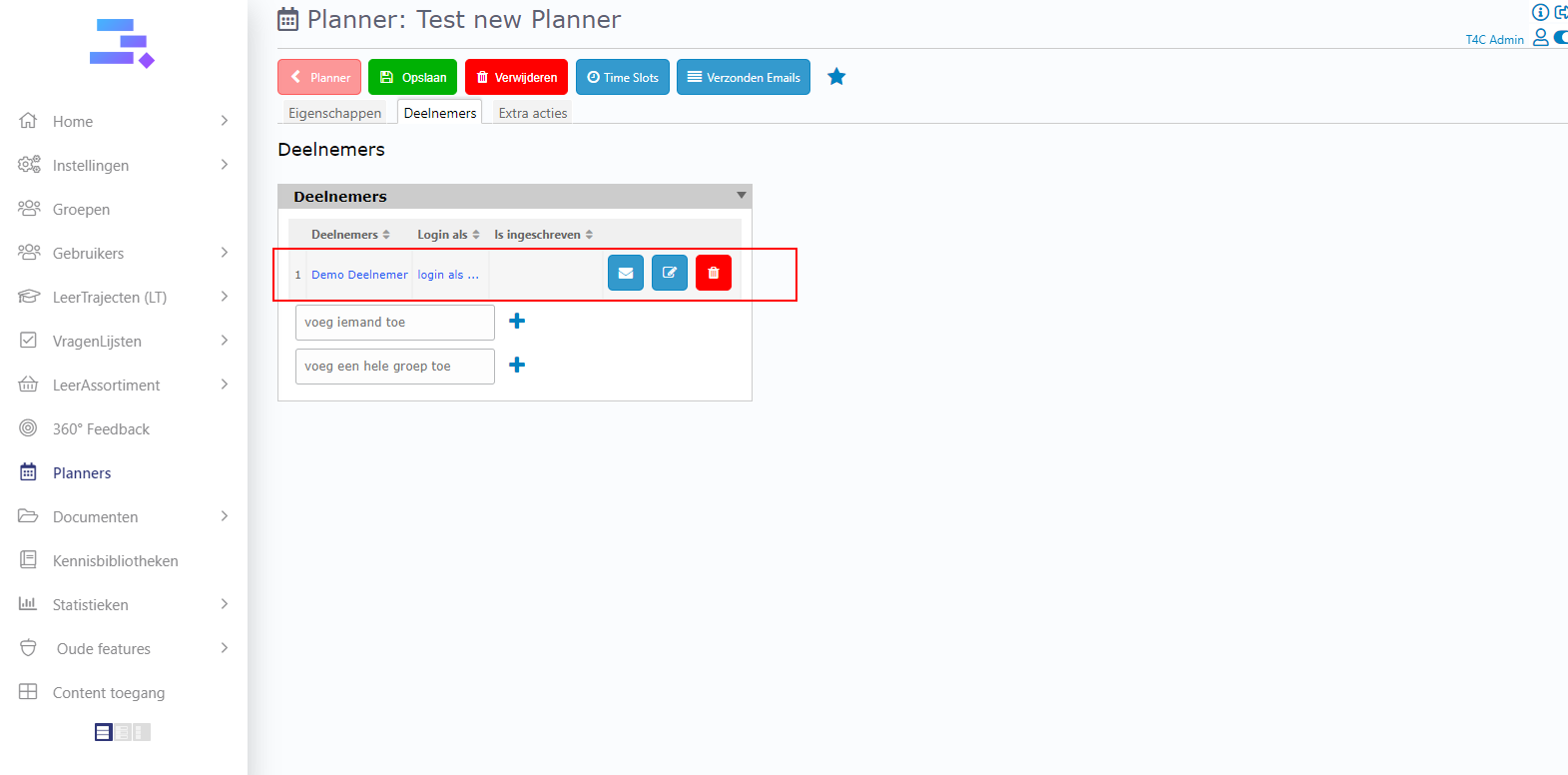
Then you can see the person or the group that you selected appear in block Deelnemers. You can continue invite more user by the same way. Or delete the invitation by click the red trash button on the right of user’s name/group.
3. Add plan for a group:
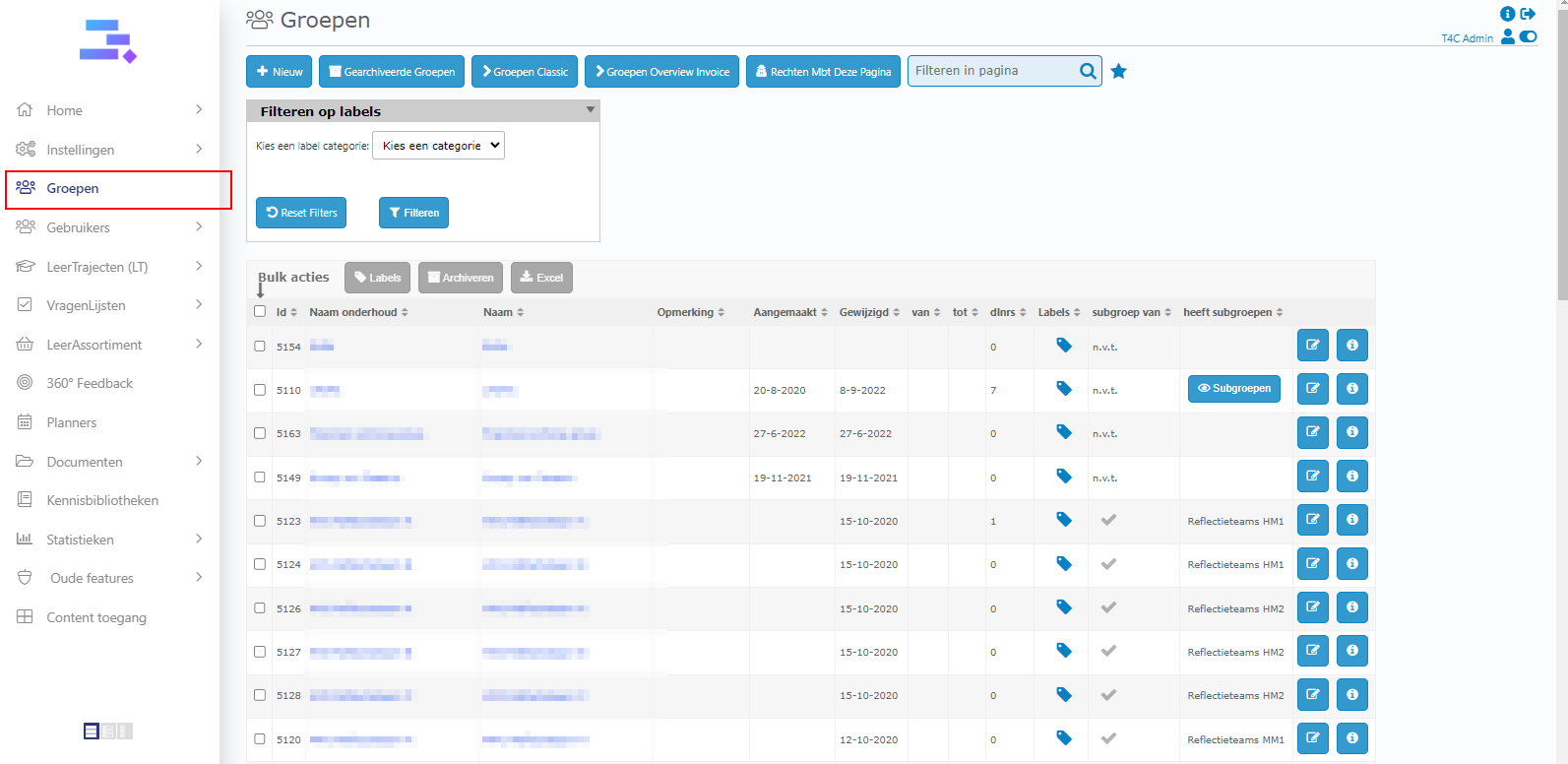
Click on Group and go to a group which you want to share the plan for them
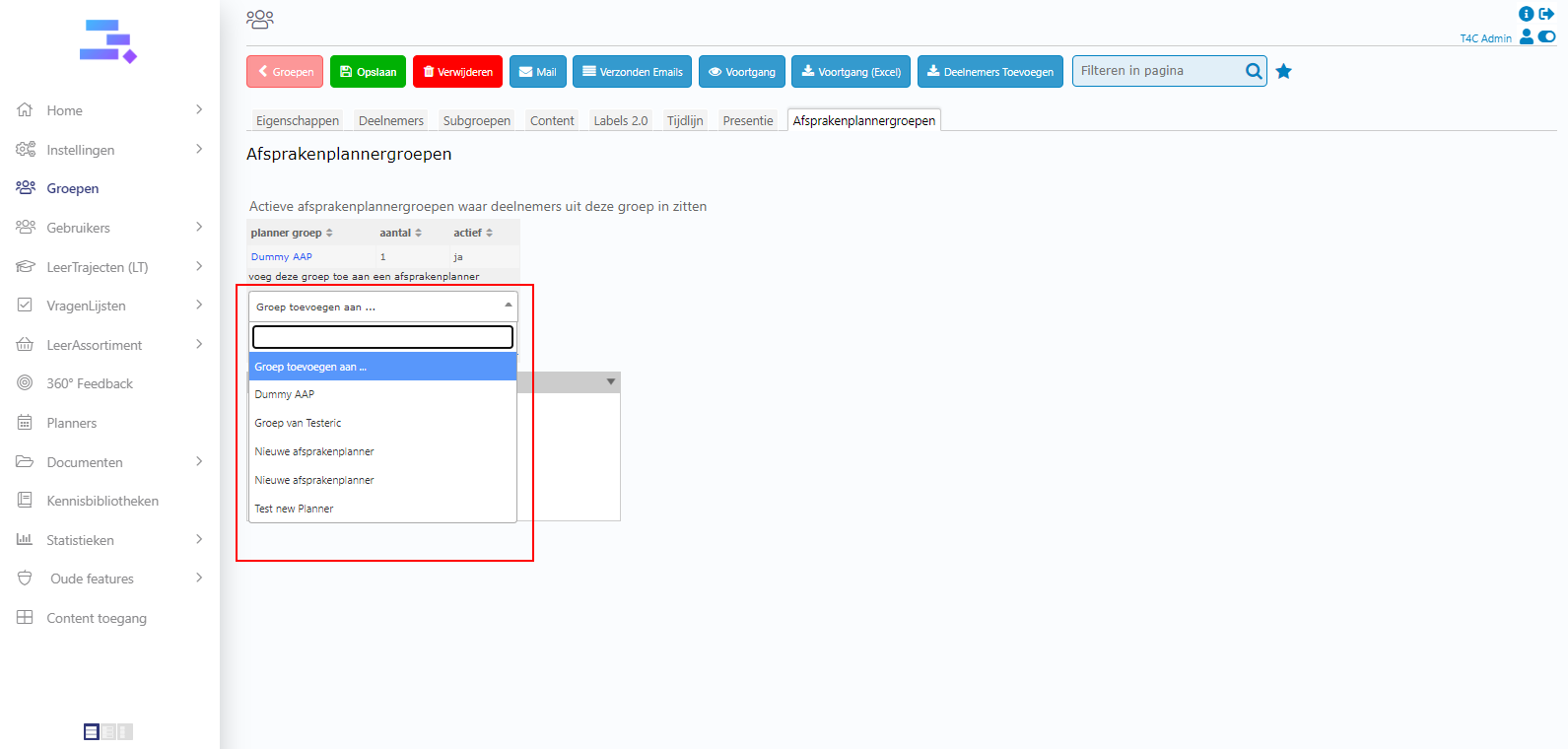
Then, in group go to Afsprakenplannergroepen tab, then you can see the sellection dropdown to choose any plan and share it for this group.
Next, click Time Slot button on the top to set time for the Plan
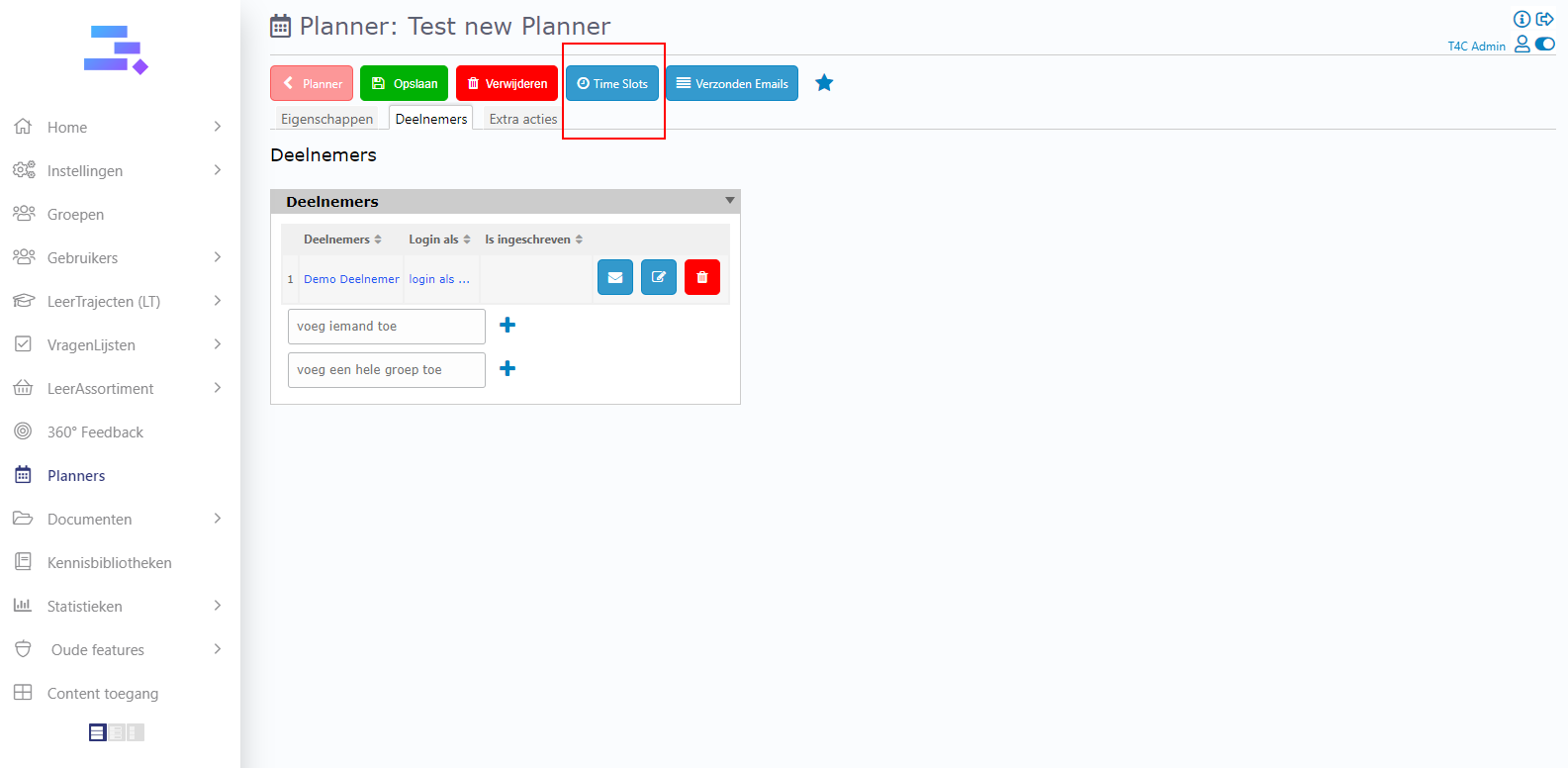
Note: The user only can see the invitation on their homepage at the day you set for timeslot
About the Van start tot eindijd check box: If you don’t tick it, the timeslot will be divided into the small slot. Example 8:00 – 8:30 will be divided into two sub slot are 8:00 – 8:15 and 8:15 – 8:30. If you don’t want that’s appear, let tick Van start tot eindijd check box.
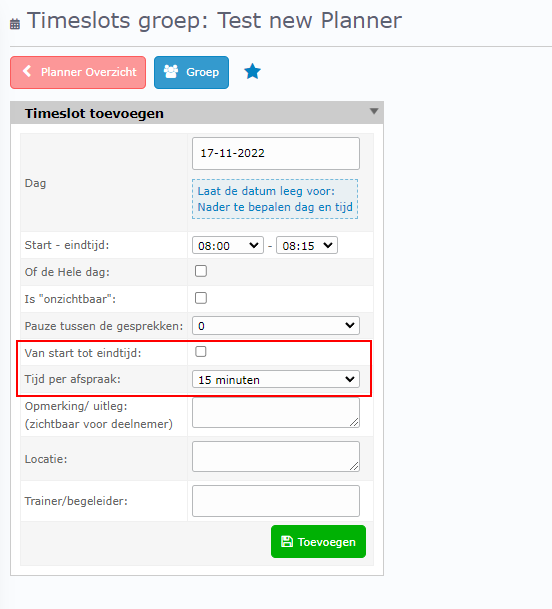
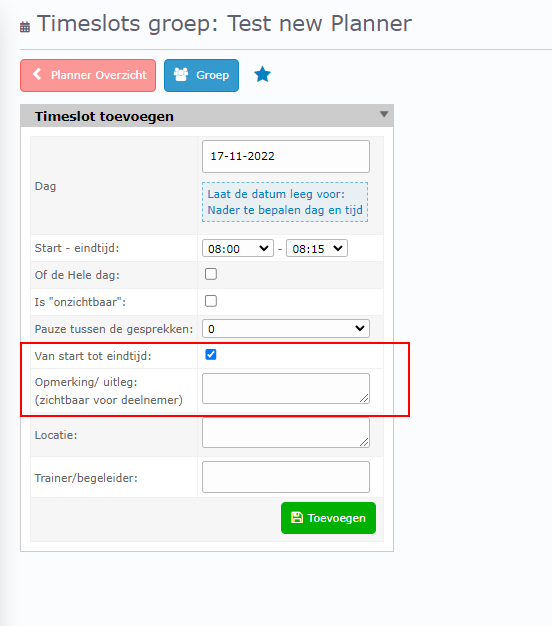
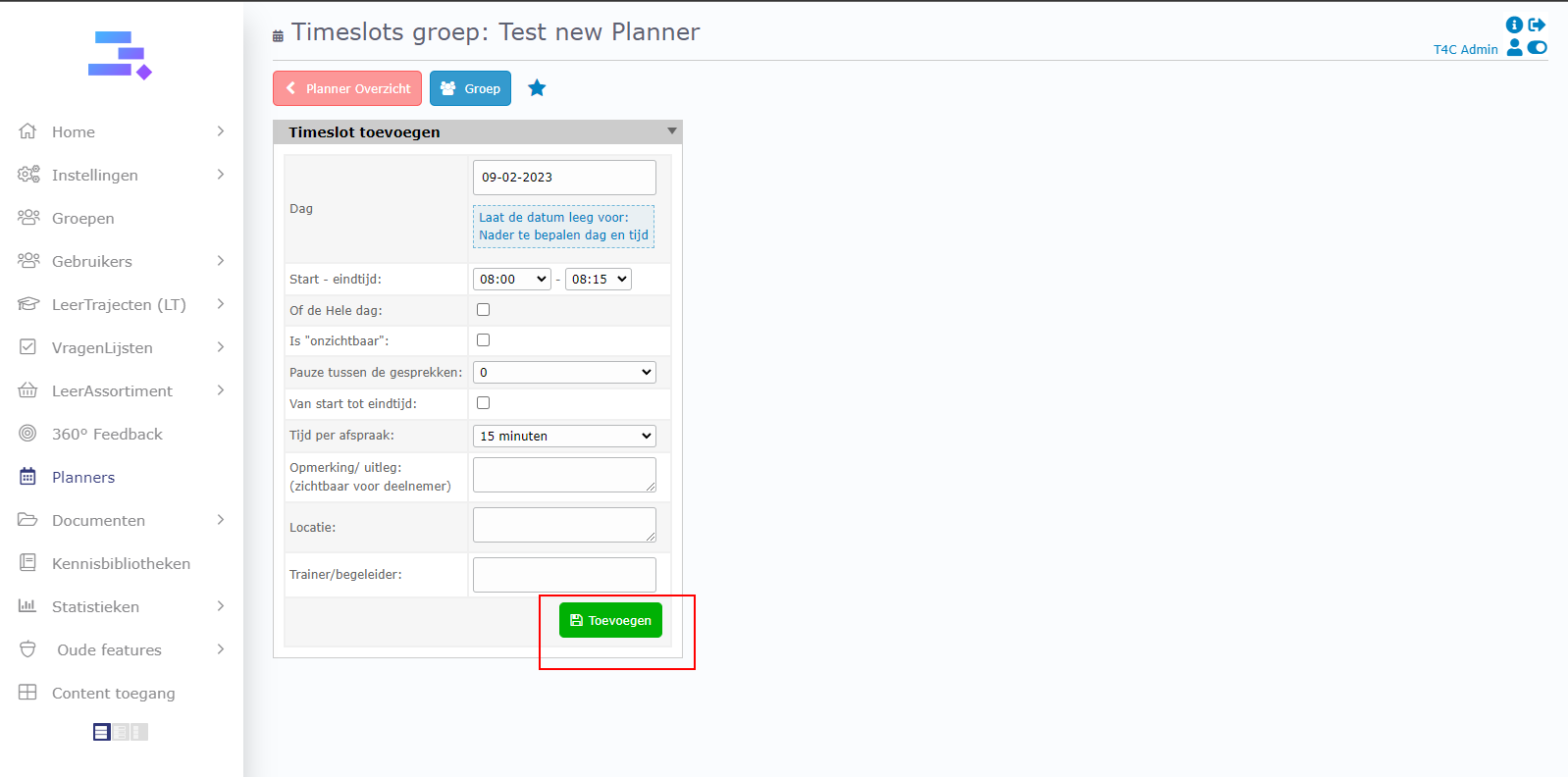
After set time, locate, note and trainner for the Plan. Click on Toevoegen button to save it.
It’s is done. The user who are invited will see the appointment plan on their homepage.
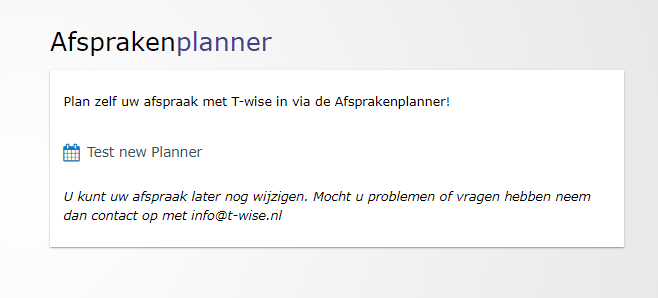
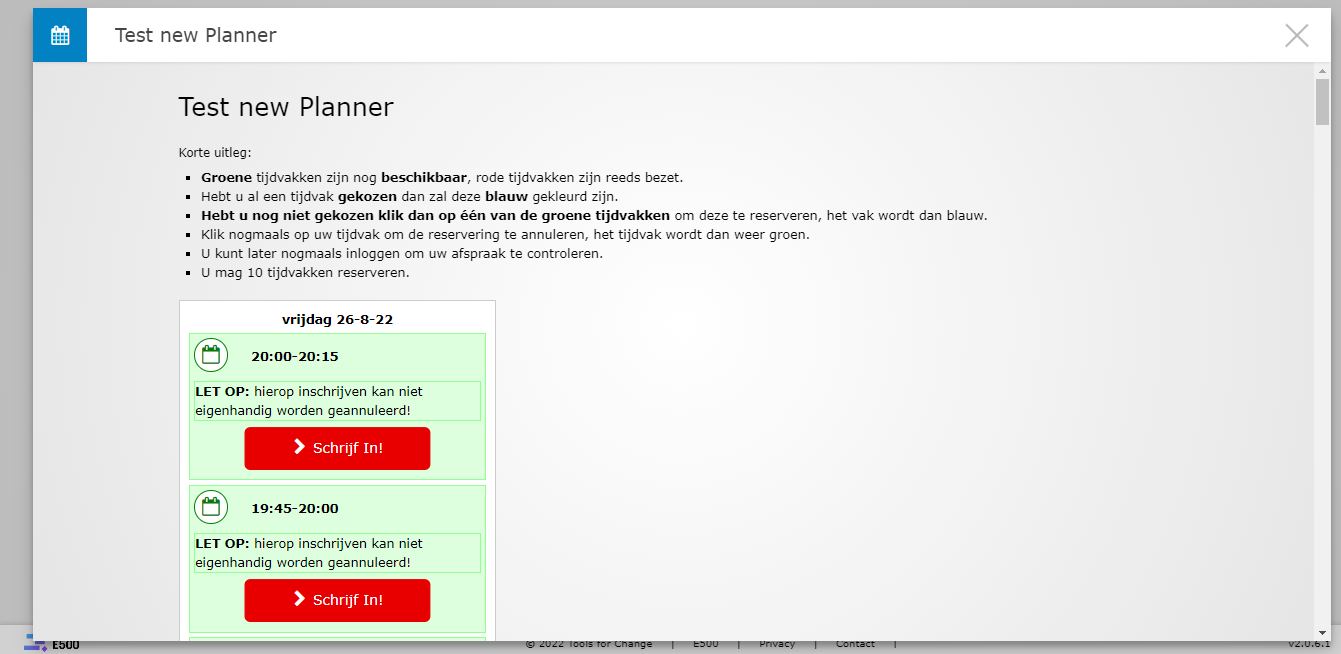
They can click on it and click on Schirft In! button to confirm to attend your appointment plan
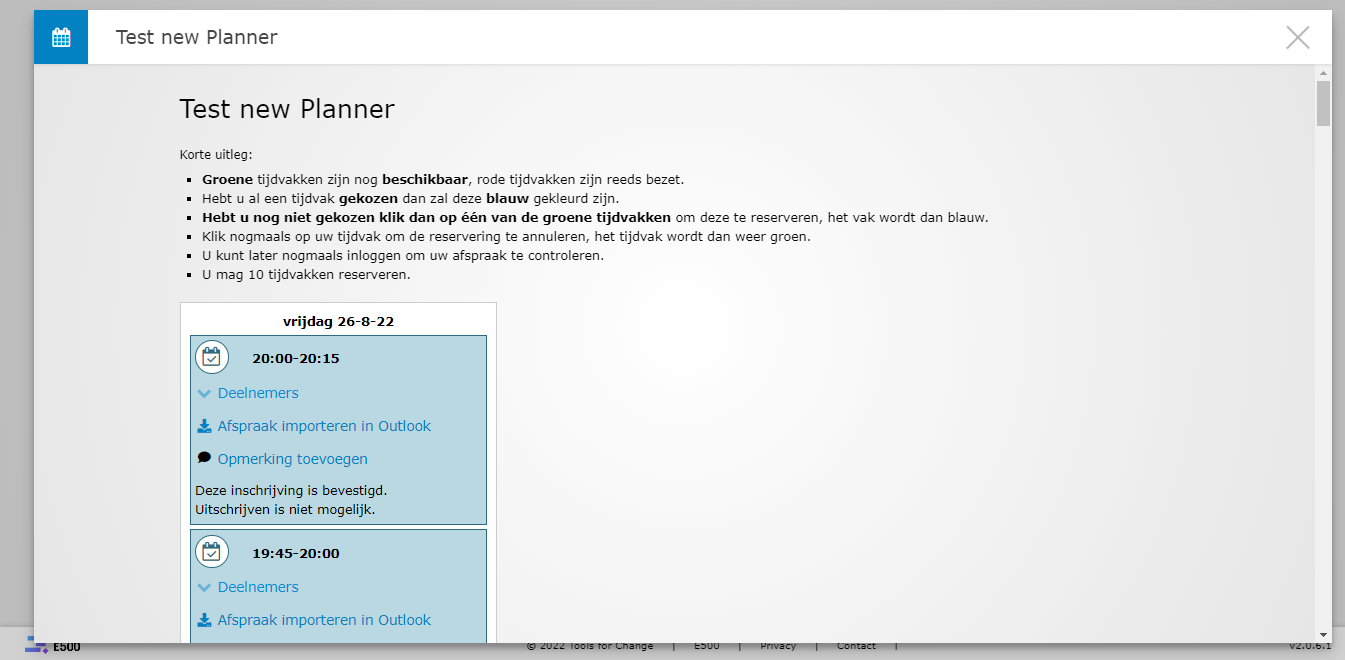
After confirm to attend, they can see the name of the others users who are also attend. And also leave their comment at here.
I hope this post is helpfull for you guys. Thanks for readding!!