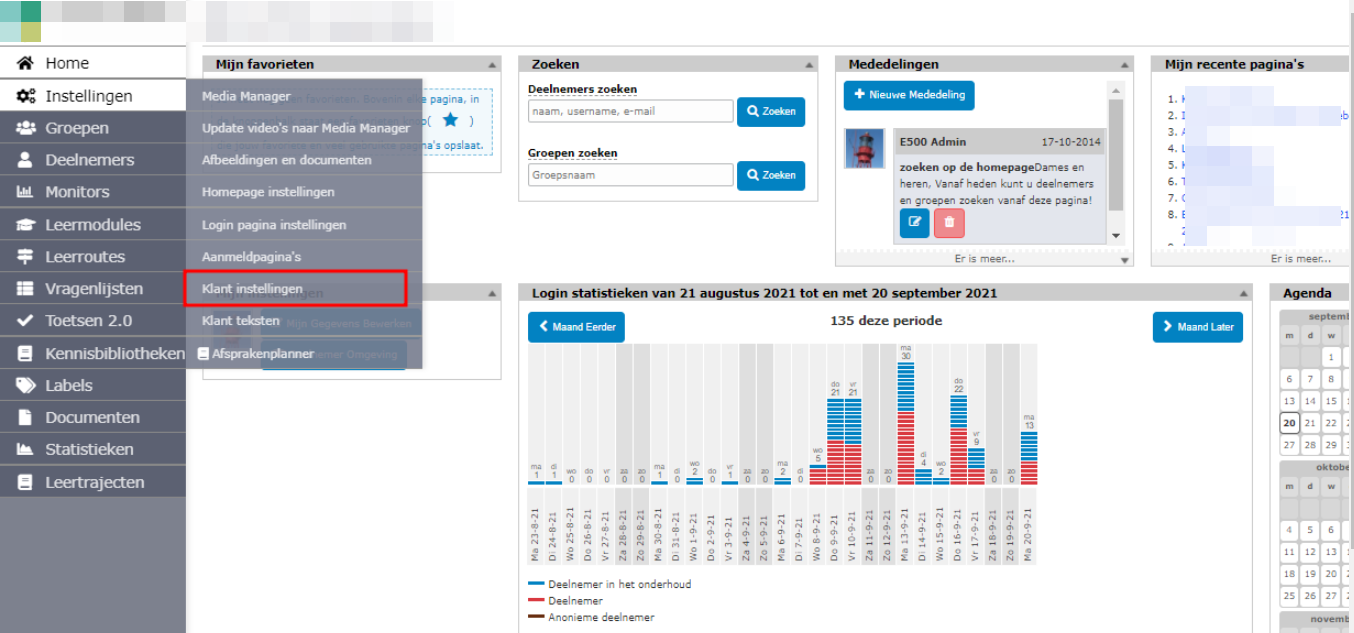
With E500 you can set up multi language for user. They can also choose to view your portal in their own preferred language by your set up.
A. Set up multi language for user
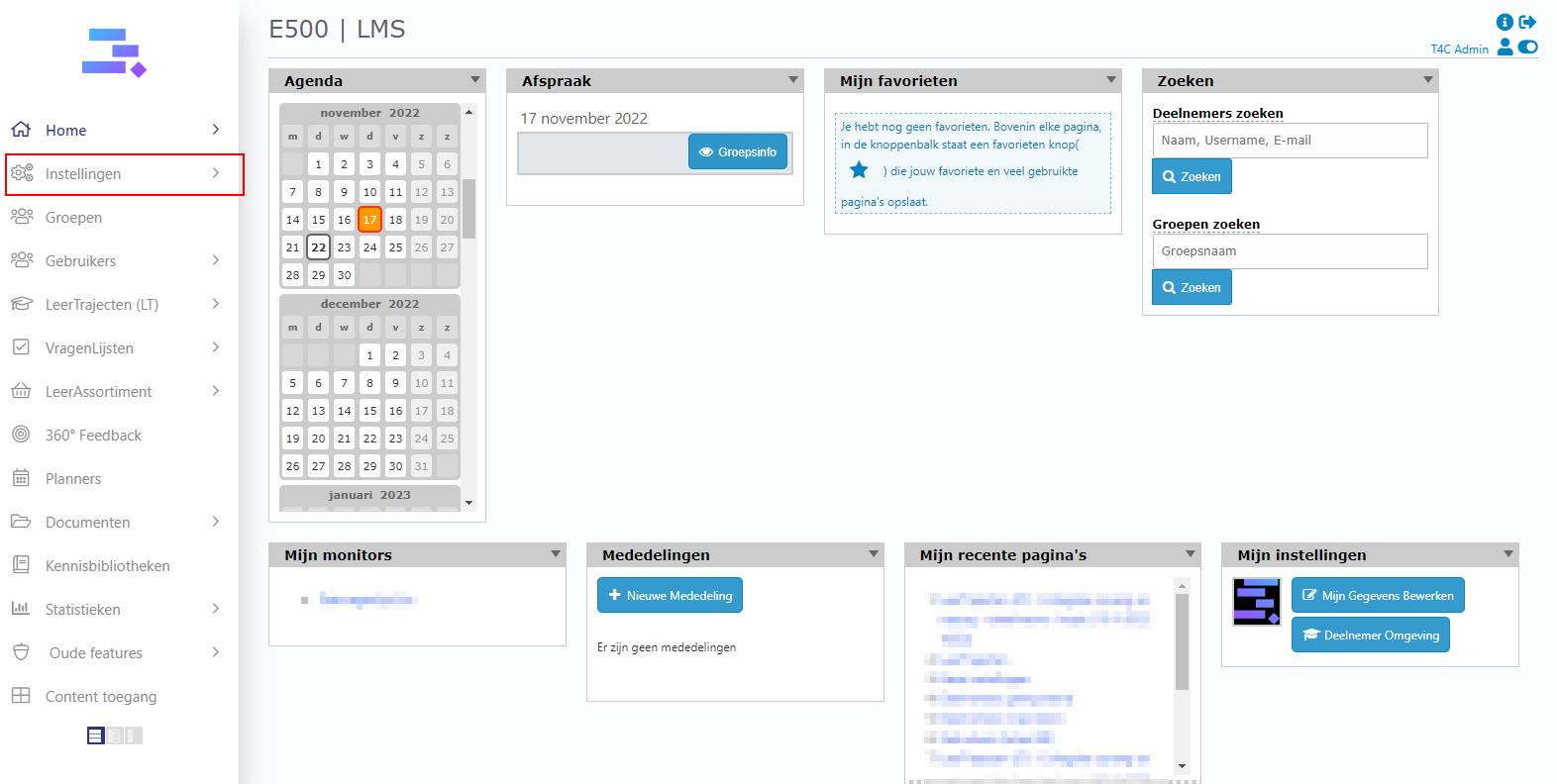
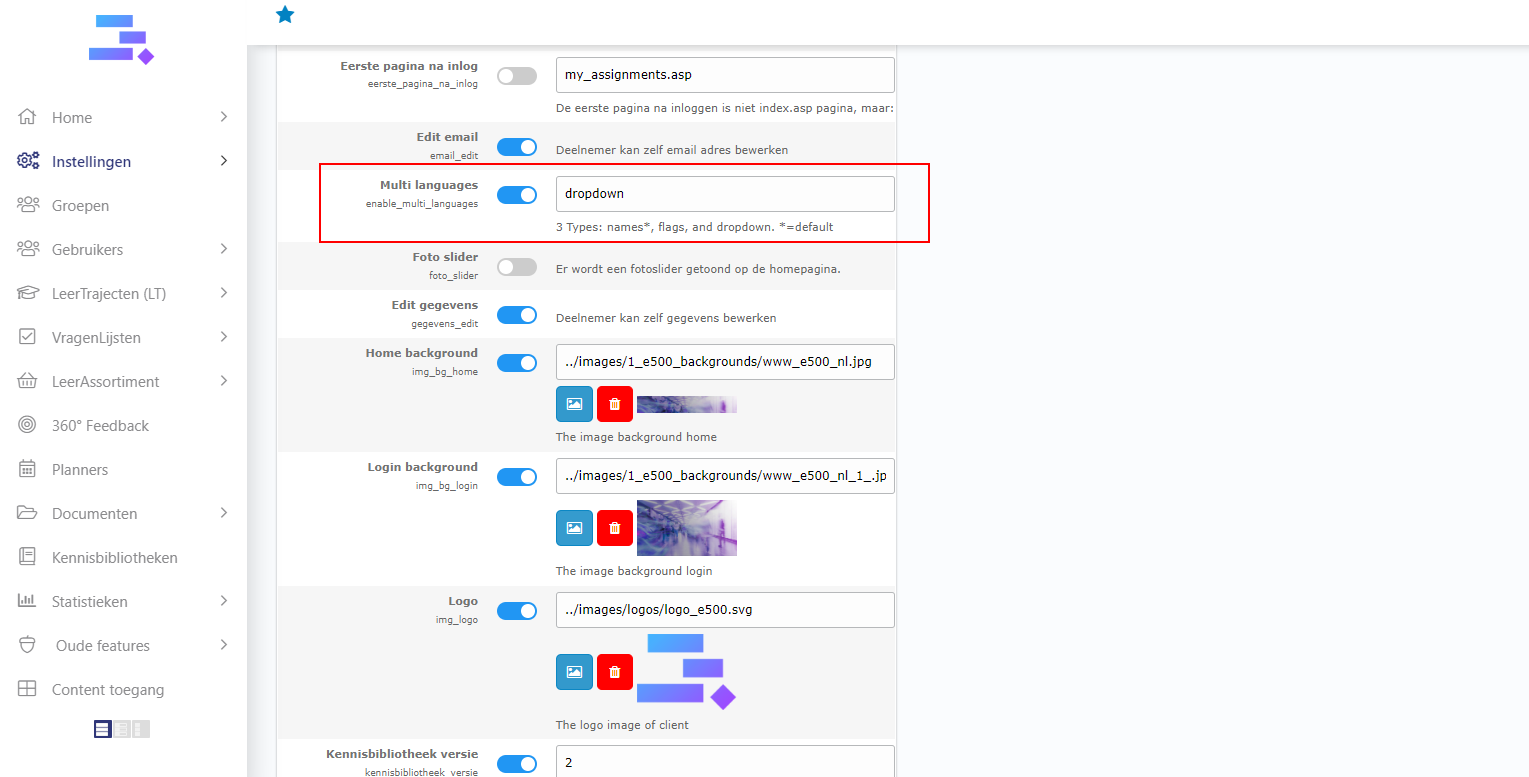
1. Login with your administrator account. Click on Instellingen. In tab Instellingen, find row Multi languages. Make toggle button to ON and choose type to show multi language (we have 3 type: Names, flags and Dropdown)
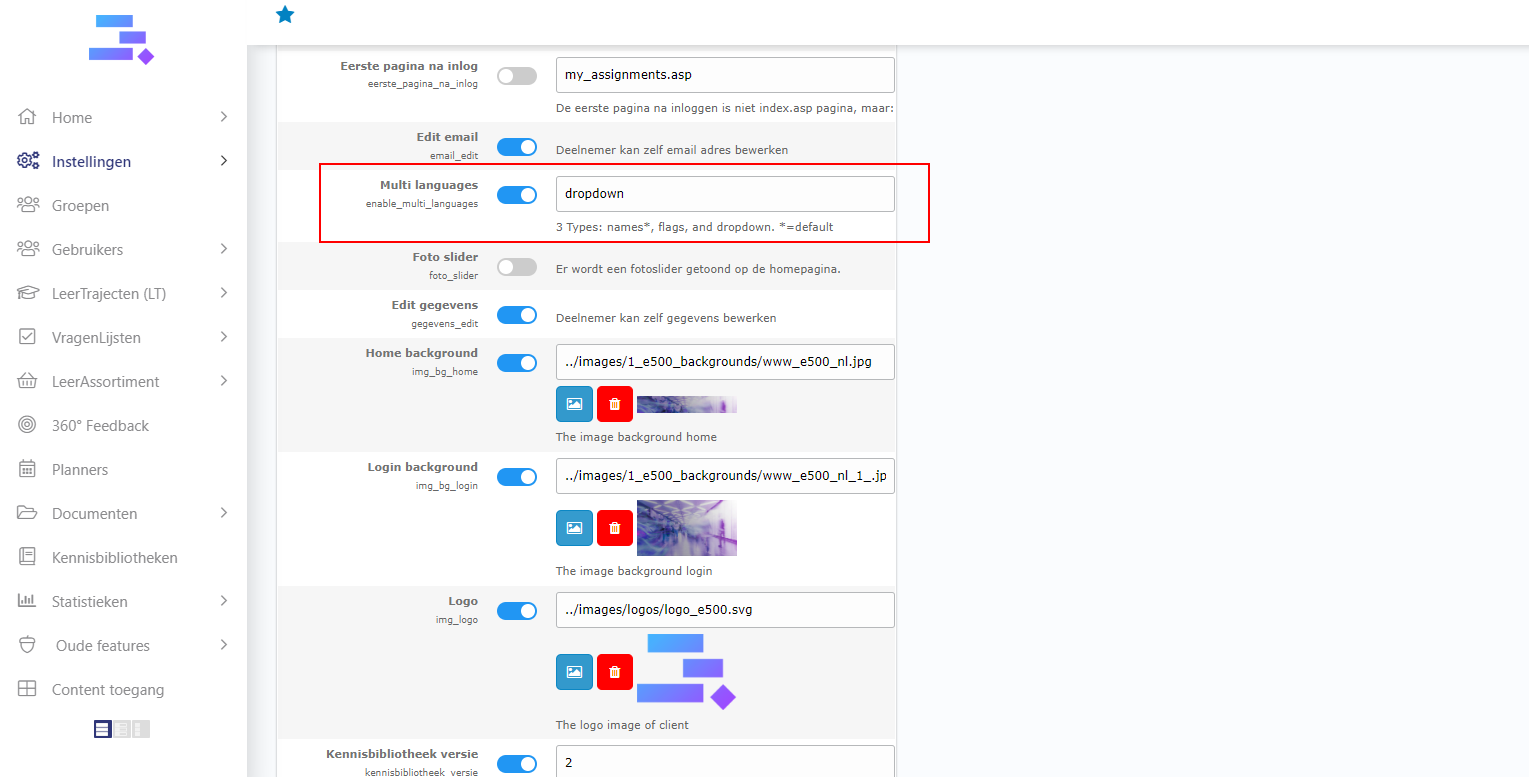
Don’t forget to click Opslaan button at the bottom to save
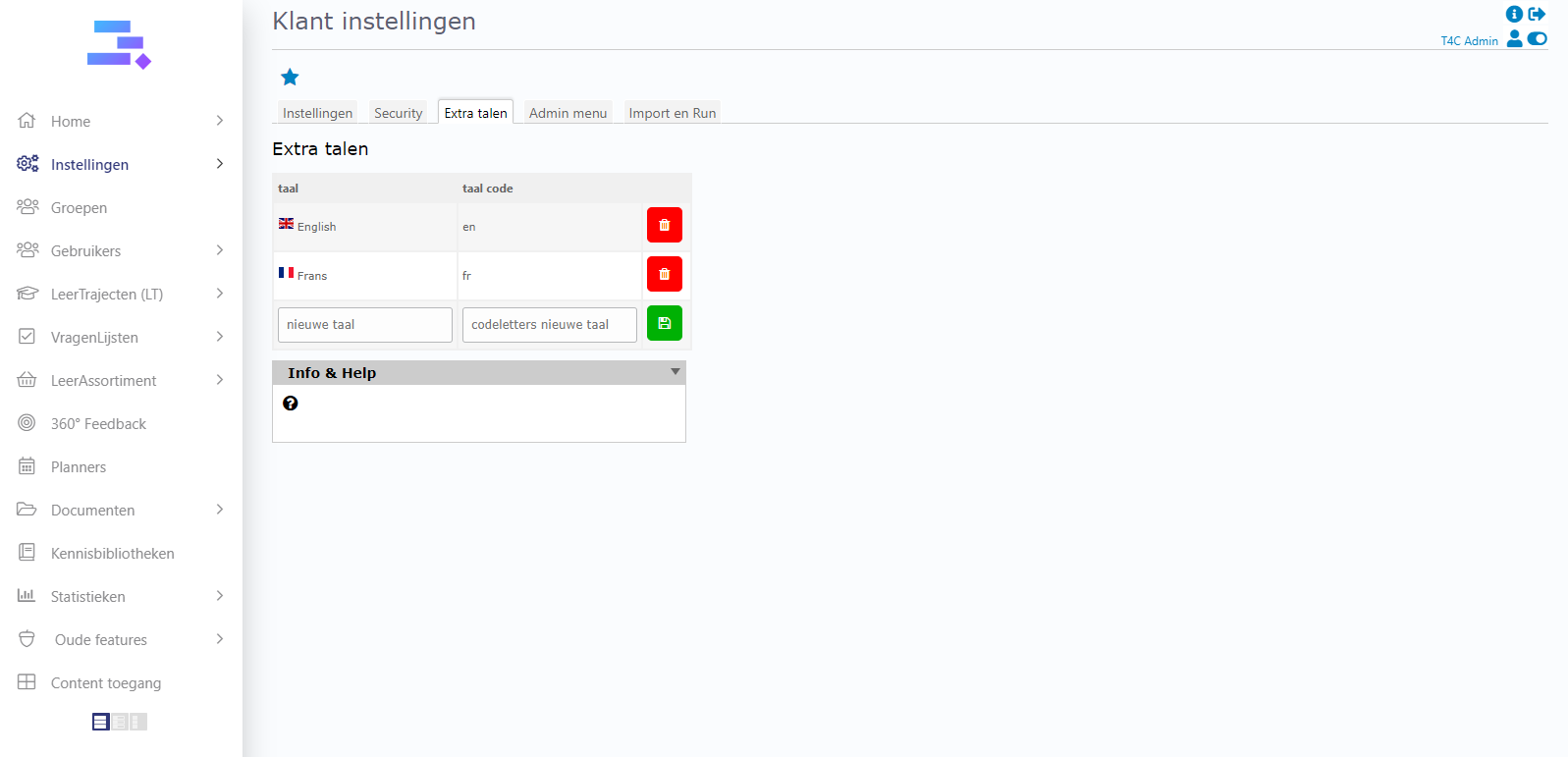
2. Next, click on the tab Extra talent. Now you can set up any language which you like. Fill in the name of the new language in frame nieuwe taal. Fill in code letters for the new language in the frame codeletters nieuwe taal. You can delete the unnecessary languages by clicking the pink recycle bin icon. After all, don’t forget to click the blue save icon to save all changes.
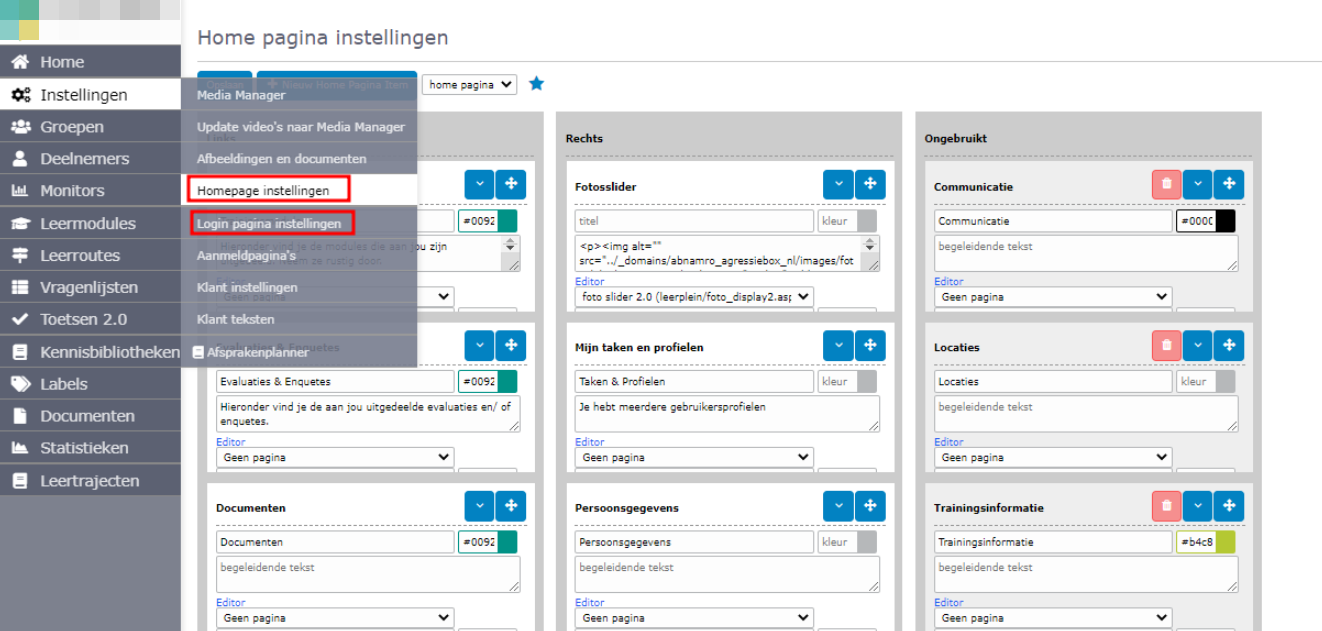
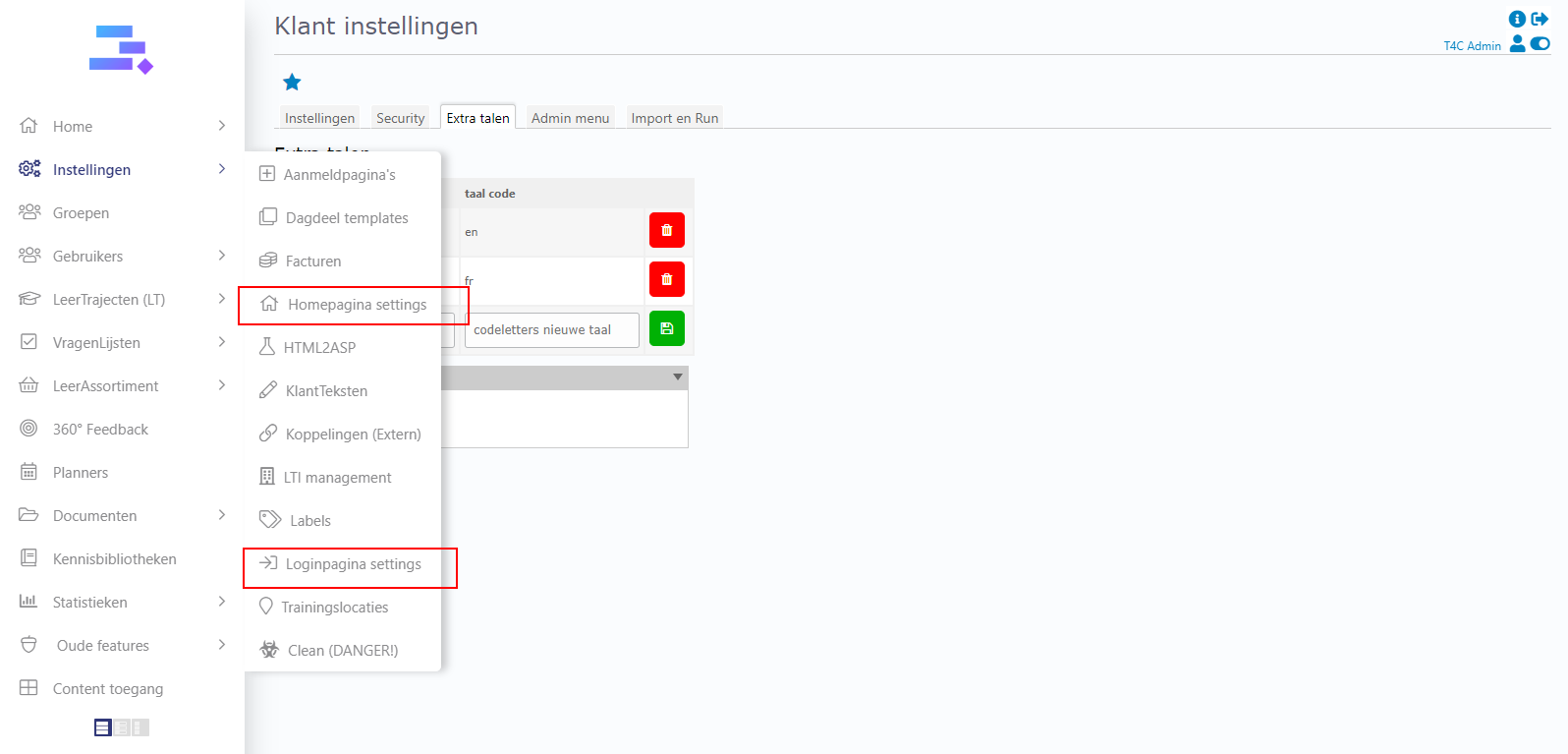
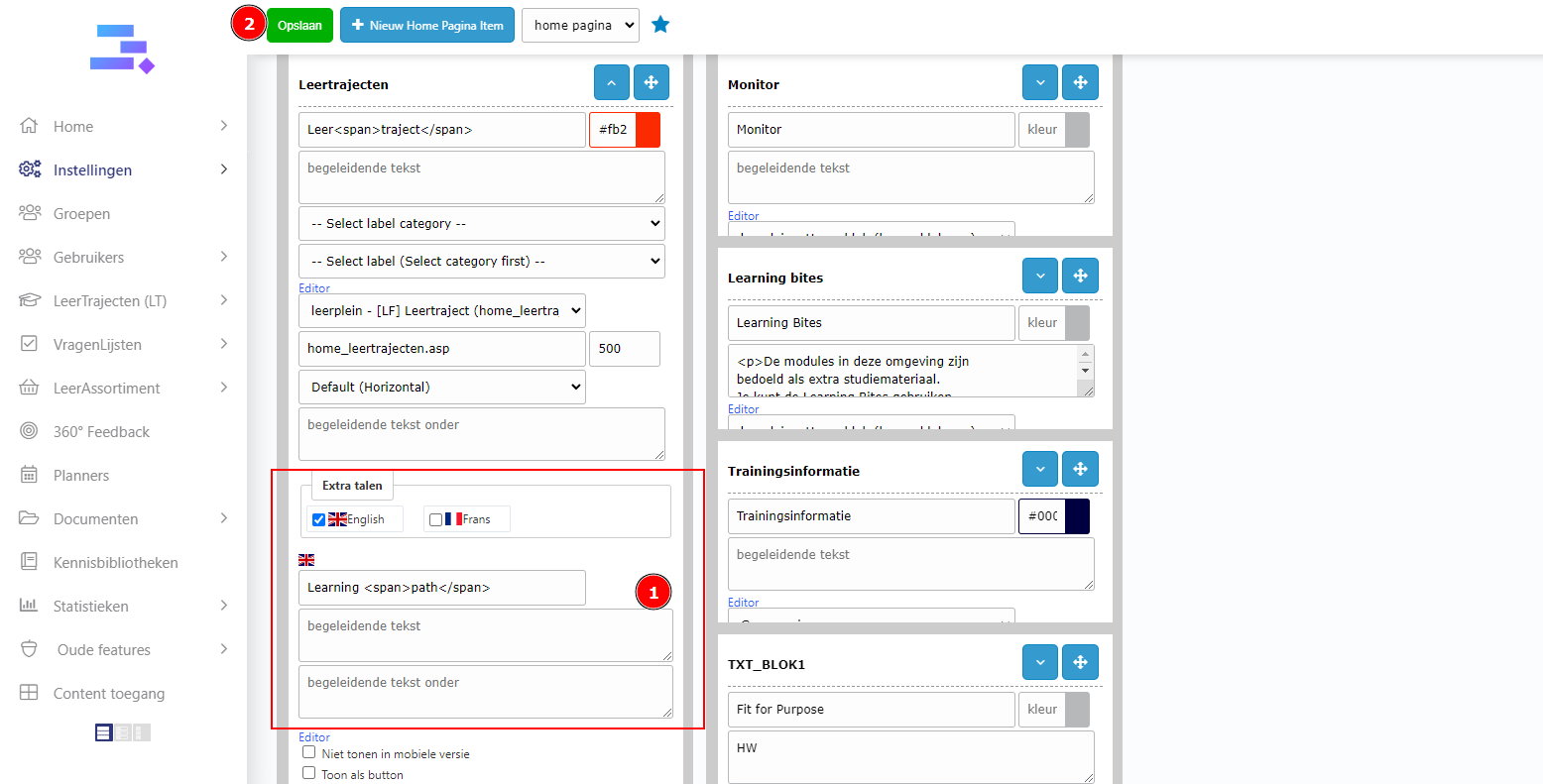
3. Then, Go to Hompage and Loginpage settings to insert translations for each language. Click on the language icon in each block to insert the appropriate translation. Click Opslaan to save all settings.
B. How can users view your portal in their preferred language
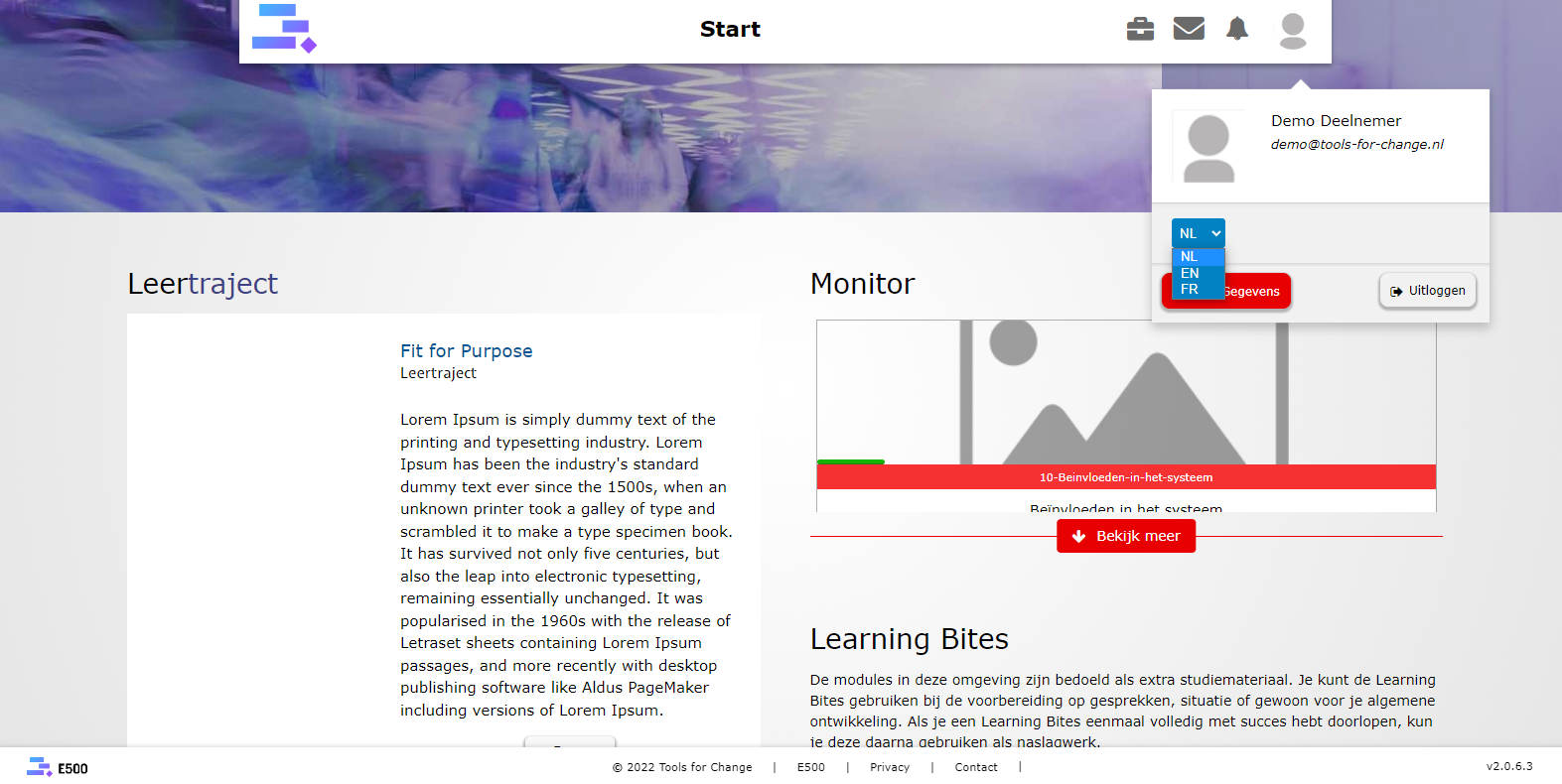
The users can view your portal in their preferred language very easily. They just need to login with their account. On the homepage, click on the user icon. Then they can click to choose any preferred language to view.
Good luck!