E500 Documentation
  • Content
  • Courses
  • Document
  • Group
  • User & Login
  • All Docs

User & Login

  • How to add a new user?
  • How to change a user’s course completion status?
  • How to track user progress in a specific course?
  • How to create new users without their email address?
  • How to change a user’s role across your portal or on a single course
  • How to make the questionnaire and shared it with accesscode for user?
  • How to share courses with users?
  • How can users view your portal in their preferred language
  • How to perform mass actions on users in a group?
  • How to enable/disable pre-set functions?
  • How to delete a user?
  • How to create a new label?
  • How to create a new Label category?
  • How to change the background on the loginpage?
  • How to change Them color of your domain?
  • How to set password for a user?
  • How to create a new organization and add it for a user?
  • How do users get a certificate?
  • How to Import Participants?
  • How to make a request on Jira service?
  1. Home
  2. Docs
  3. User & Login
  4. How to add a new user?

How to add a new user?

To add a new user, you can follow these simple steps below:

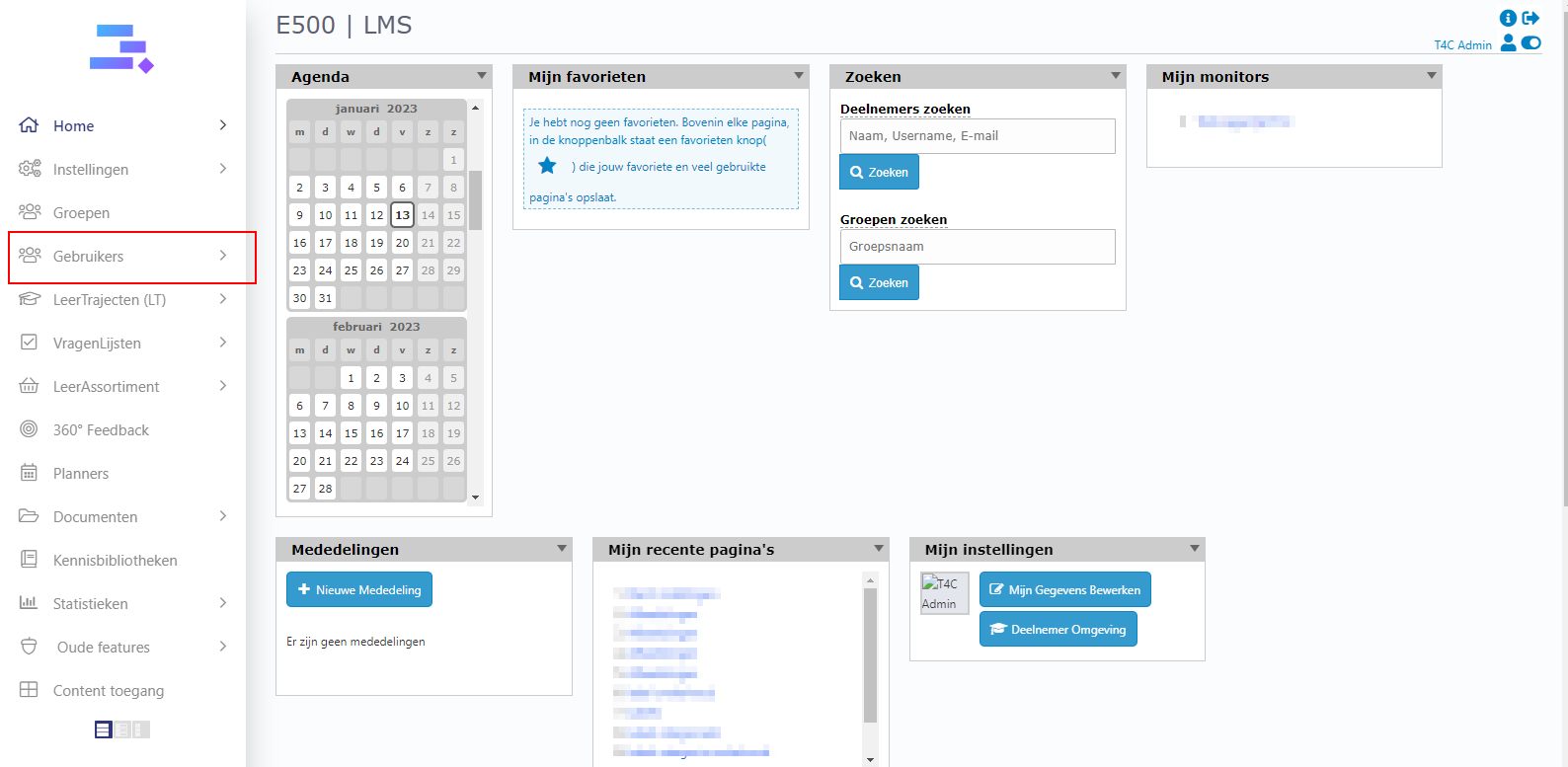
1. Log in with your administrator account. Click on Gebruikers.
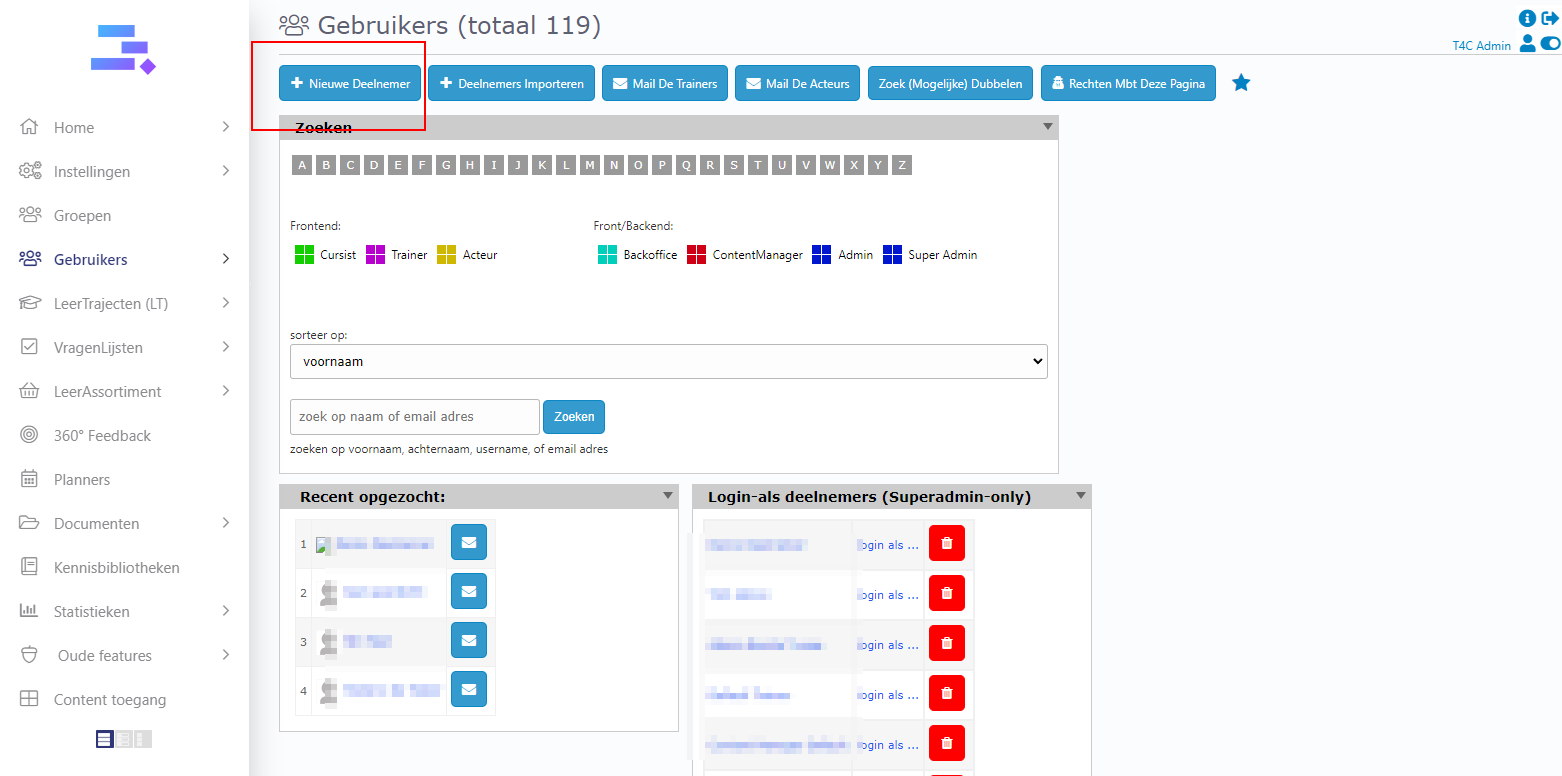
2. Then click on + Nieuwe Deelnemer on the top left
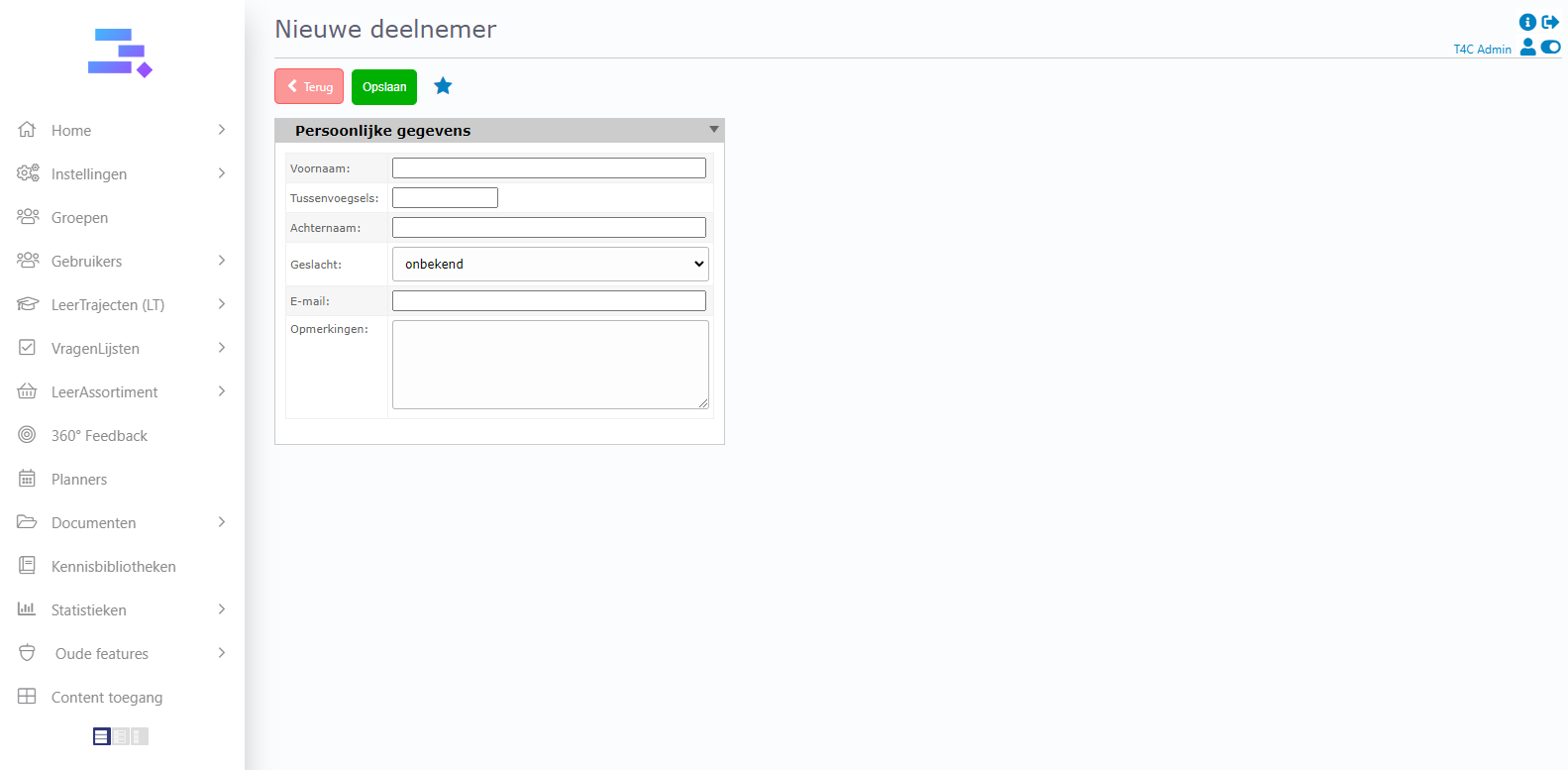
4. Fill in the user information of who you want to add. Then, click Opslaan to finish adding a new user
Well done!

Now, you can add new users quickly and easily!


Still stuck? How can we help?
Updated on 13 January 2023

Doc navigation

How to change a user’s course completion status? →
Was this article helpful to you? No Yes

How can we help?

Contact

Tools for Change
085 - 06 05 067
info@tools-for-change.nl
Utrecht, Nederland

© 2023 - Tools for Change
Proudly powered by WordPress | Theme: weDocs by Tareq Hasan