To change a user’s role across your portal or on a single course:
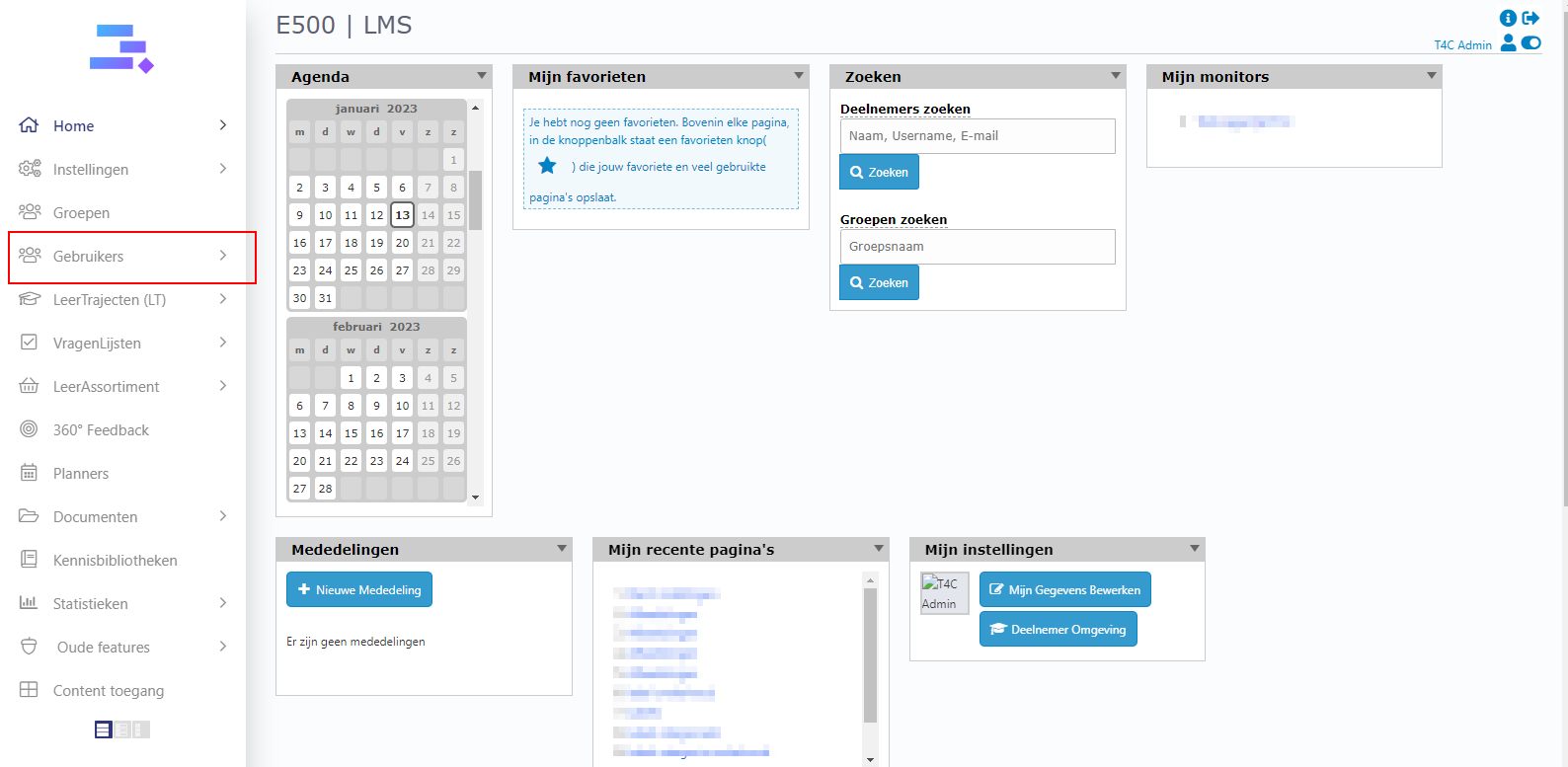
1. First, let’s log in with your administrator account. Hover into Gebruikers and click on Deelnemers.
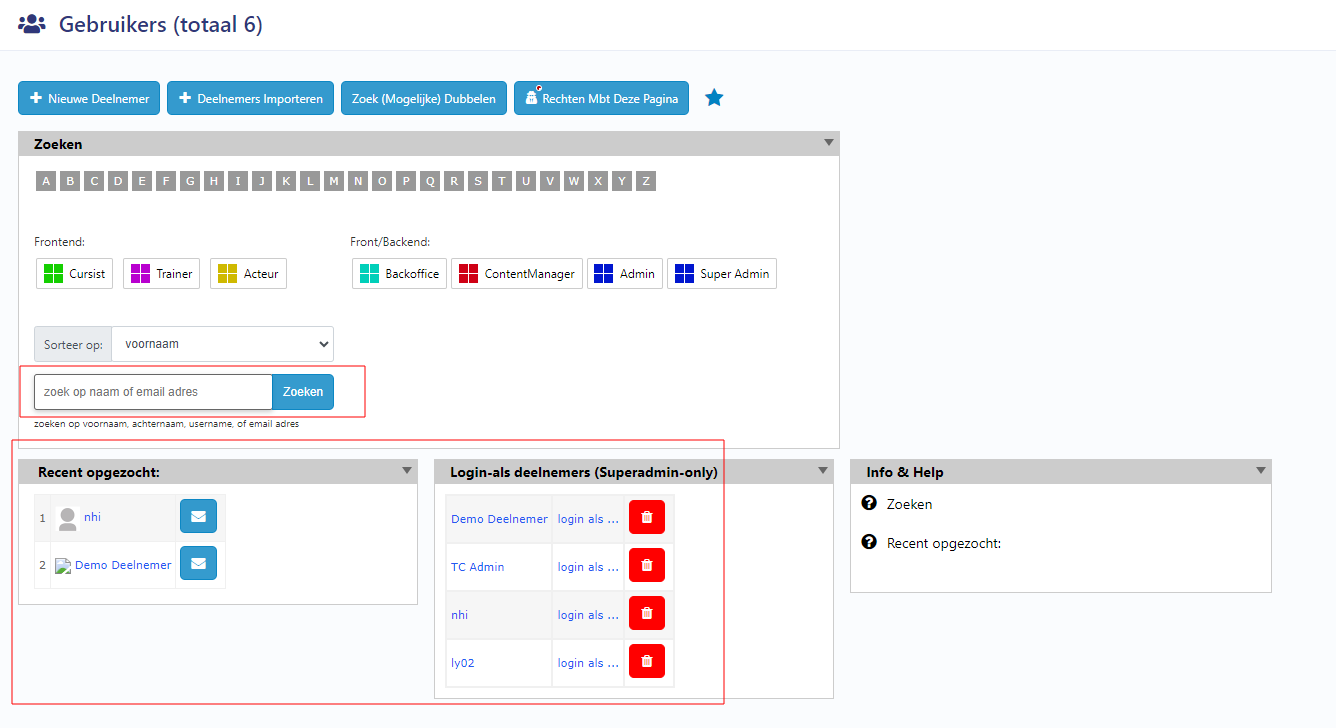
2. Fill in the name or email address of the user you want to change the role for and click Zoeken to search this person
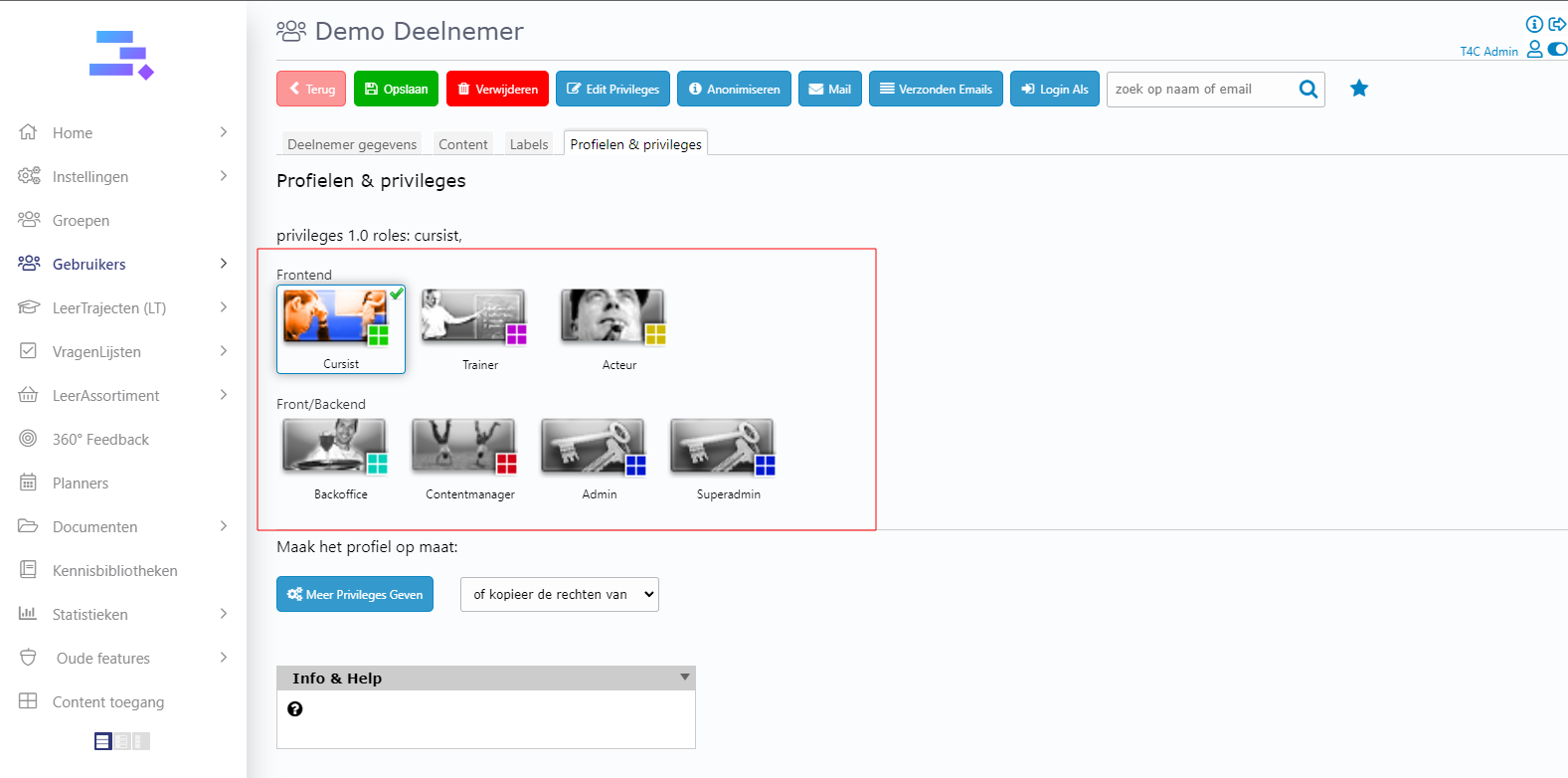
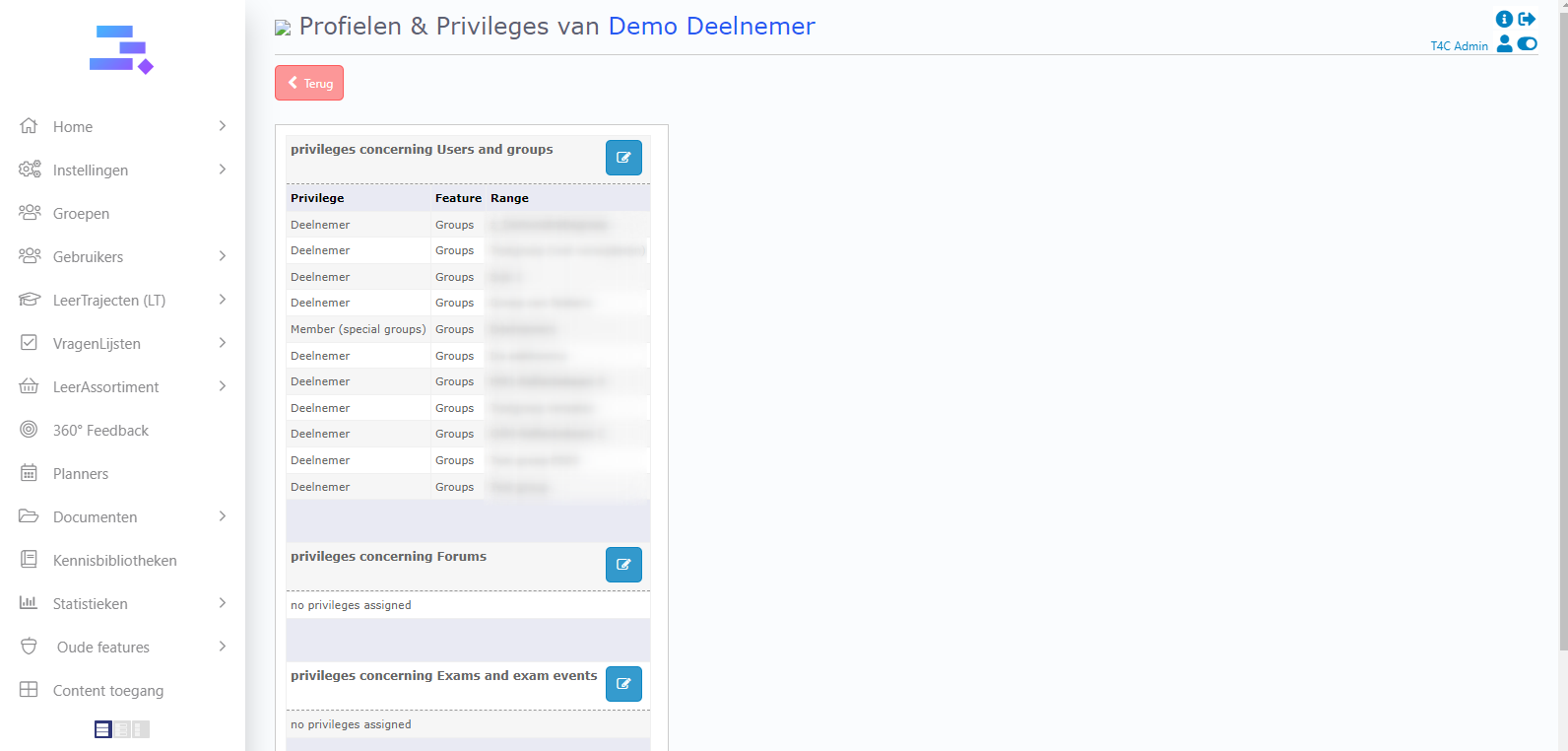
3. Then, you can see the user data from whom you want to change the privilege. Next, click tab Profielen & Priviliges, here you can see 7 privileges.
To choose a Priviliges for user:
You just click to choose any privilege to choose privilege for the user.
To change a user’s role across your portal or on a single course:
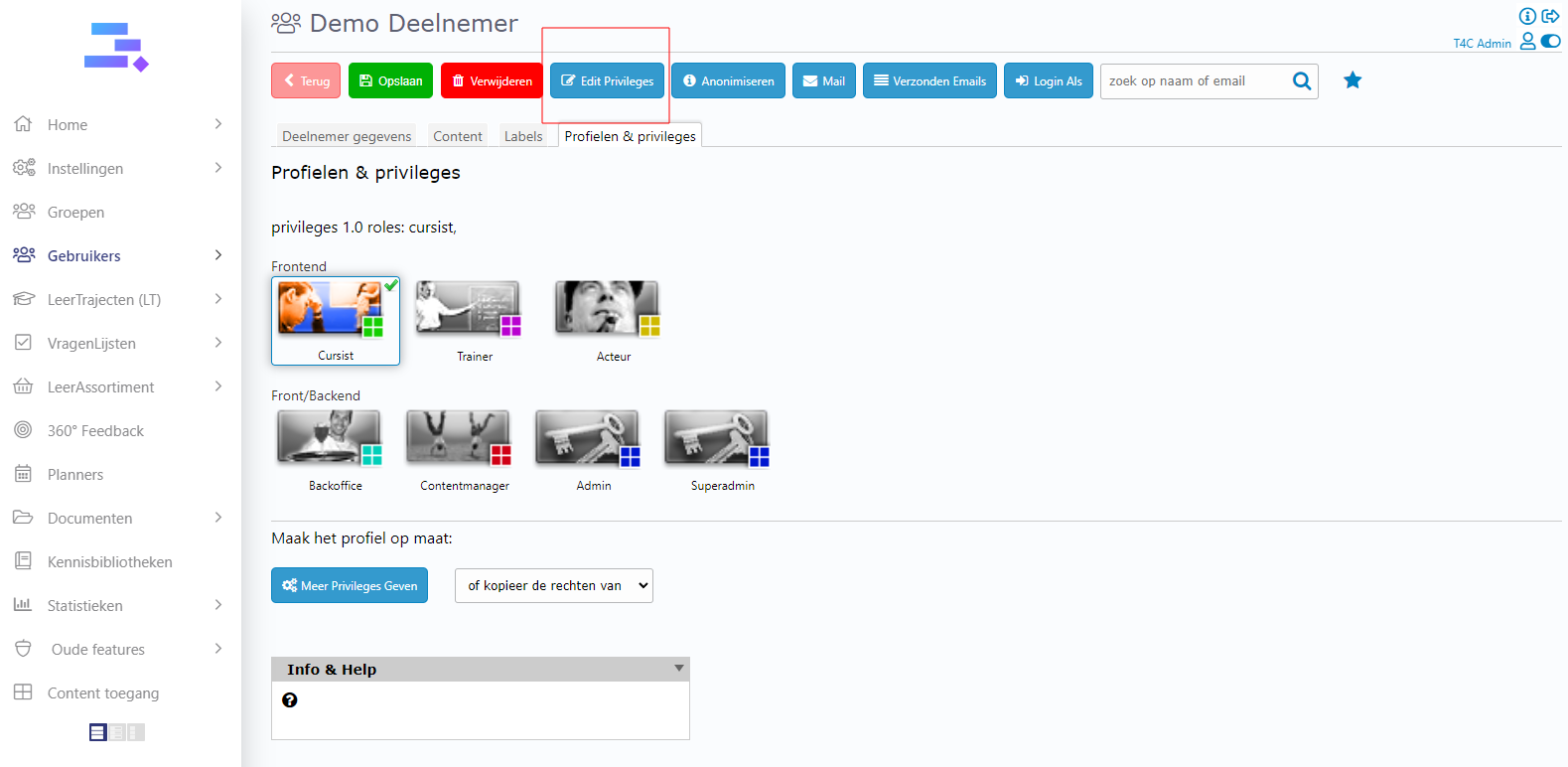
In tab Profielen & Priviliges, click on Edit Privileges button.
Click Edit button at the place where you want to change user’s Privileges in that
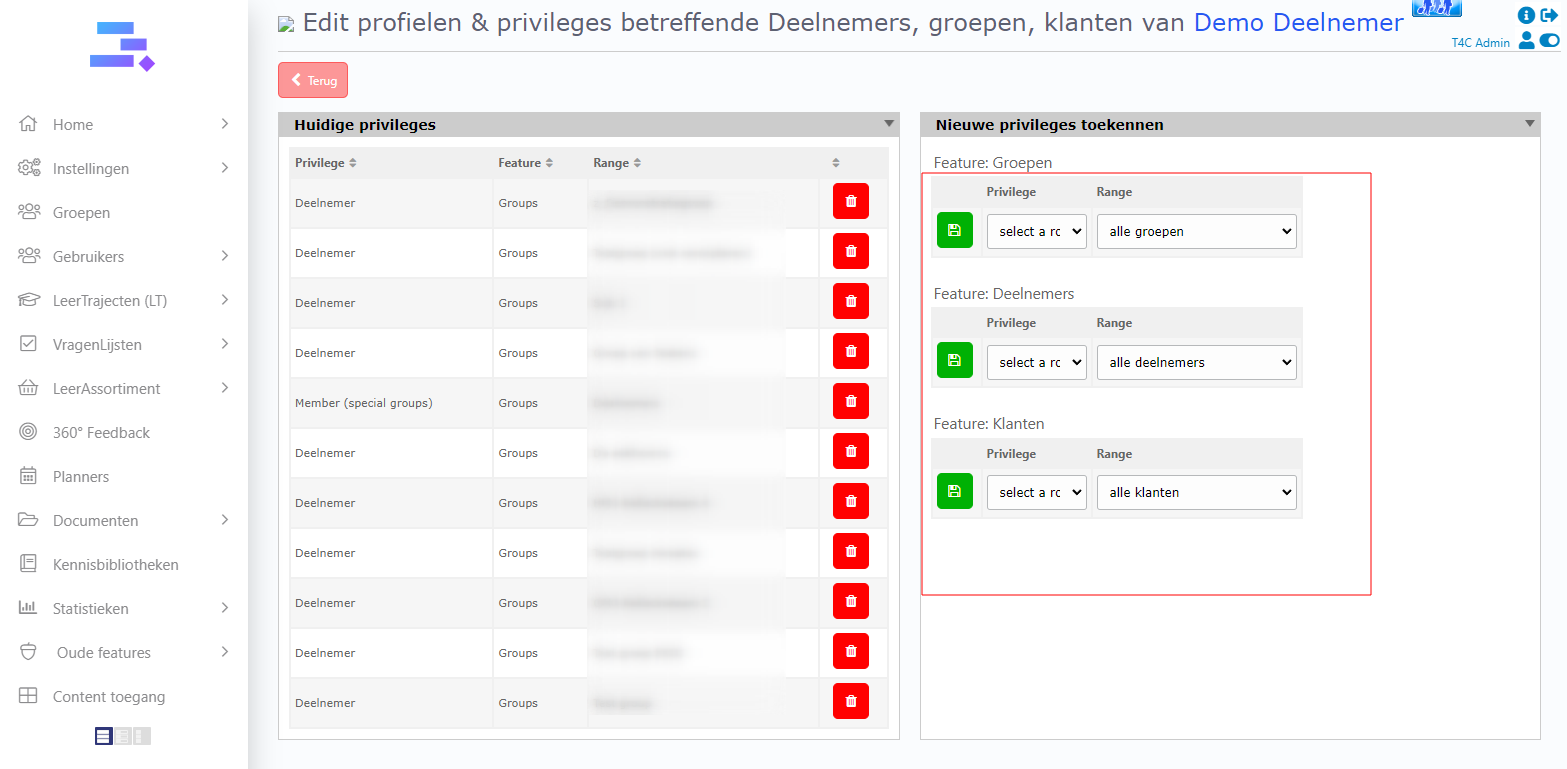
Let’s see the table on the right. There are options about Privilege and Ranges for it. You can choose for the user and don’t forget to click the save button to update the changes. And to delete a currently Privilege, you just click on the Red recycle bin icon by right side of each Privilege in the left table
Good luck!