A. To set password conditions:
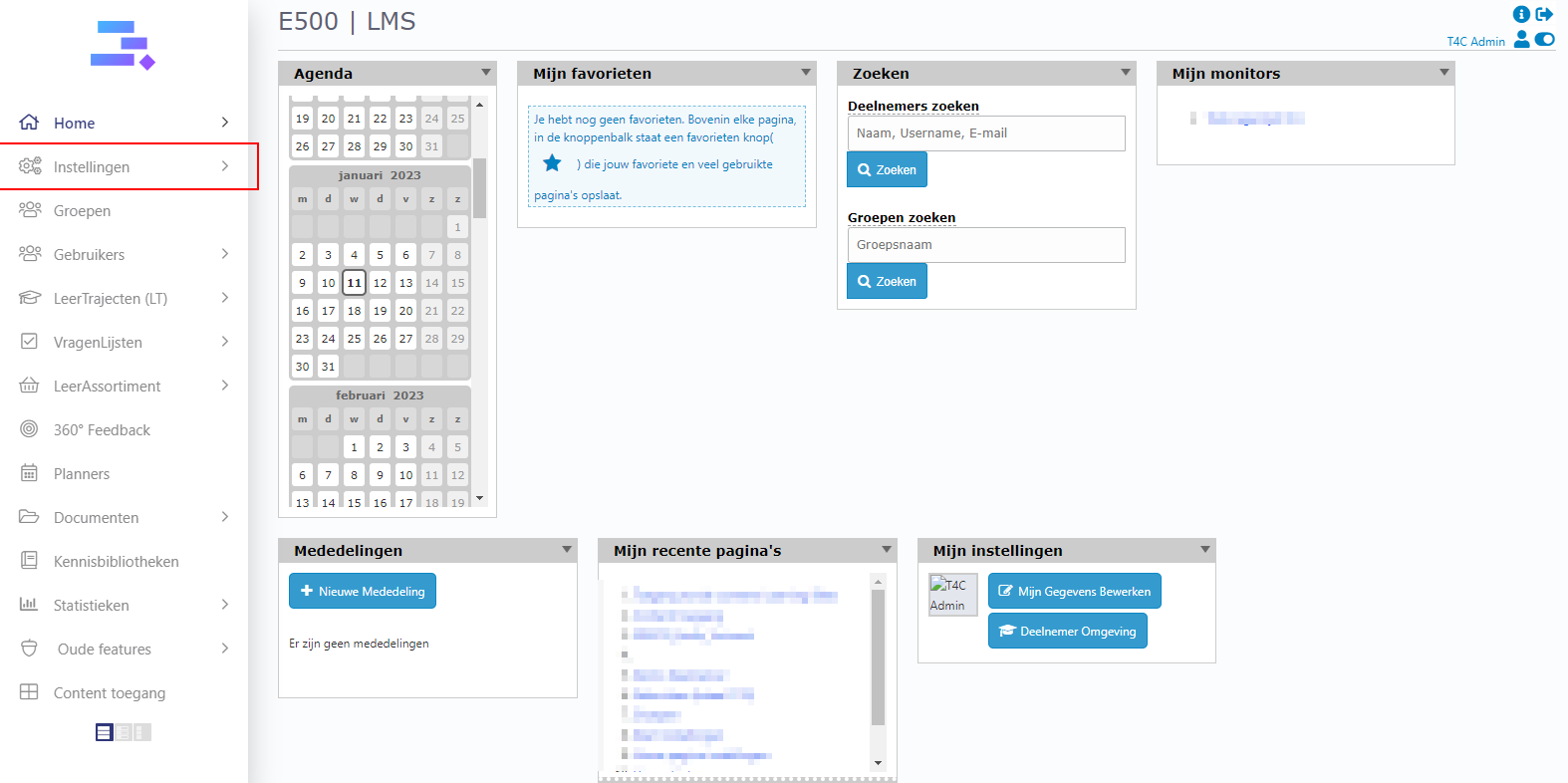
Login with your administration account and click on Instelligen
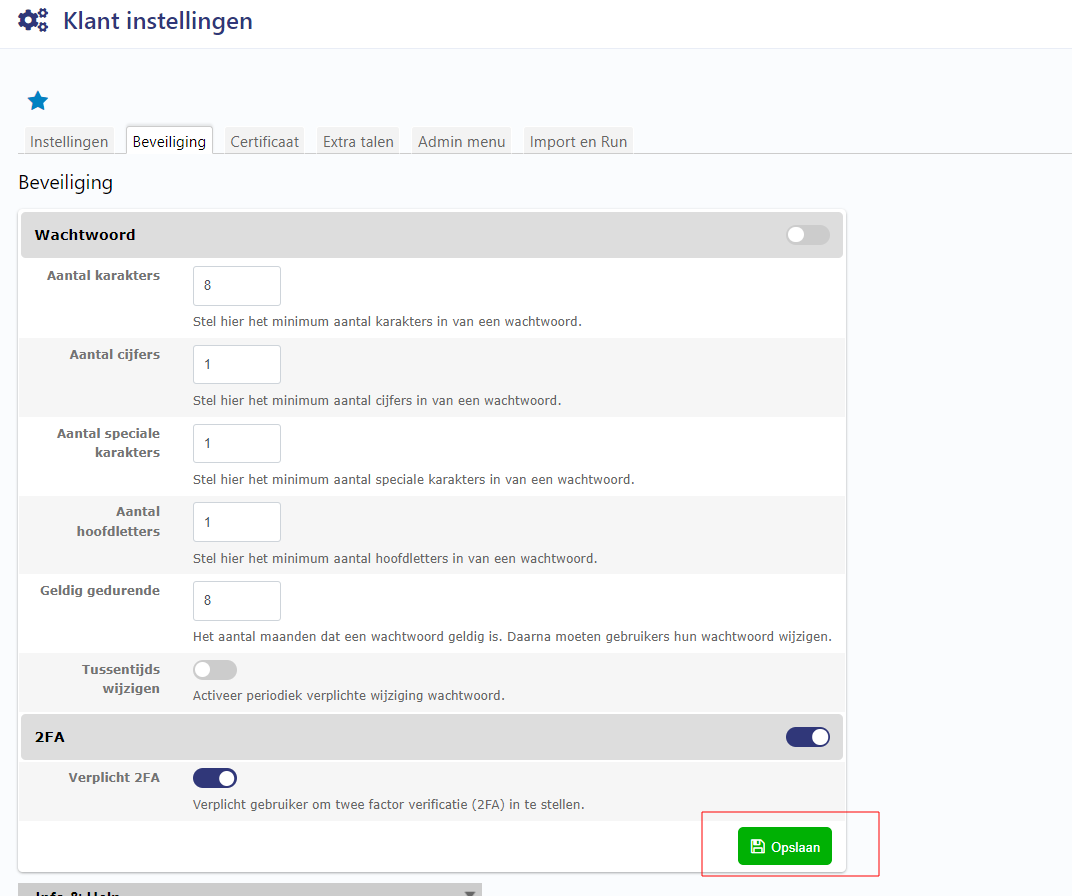
Then, go to Beveiliging tab. Here you can see the password conditions table to set up. After finishing, click Opslaan to save
B. To set password for a user
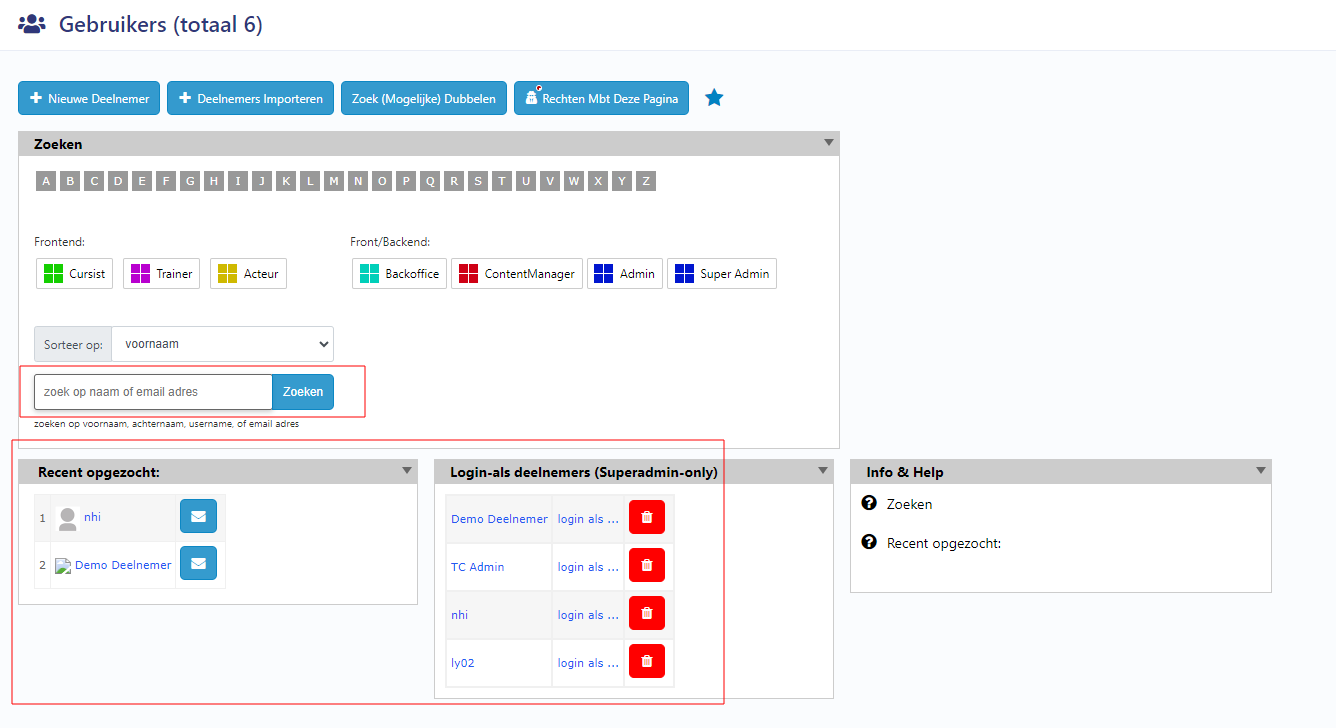
Go to Gebruikers and search name of a user
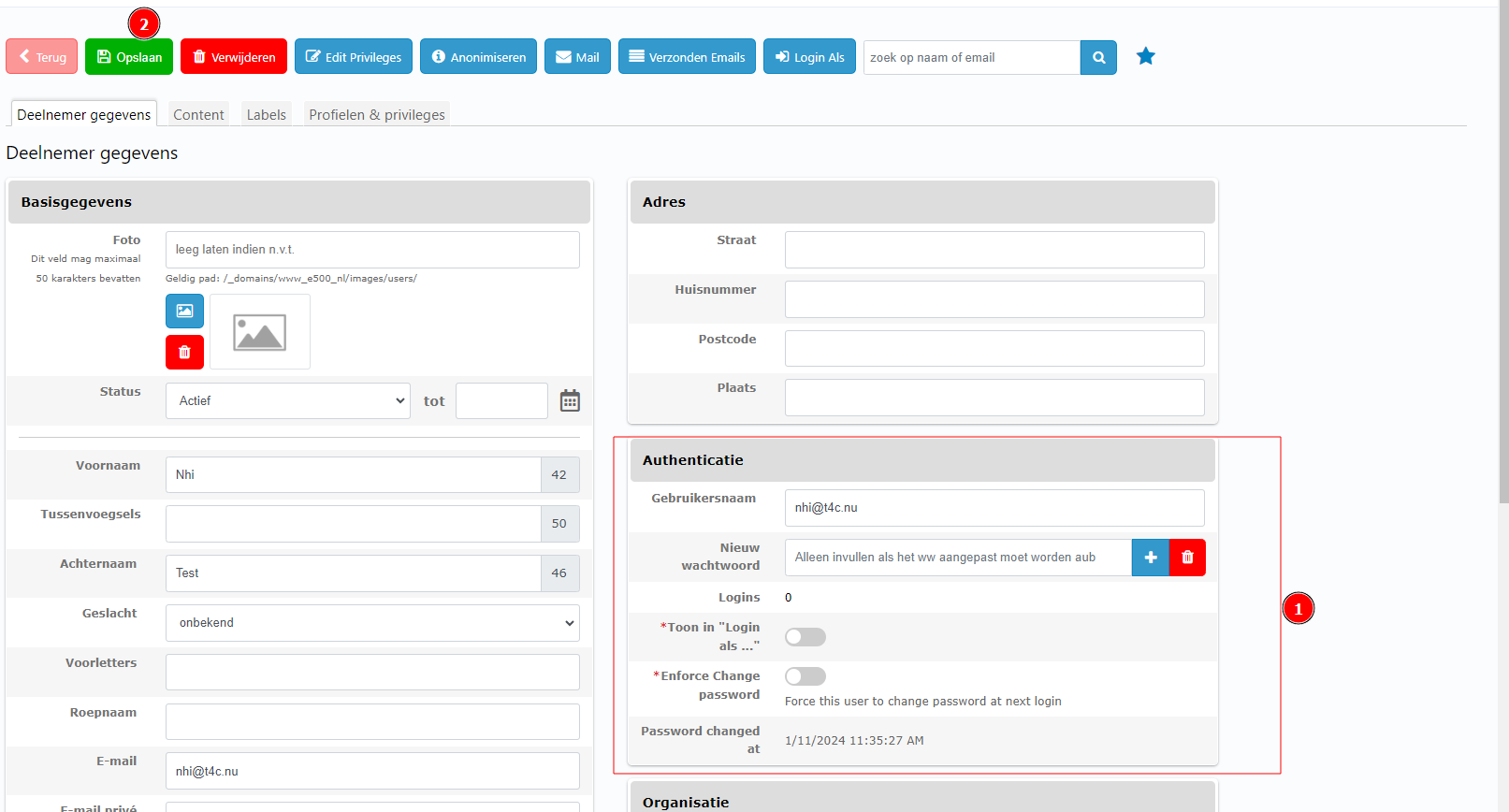
In the details of the user, you can see Authentication block. Here you can enter new password for user (Follow conditions password) or use an auto password by click on the green Plus(+) button(Turn of conditions password before)
You also can see the Toggle button at the bottom of this block. If you turn on the toggle button, it will remind you to change password periodically. Afterall, don’t forget to click Opslaan button to save. Goodluck!