You can save time by importing multiple users to your portal at once. Let’s do the following steps:
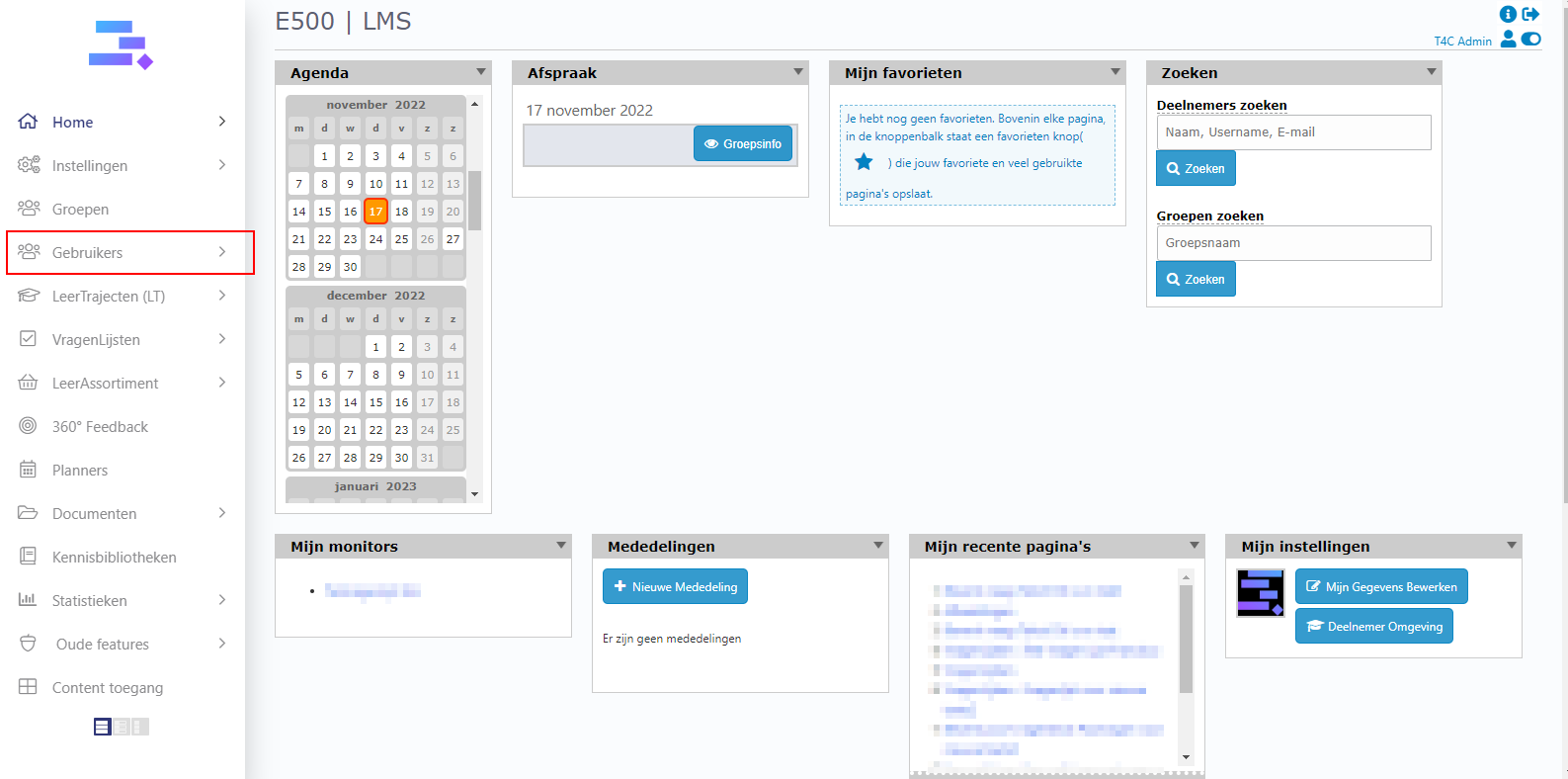
1. Login with your administration account. Click on Gebruikers.
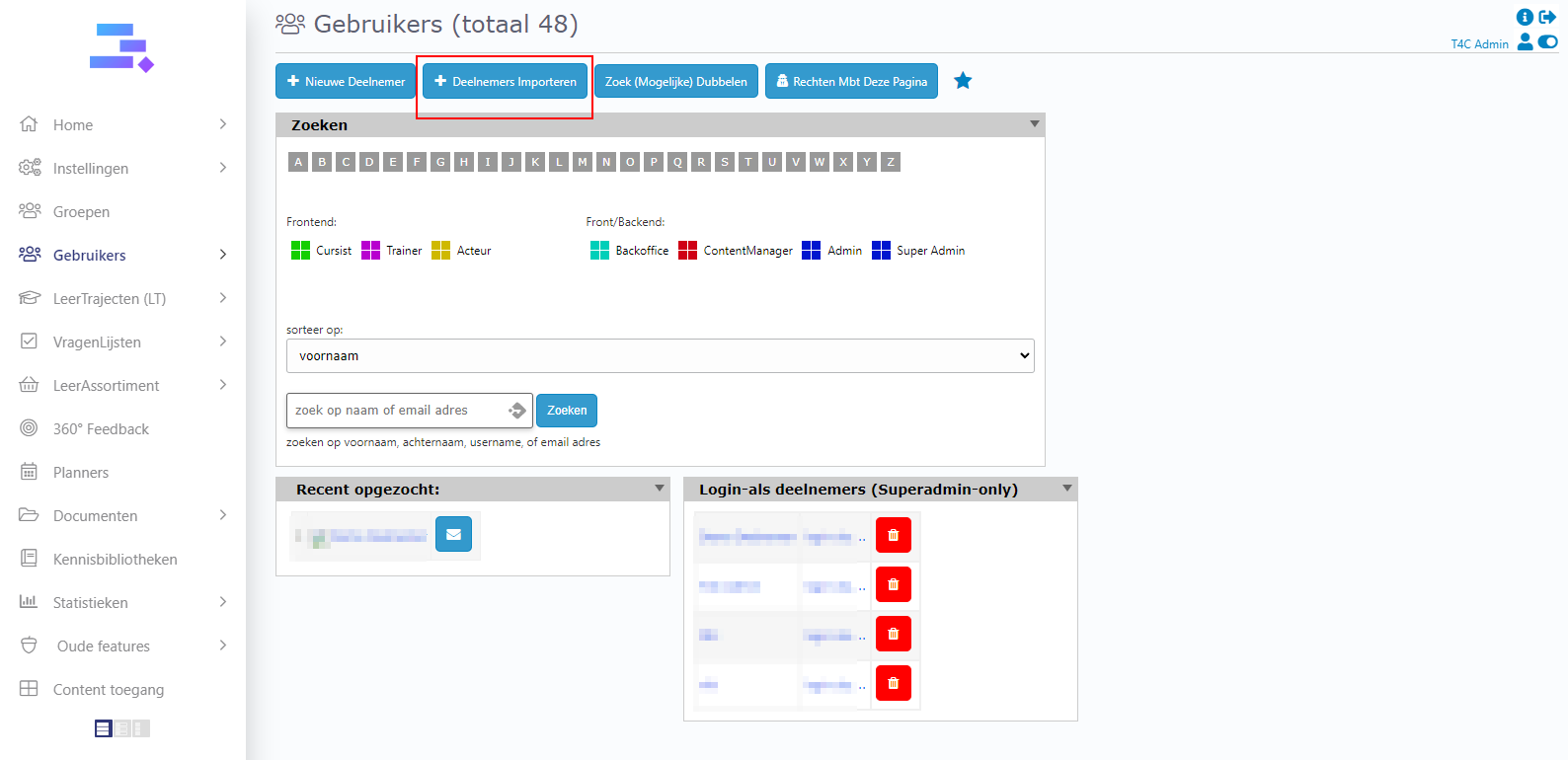
2. In the Deelnemers page, click on deelnemers importeren.
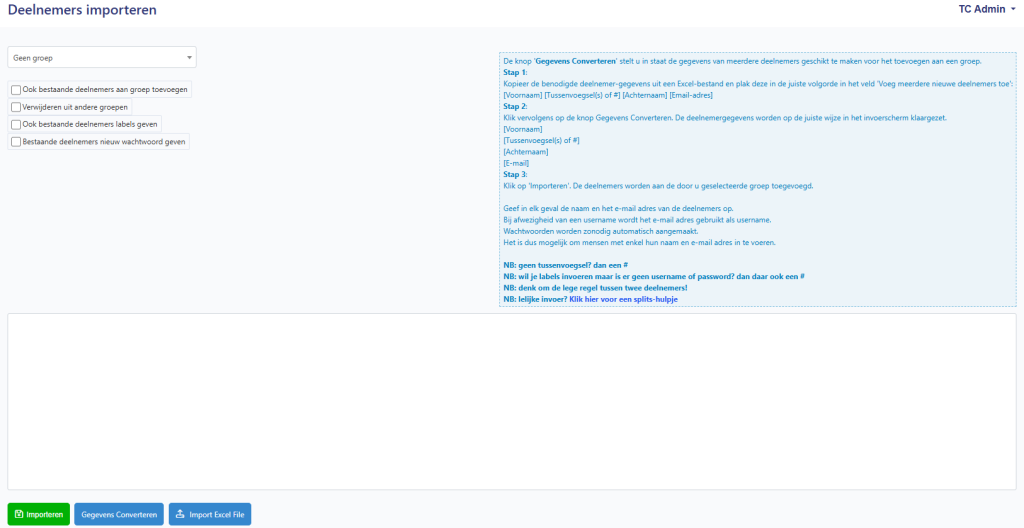
3. Now you can see a table with the information you have to fill in to import multiple users to your portal at once. You can enter the information of one or more users.
Method 1: Manual Input
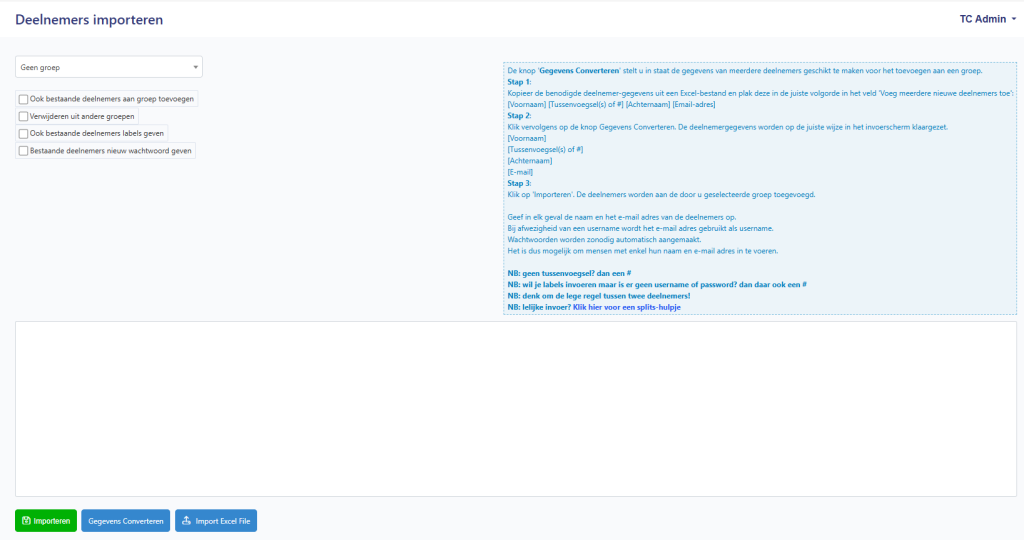
- Select a group
Choose a group from the dropdown (“Geen groep” or another group).
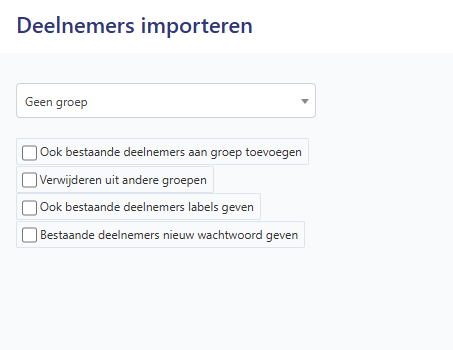
- (Optional) Select options
- Ook bestaande deelnemers aan groep toevoegen
- Verwijderen uit andere groepen
- Ook bestaande deelnemers labels geven
- Bestaande deelnemers nieuw wachtwoord geven
- Prepare your data
Copy data from Excel in this order:
Voornaam | Tussenvoegsel(s) | Achternaam | E-mail
- Paste data
Paste all participants into the text box.
- Convert data (optional)
Click “Gegevens Converteren”. - Import participants
Click “Importeren”.
Method 2: Via Excel File
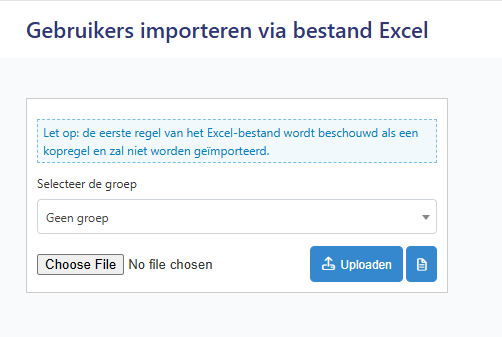
- Click “Import Excel File”
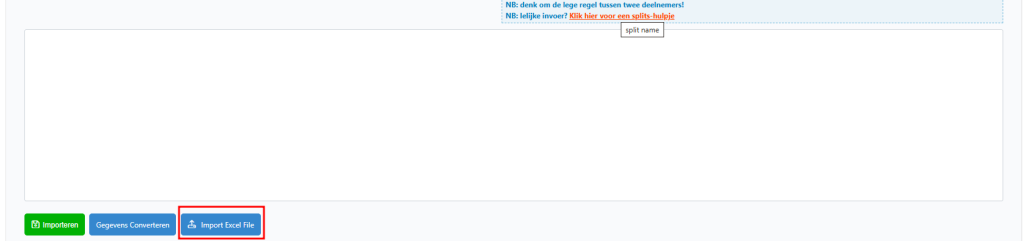
Open the screen “Gebruikers importeren via bestand Excel”.
- Read the notice
“Let op: de eerste regel van het Excel-bestand wordt beschouwd als een kopregel en zal niet worden geïmporteerd.”
→ The first row of the Excel file is treated as a header and will not be imported - Select the group
Choose an option under “Selecteer de groep” (e.g. “Geen groep”). - Choose a file
Click “Choose File” and select the Excel file - (Optional) View example
Click “Bekijk het voorbeeldbestand” to see a sample file
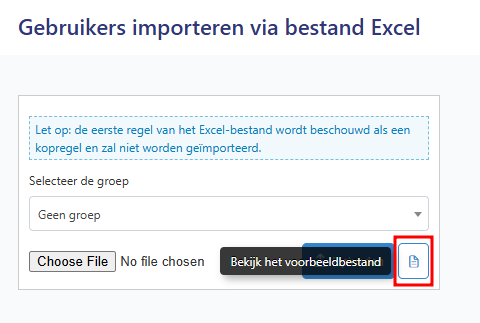
- Upload the fileClick “Uploaden” to import users.